
Summary
In this article we walk through how to create a Change Order (G701, G701S, G731, G741, G741S) in Catina, take the document offline, creating future Change Orders quickly, along with highlighting the improvements released February 2026. This includes the unlocking of fields and ability to duplicate Change Orders.
Creating a Change Order in Catina
To create a Change Order in Catina navigate to catina.aiacontracts.com then:
- Click your project from the projects tab (or create a new project).
- Select the +New AIA Document
- Select the appropriate Change Order document you need for your project then click Configure.
- Enter in your project details and click Create Document.
- From here you can fill in any required information in the blue variables throughout the document.
- Use the Preview button in the toolbar to see exactly what your final document will look like at any point in the editing process.
- When ready to finalize, click the Next button, or select Configure Signature to set up signatures, preview your document, and turn your document into a finalized PDF.
Editing a Change Order Offline
Do you need to edit your document offline or share with someone outside your organization? Catina makes it easy to take your Change Order offline at any point during the editing process. To edit offline, you will follow the steps above to create your Change Order. Then when ready:
-
While in Edit Document, Click the Offline Editing button in your toolbar. This will trigger a download of your document into your computer.
Important note: once you take a document offline, you cannot use the online editor or any features like the preview button).
- Edit your document offline with your computer. Here you can share, email, collaborate as needed.
- Once ready to finalize, come back to catina.aiacontracts.com and select your project.
- Find your document listed within the project and click the title.
- Drop/browse your computer to import in your document.
-
Then select Configure Signature when ready to set up signatures, preview your document, and turn your document into a finalized PDF.
Important Note: If you prefer, you can also finalize using the +New Button > Finalize AIA Document. However, this will create a new instance of the document within the project.
Creating the Next Change Order
When ready, Catina makes it easy to create your next Change Order from a previous one, saving you time and reducing error. To create your next Change Order with information automatically populated in:
- Click the Project Tab
- Select your Project then click +New AIA Document.
- Select the appropriate Change Order document you need for your project then click Configure.
-
Under Document Settings - Start from previous form click Yes and select the last Change Order from the drop down. Then click Create Document.
Important Note: Contact information does not automatically populate from the last change order, so it is important at this step to select your contacts or use the Project Team feature within the project tab to automatically populate for you.
- This will open up the Change Order in the online editor with all information auto-populated from the previous change order.
- Follow the same path as your first Change Order to edit (online or offline) and finalize your document.
Duplicating my Change Order
You can quickly duplicate or copy your Change Order with Catina saving you time and reducing error. We recommend entering in any project specific data first when creating your template, follow the steps below, then go back in and enter role specific information.
- Create your Change Order using the steps above.
-
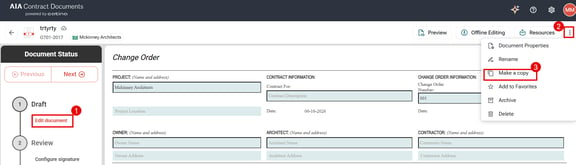
Once the online editor opens, click the three dots at the top right and select Make a Copy.
-
Here you can configure your new document - change the name, assign to the appropriate project, and set the project team.
Important Note: If you want variables or project team information to carry over, make sure they are toggled to green.
- When ready, click Create. This will automatically take you over to the new copy of your document to continue editing as needed.
We have unlocked the various fields within the Change Order, allowing it to be modified as needed.
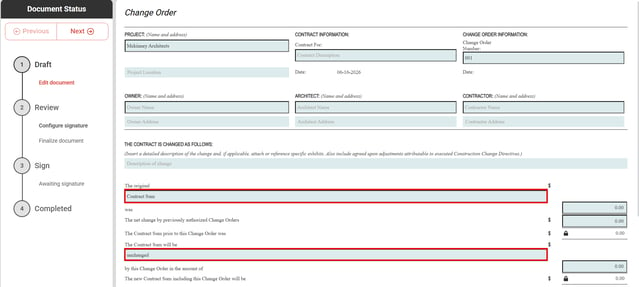
This selection drives the calculations on the right-hand side, so you may see totals change as you toggle between the options. This is also applied to the document when working offline.
Troubleshooting Tip: If you are decreasing your amount, make sure you select decreasing from the drop down and then enter a "positive" number. This will automatically apply a negative number when you select decrease, so a positive number will subtract form the total.