
Summary
This article explains what happens when a document is finalized in Catina and additional changes are needed. It covers the differences between eSignature and ink signature workflows, and outlines when and how you can revert a document back to Draft Status for further editing.
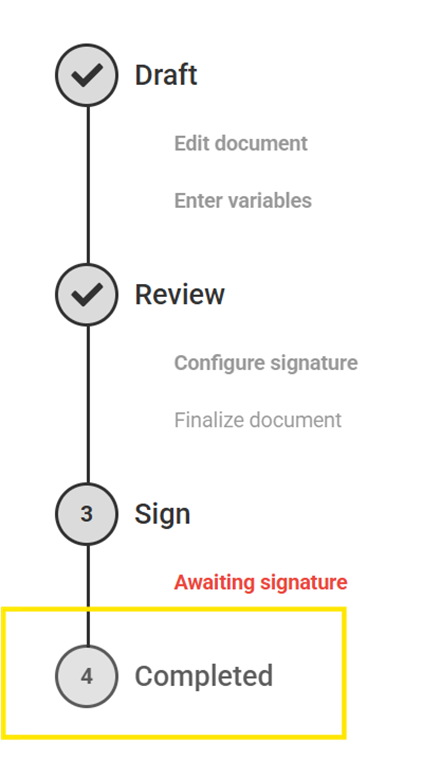
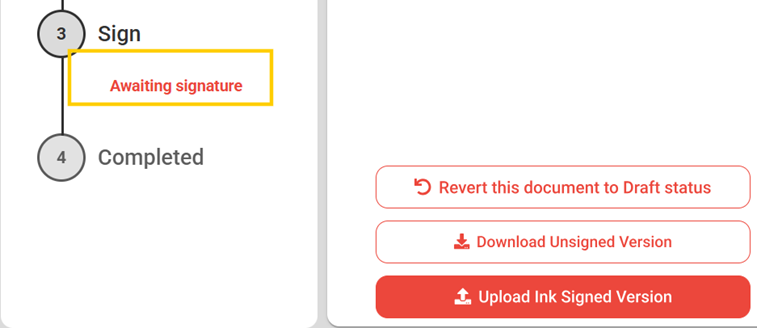
- If you are using an eSignature, you can revert it back to Draft Status up until it is Completed.

2. Clicking Revert back to draft will send an automated email wit the subject line “Voided: Review & sign AIA Contract Document”
3. Once Completed you can no longer revert to Draft Status.
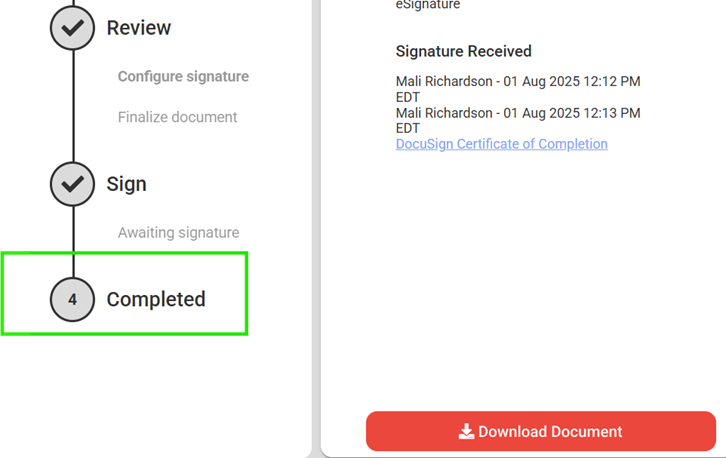
4. Once it is Completed you will only have the option to Download Document
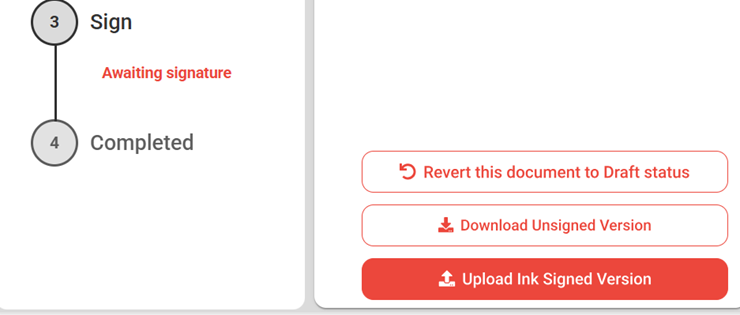
5. If you are using an ink signature, you can revert it back to Draft Status after signing and uploading into Catina.
6. By selecting delete ink signed version
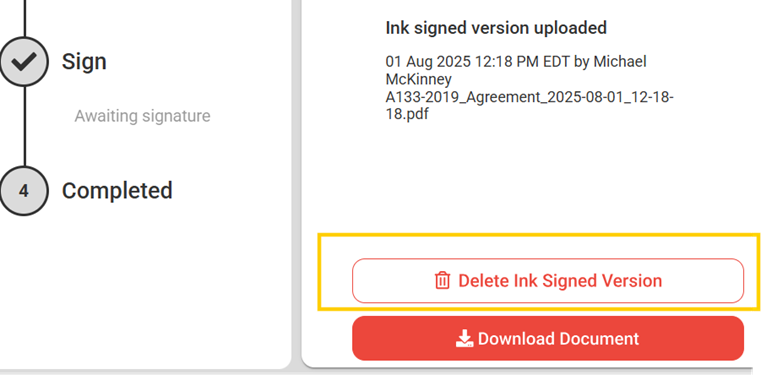
7. This will place it back into awaiting Signature Mode
FAQ
Q: Can I make changes to a document after it’s been eSigned?
A: Once a document is fully eSigned and marked as Completed, it cannot be edited. However, you can use the Revert to Draft option before it is completed. This will void the eSignature and allow you to make revisions.
Q: Will signers be notified if I revert an eSigned document to Draft?
A: Yes. Reverting to Draft automatically sends an email to all signers with the subject line: “Voided: Review & sign AIA Contract Document.”
Q: Can I revert an ink-signed document back to Draft?
A: Yes. If a document was signed by hand and uploaded, you can delete the uploaded version. This will return the document to Awaiting Signature status so edits can be made.
Q: What happens to my finalized document if I need to start over?
A: You’ll need to either revert it (if possible) or duplicate the document and make changes to the new version. Finalized documents cannot be edited directly.
Q: I don’t see the option to revert — what should I do?
A: If the document is already marked as Completed, the revert option is no longer available. In this case, you’ll need to create a new version of the document with your updates.