
The article "Importing ACD5 draft documents using the Finalize AIA Document option" guides users through the process of Importing an ACD5 draft document into Catina using the Finalize AIA Document button to remove the watermark and generate a final PDF version.
- Log into Catina
- Click +New button in top left-hand corner.
- Select Finalize AIA Document
- Here you can drop in your document or browse within your computer. Then click open.
*Troubleshooting tip: You may be asked to select which document type and name for which ACD5 document you are trying to import. If asked, select from the drop-down menu and click next.
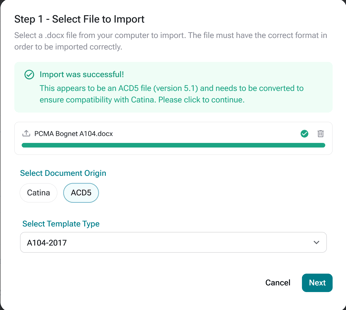
5. You have the option to rename your document and add a signing authority if applicable and when ready click continue.
6. Then, select an existing project or create a new project. Then select finish to finalize your document.
7. Here you will see your finalized document in PDF form. You can use the buttons in the right-hand corner to print or download your document for ink signature.
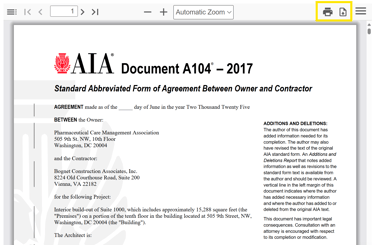
*Important: At the moment, ACD5 documents are not able to be sent off for eSignature. However, you can print or download your document to use a wet signature or leverage your organization’s own digital signing software. Our Product and Development Team is evaluating this functionality for a future iteration.
FAQ's
1. Why can I not send my finalized ACD5 document off for eSignature?
At the moment, ACD5 documents are not able to be sent off for eSignature. However, you can print or download your document to use a wet signature or leverage your organization’s own digital signing software. Our Product and Development Team is evaluating this functionality for a future iteration.
2. What happens if I need to make changes after finalizing the document?
If changes are needed after finalization, you must re-upload the updated version of the document using the same steps above.
3. How do I remove the Draft status off my document?
Finalizing the document will remove the draft status.