
Summary
In this article we walk through how to use the Document Outline in the Catina V2 Editor to move quickly through sections or clauses in your agreement.
Using the Document Outline

The Document Outline helps you move through longer agreements without scrolling page by page.
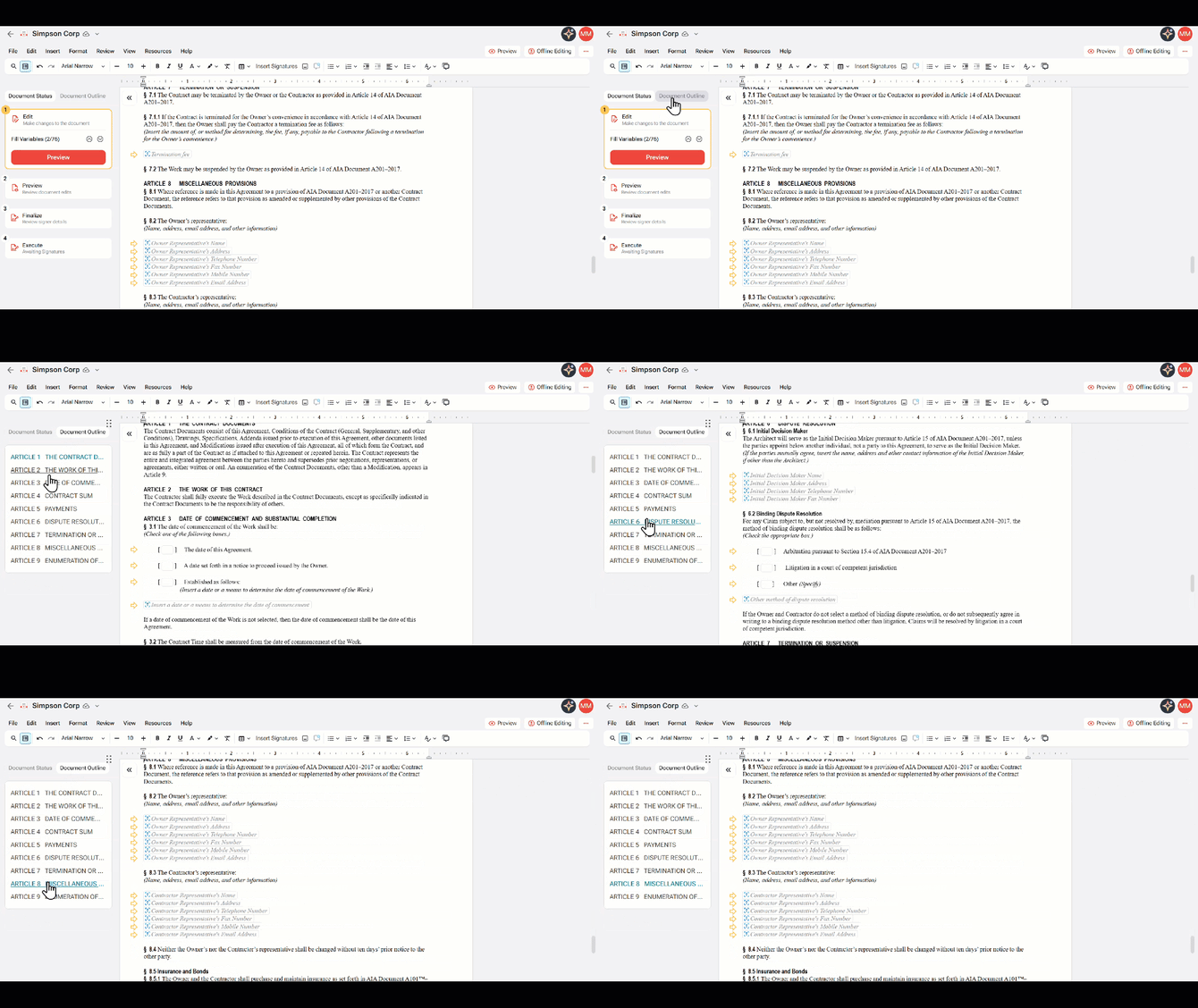
- Open your document in the Editor.
- Open the left panel.
- Select the Document Outline.
- Review the list of major sections or clauses.
- Select a section or clause to jump directly to that part of the agreement.
- Make any needed edits.
- Continue reviewing until the document is complete.
Important Note: The Document Outline is intended to help with navigation. It does not replace reviewing the full document before finalization.
FAQ
Q: What is the Document Outline used for?
A: The Document Outline provides a list of major sections or clauses in your agreement, allowing you to quickly navigate to different parts of the document without scrolling.
Q: Does the Document Outline change my document?
A: No. The Document Outline is a navigation tool only. Selecting a section moves you to that location in the document but does not modify the document content.
Q: Do I still need to review the entire document before finalizing?
A: Yes. The Document Outline makes navigation easier, but you should still review the entire document, including edits, variables, and tracked changes, before finalizing.