
Summary
We've made a small change to the offline workflow in Catina that now takes an offline document directly to finalization. To learn about the new process, we've put together this quick help resource.
Finalizing an Offline Document
When ready to finalize an offline document in Catina:
-
Click My Projects and select your Project.
- Select Finalize AIA Document.
- Browse for your file or drag and drop it into the import box, then click Next.
- Confirm your project and click Continue.
- Rename your document if needed, then click Continue.
- Preview your document in both clean and comparison markup views. To download or print the preview, use the buttons in the toolbar.
Pro Tip: If anything needs cleaning up, make the edits in your Microsoft Word document, then click Replace Document in the top right to upload the latest version.
- When you’re ready to finalize, click Add Signers to set up signatures, still with the option for ink or e-sign and ability to add as many signers or change roles as needed.
- After you confirm your signing preferences, click Finalize. Your final PDF will be generated with the AIA Seal applied.
Making Further Edits
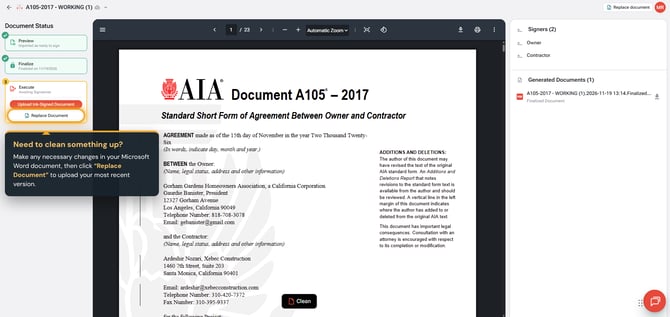
If you need to make more edits after finalizing, you can replace the document:
-
In the Execute stage, click Replace Document.
-
Browse for your updated file or drag and drop it into the import box, then click Replace.
Your document is replaced, and you return to the Preview step. From there, review the document and complete the finalization process again.
Note: The replacement must be the same AIA document type as the original. To finalize a different document, start a new finalization by following the steps above.
FAQS
Why doesn't my Word document open in the Catina editor?
Documents uploaded through Finalize AIA Document go straight to Preview and Finalize. Keeping your document in its original Word format protects its integrity, because it isn't converted back and forth between formats.
Should I accept tracked changes before uploading?
Yes. For a smoother finalization, accept all tracked changes in Word before you import your document.
How can I review my document before finalizing?
After upload, your document opens in Preview. You can view it in Clean or Comparative markup, and download or print it from the toolbar.
How do I make changes after uploading?
Make your edits in your Word document, then click Replace Document to upload the revised file. You can then preview and finalize the new version.
Can I move my uploaded Word document into the online editor?
No. Documents uploaded for offline finalization stay in Preview and can't be edited in the Catina editor. Make any further changes in Word and upload them with Replace Document.
Does this limit how many times I can edit or finalize?
No. With an unlimited subscription, you can edit and finalize your documents as many times as you need. You will just need to replace the document each time you need to finalize.
Who can I contact if I need help?
Email our support team at support@aiacontracts.com to open a support ticket.