
Summary
In this article we walk through the Catina New Editor document workflow and explain what happens during each stage: Edit, Preview, Finalize, and Execute.
Understanding the Workflow
The Catina V2 Editor guides your document through four main stages.

- Use Edit to make changes to your agreement, complete variables, review tracked changes, and configure signature blocks.
- Use Preview to review a DRAFT-watermarked PDF before creating the official version.
- Use Finalize to generate the official finalized document.
- Use Execute to download the finalized document and complete signatures.
Important Note: Review edits, variables, tracked changes, and signer information before finalizing your document.
Moving from Edit to Preview
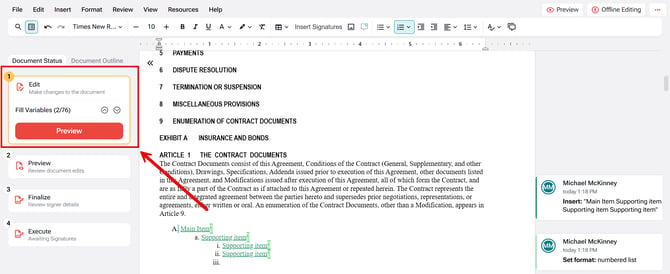
Use Preview when your document is ready for review.
- Complete any required edits in the Editor.
- Review remaining variables.
- Review tracked changes.
- Select Preview (acknowledge the pending tracked changes will be accepted).
- Review the DRAFT-watermarked PDF.
- Select Add Signers to add or update signer details.
- Confirm signer names, roles, email addresses, and signing order before moving forward.
Important Note: E-signature requires an email address for each signer. Any tracked changes that are not rejected may be applied when you move forward in the document workflow.
Moving from Preview to Finalize
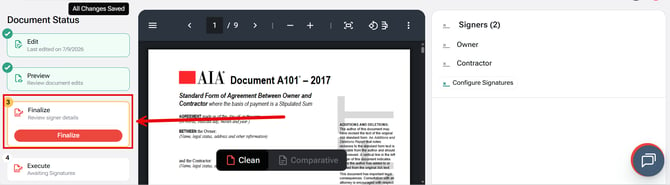
Use Finalize when the draft PDF has been reviewed and the document is ready to become the official version.
- Review the DRAFT-watermarked PDF in Preview.
- Confirm that edits, variables, and formatting appear correctly.
- Confirm signer details.
- Select Finalize.
- Enter the Signing Authority name if prompted (Not required).
- Choose the final markup format:
- Clean
- Comparative
- Choose Finalize Document.
Important Note: Finalizing creates the official version of the document and moves it to the Execute stage.
Moving from Finalize to Execute
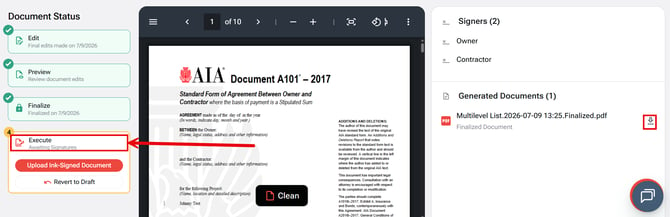
After finalization, the document moves to the Execute stage.
- Download the final PDF from the Generated Documents panel.
- Complete signatures using ink signature or DocuSign.
- Monitor signature status if using e-signature.
FAQ
Q: Can I make changes after I finalize my document?
A: No. Once a document has been finalized, it becomes the official version and can no longer be edited. If additional changes are needed, you will need to create a new draft or start a new document workflow, depending on your organization's process.
Q: What happens to tracked changes when I move to Preview?
A: When you select Preview, any tracked changes that have not been rejected may be applied as part of the document workflow. Be sure to review all tracked changes before moving from the Edit stage.
Q: Do I have to use DocuSign to collect signatures?
A: No. After your document reaches the Execute stage, you can either download the finalized PDF for ink signatures or use DocuSign for electronic signatures. If using e-signature, each signer must have a valid email address.