
Summary
Tracked Changes help you see what has changed in your document as you work. You can review additions, deletions, and other updates before finalizing, making it easier to verify changes, collaborate with others, and ensure your document is accurate.
Using Tracked Changes
Tracked changes help document edits remain visible before finalization allowing you to review changes before finalization.
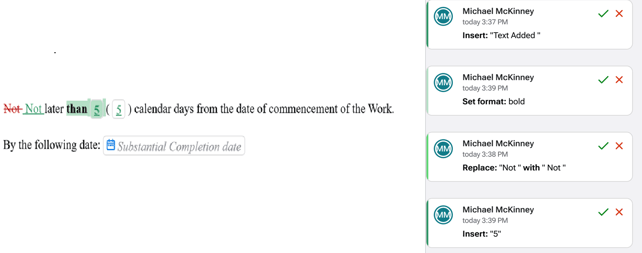
Tracked changes are visible on the right side of the document and can show:
- Added text
- Deleted text
- Replaced text
- Formatting changes
- Variable updates
Before moving forward in the workflow, review tracked changes carefully. Changes that are not rejected will be applied when advancing to Preview or Finalization.
Generated Documents
After finalization, Catina creates finalized documents that can be accessed from the Generated Documents panel.
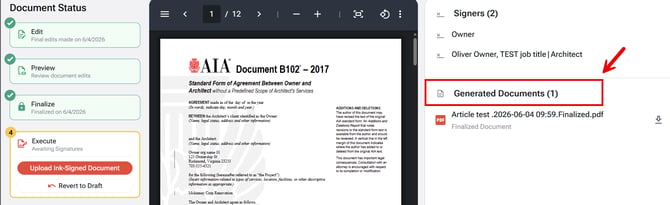
Depending on the workflow, this may include:
- Finalized PDF
- Clean version
- Comparative version
- Additions and Deletions report
- Executed document returned through DocuSign, if e-signature is used
Reverting to Draft
If changes are needed after finalization, you may be able to select Revert to Draft.
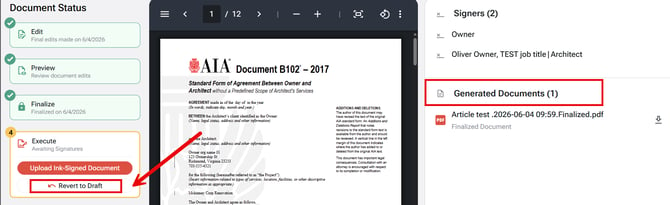
Important notes:
- Reverting to draft allows you to return to the Editor and make updates.
- If e-signature is in progress, reverting to draft will void pending signatures.
- Once all e-signatures are complete, the document can no longer be reverted to draft.
FAQ
Q: What types of changes are shown in Tracked Changes?
A: Tracked Changes can display added text, deleted text, replaced text, formatting changes, and updates to variables, allowing you to review document changes before finalization.
Q: What documents are available after I finalize my document?
A: After finalization, the Generated Documents panel may include the finalized PDF, Clean version, Comparative version, Additions and Deletions report, and the executed document returned through DocuSign if electronic signatures were used.
Q: Can I return a finalized document to the Editor?
A: Yes, if Revert to Draft is available for your document. Reverting returns the document to the Editor so you can make additional changes. If electronic signatures are in progress, reverting will void any pending signatures. Once all electronic signatures have been completed, the document can no longer be reverted to draft.
Q: After accepting a change, can I restore the original template language?
A: You cannot undo an accepted change directly. Use comparison mode as your source of truth so you can remove an addition, re-enter deleted language or copy the original language back into the document.
Q: What happens if I accept all changes and then need to make additional edits?
A: If you select Accept All and later revert the document to draft status, the tracked changes will reopen. You can review, accept, or reject them individually, or select Accept All again. This applies only to “Accept All” changes.
Q: When multiple people work in the same document, how can I identify each person's edits?
A: The track changes panel identifies each change with the user's name and a timestamp. Users can also comment on individual changes to support collaboration. Color-coding is not unique to the user. Additions appear in green, and deletions appear in red for all users.