
Summary
The New Catina Editor provides two ways to reuse documents without starting from scratch:
- Save as Copy creates another editable version of an existing document.
- Save as Custom Template creates a reusable template that can be used to generate new documents for multiple projects.
Use Save as Copy when you need another version of a document. Use Save as Custom Template when you want to create a standardized document that your organization will use repeatedly.
Save a Copy - When to Use Save as Copy
Use Save as Copy when you want to:
- Create another editable version of a document
- Preserve the original document before making changes
- Duplicate a document for another project
The copied document is independent of the original. Changes made to the copy do not affect the original document.
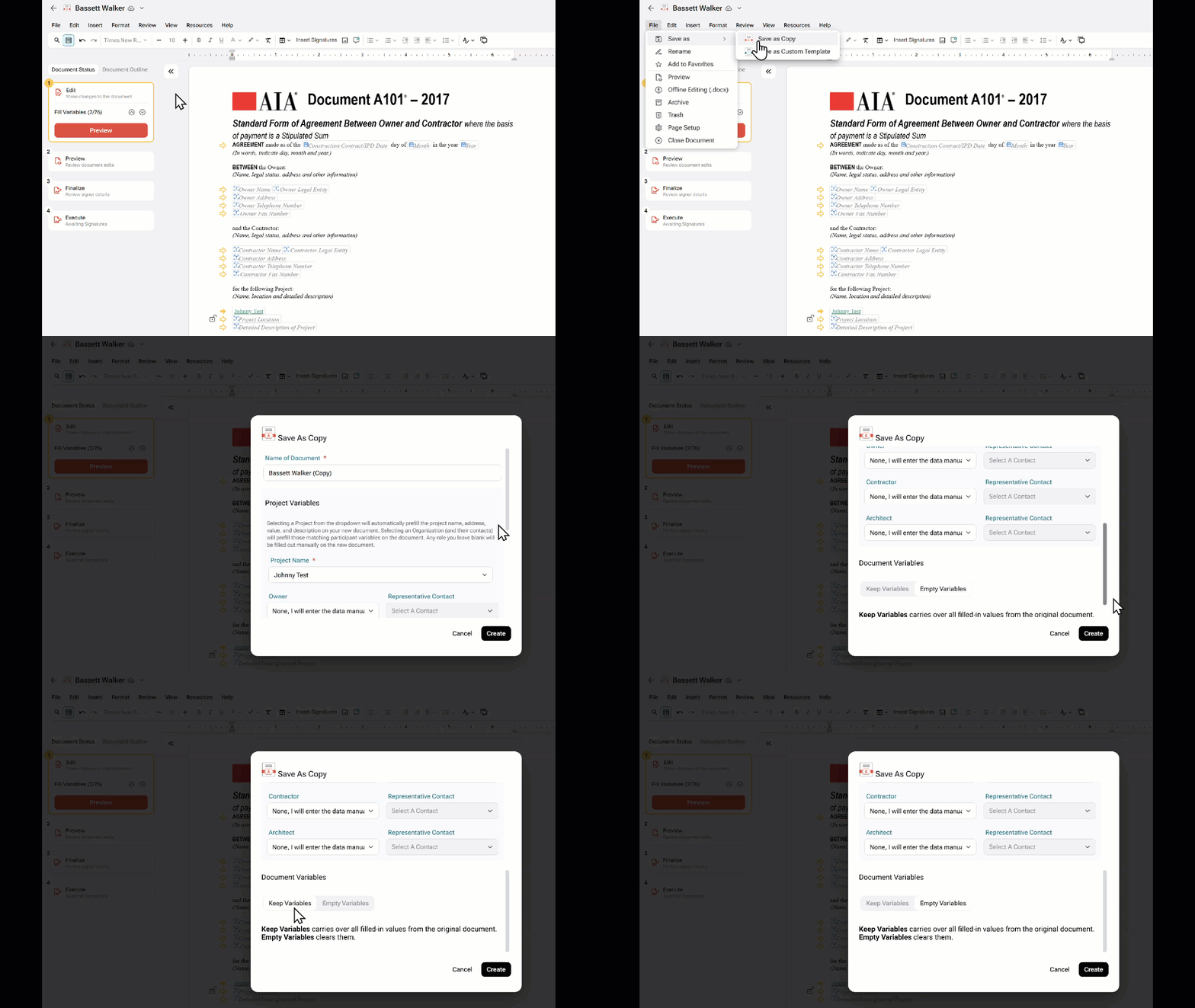
Save a Copy
- Open the document in the Catina Editor.
- Select File.
- Select Save as Copy.
- Enter a name for the new document.
- Select a destination project.
- Verify the Project Variables
- Select to Keep or Empty the variables (Keep Variables carries over all filled-in values from the original document. Empty Variables clears them.)
- Select Create.
A new editable document is created while the original document remains unchanged.
Save a Document as a Custom Template When to Use Custom TemplatesIf your organization regularly uses the same document with only minor project-specific changes, save it as a Custom Template.
Custom templates are ideal for:
- Company-standard agreements
- Legal-approved document language
- Frequently used contract documents
- Documents that are reused across multiple projects
Once created, a custom template can be used repeatedly without modifying the original.
Save as a Custom Template
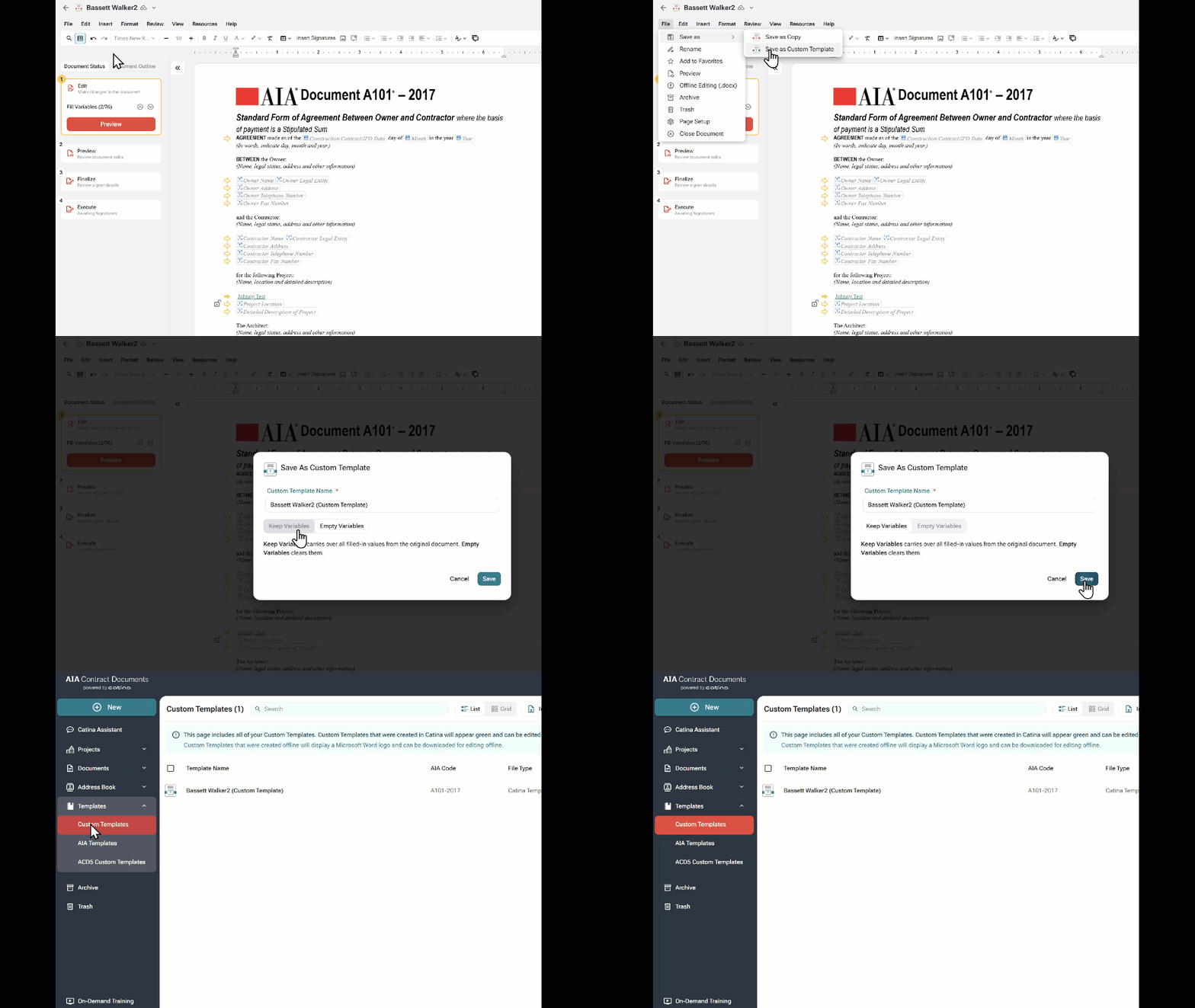
- Open the document in the Catina Editor.
- Select File.
- Select Save as Custom Template.
- Enter a name for the new document.
- Select to Keep or Empty the variables (Keep Variables carries over all filled-in values from the original document. Empty Variables clears them.)
- Select Save.
The document is added to your Custom Templates library.
Tip: Use descriptive names such as Standard Owner Agreement, Consultant Agreement, or Project Proposal to make templates easier to locate.
Create a Document from a Custom Template
After creating a custom template, you can use it whenever you need to create a new document.
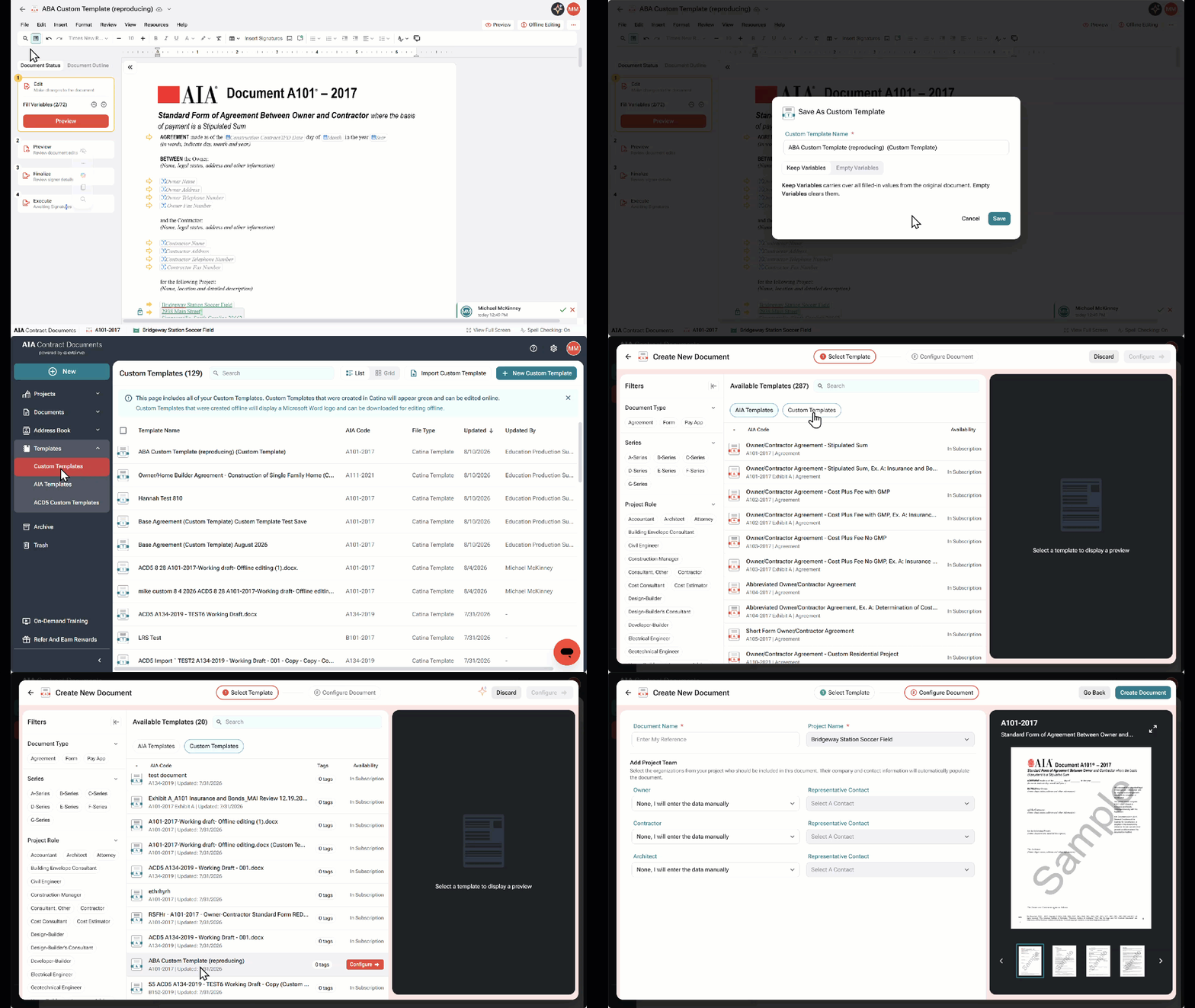
- Open the project where you want to create the document.
- Select +New Aia Document
- Select Custom Templates and click on your Custom Template
- Select Configure (or download)
- Enter a name for the new document.
- Add your project Team (Optional)
- Select Create Document.
Catina creates a new editable document using the template. The original custom template remains unchanged.
Reuse the Same Template for Multiple Projects
Custom templates are designed to be reused.
Each time you begin a new project:
- Open the project.
- Create a new document from the custom template.
- Update project-specific information, including:
- Project name
- Owner
- Contractor
- Dates
- Variables
- Other project details
- Edit the document as needed.
- Finalize the document.
The original custom template remains available for future projects.
Save as Copy vs. Save as Custom Template| Feature | Save as Copy | Save as Custom Template |
|---|---|---|
| Creates another editable document | ✓ | |
| Preserves the original document | ✓ | ✓ |
| Reusable across multiple projects | ✓ | |
| Best for one-time document variations | ✓ | |
| Best for standardized company documents | ✓ |
- Use Save as Copy when you only need another editable version of a document.
- Use Save as Custom Template for documents that will be reused across multiple projects.
- Give custom templates meaningful names so they're easy to find.
- Periodically review and update your custom templates to ensure they contain your organization's latest approved language.
FAQs
Q: What’s the difference between Save as Copy and Save as Custom Template?
A: Save as Copy creates another editable version of the current document. Save as Custom Template creates a reusable template that can be used to generate new documents for future projects.
Q: Does editing a document created from a custom template change the template?
A: No. Each document created from a custom template is independent. Changes made to the document do not affect the original custom template.
Q: Can I use the same custom template in multiple projects?
A: Yes. Custom templates are designed to be reused across multiple projects. Each time you create a document from a custom template, Catina generates a new editable document while leaving the original template unchanged.
Q: Can I edit a custom template after creating it?
A: Yes. You can open a custom template, make changes, and save the updated version. Future documents created from the template will include those changes.
Q: If our legal team customizes an AIA contract document for our firm, can we upload that version and continue editing it online?
A: Yes. Offline-edited custom templates can be converted to an online version in the new Custom Template Editor. You can then use the custom template to create and edit new agreements in Catina.
Q: How can I reuse the same standard edits each time I create a document?
A: Custom templates are ideal for this. Start with the applicable AIA contract, add your firm’s frequently used edits, and save it as a custom template. This creates a consistent starting point, reduces repetitive editing, and standardizes your firm’s processes
Q: Can I add, edit, delete, or prefill variables in a custom template?
A: Yes. In an online custom template, you can add, remove, edit, or prefill variables. When you use the template in a project, you can also include or remove variable content based on the document's needs.