
Summary:
In this article, we walk through how to keep your tables and formatting when editing a Catina agreement offline in Microsoft Word. This includes what to enter inside blue variable fields versus on the page, and how to prepare your Word file before uploading and finalizing.
If you put a table or other formatting inside a blue variable field while editing in Word, it may disappear when you upload the document back to Catina. Bold text is fine.
The fix: Put tables, lists and longer text on the page, outside the blue field.
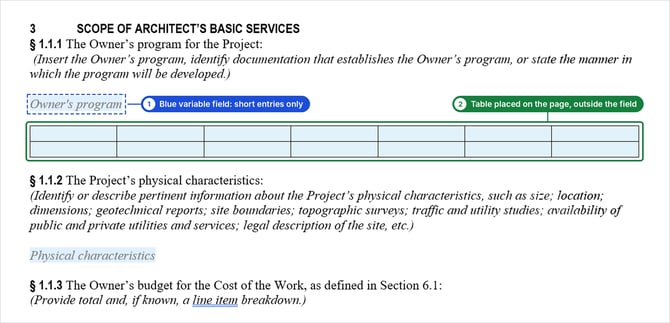
What goes where
| Inside the blue variable field | On the page, outside the field |
|---|---|
| Names, dates and amounts | Tables |
| A short phrase or sentence | Bulleted or numbered lists |
| Bold text | Multiple paragraphs |
Move a table out of a blue field
- Cut the table from inside the blue field.
- Click on the page just above or below the field.
- Paste the table.
Tip: You can leave the blue field empty. It shows as blank space in the final document.
Before you upload
Do these steps only when everyone is done editing.
- In Word, click Review > Accept > Accept All Changes.
- Click Track Changes to turn it off.
- Save the file as a .docx and upload it to Catina.
Already lost your formatting?
Take the document offline again, move the table or list outside the blue field, and upload it again.
Need more help?