
Summary
This article explains how to configure signature blocks in the Catina New Editor, including how to configure signature information while editing online and during the finalization process. It also covers working with documents edited offline in Microsoft Word and important signature block limitations when using offline editing.
Part 1: Configure Signature Blocks While Editing Your Document
You can configure signature information directly within the Catina New Editor before moving your document to Preview or Finalization.
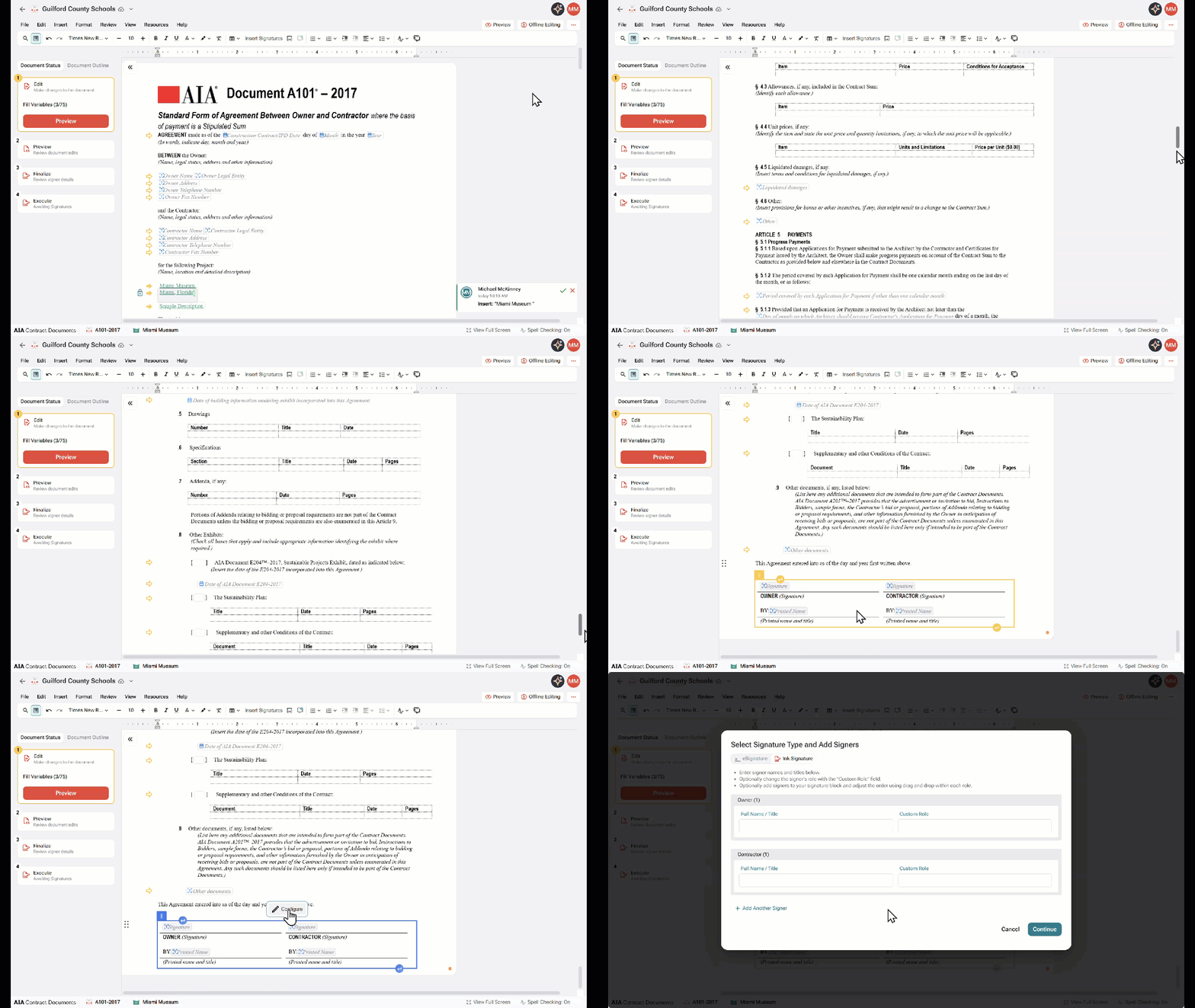
1.Open the document you want to edit in the Catina New Editor.
2. Scroll to the signature section of the document.
The signature block contains the fields used to identify the parties and individuals who will sign the agreement.
3. Click within the signature and select Configure
4. Enter or update the applicable signer information.
Depending on the document and signature block, this may include information such as:
-
Enter signer names and titles below.
-
eSigners will receive an email to complete their signature electronically.
-
Optionally change the signer's role with the "Custom Role" field.
-
Optionally add signers to your signature block and adjust the order using drag and drop within each role.
5. Confirm that the signature block displays the correct information for each signer.
6. Click Continue to continue editing your document as needed. When you are ready to finalize the agreement, move to Preview.
Tip: Configuring the signature information while editing can help ensure the document is ready before you begin the finalization process.
Part 2: Configure Signatures During the Finalization Process
If you did not complete the signature configuration while editing, you can configure the required signature information during the finalization workflow.
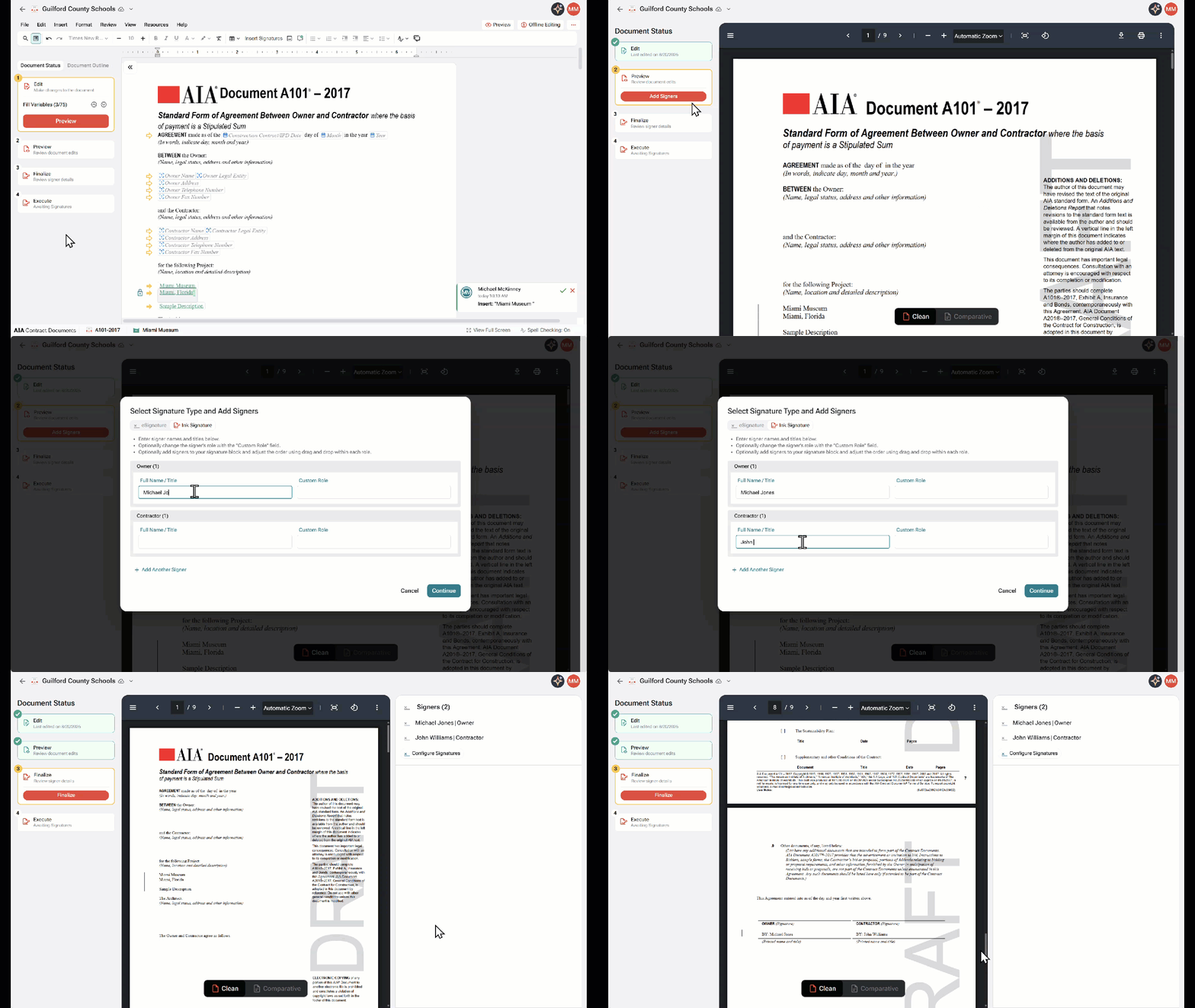
1. When you have finished editing your document, select Preview from the Editor status bar.
Review the document and confirm that it is ready to be finalized.
2. Select Add Signers
3. Enter or update the applicable signer information.
Depending on the document and signature block, this may include information such as:
5. Confirm that the signature block displays the correct information for each signer.
6. Click Continue to continue to the Finalization steps
7 . Review the signature information and continue through the remaining finalization steps.
Once the document is finalized, you can proceed with the appropriate execution method.
Part 3: Signature Block Configuration When Editing Offline
Important: Signature block configuration is only available online in the Catina Editor. You cannot configure signature blocks while editing offline in Microsoft Word. Return the document to Catina to configure the signature blocks before finalizing.
FAQ
Q: Can I include the owner's entity name in the signature block, and is there a character limit?
A: Yes. You can edit the signature block to include the owner's entity name, and there is no character limit for this information.
Q: Can I add another signature line when a party requires two signatures?
A: Yes. The New Editor allows you to add multiple signers for the same party, such as two architects. You can also add signers outside the core project parties, such as an attorney.
Q: Can I change the signer during a project if the signature block uses prepopulated information?
A: Yes. You can change the signer’s name while editing the document or configuring signatures. If the document has already been sent for e-signature, return it to draft status to cancel the outstanding requests. Then update the signer information and resend the document.
Q: If I customize a role label, will it update throughout the document or only in the signature block?
A: Changing the role label in signer configuration applies only to the signature block.
Q: Can I edit the signature block while working offline?
A: No. Signature block configuration is only available online in the Catina Editor. You cannot configure or edit the signature block while working offline in Microsoft Word. Return the document to Catina to configure the signature block.
Q: Can I edit the text that appears before the signature block?
A: Yes. Text that appears directly before the signature block can be edited while working online in the Catina Editor or offline in Microsoft Word.