
Summary
This article covers the quick steps to move a document between projects within Catina.
To move a document within Catina:
- Click the Projects Tab and select the Project the document currently lives in
- Once within the Project Hub, select the Project Files Tab if not already.
-
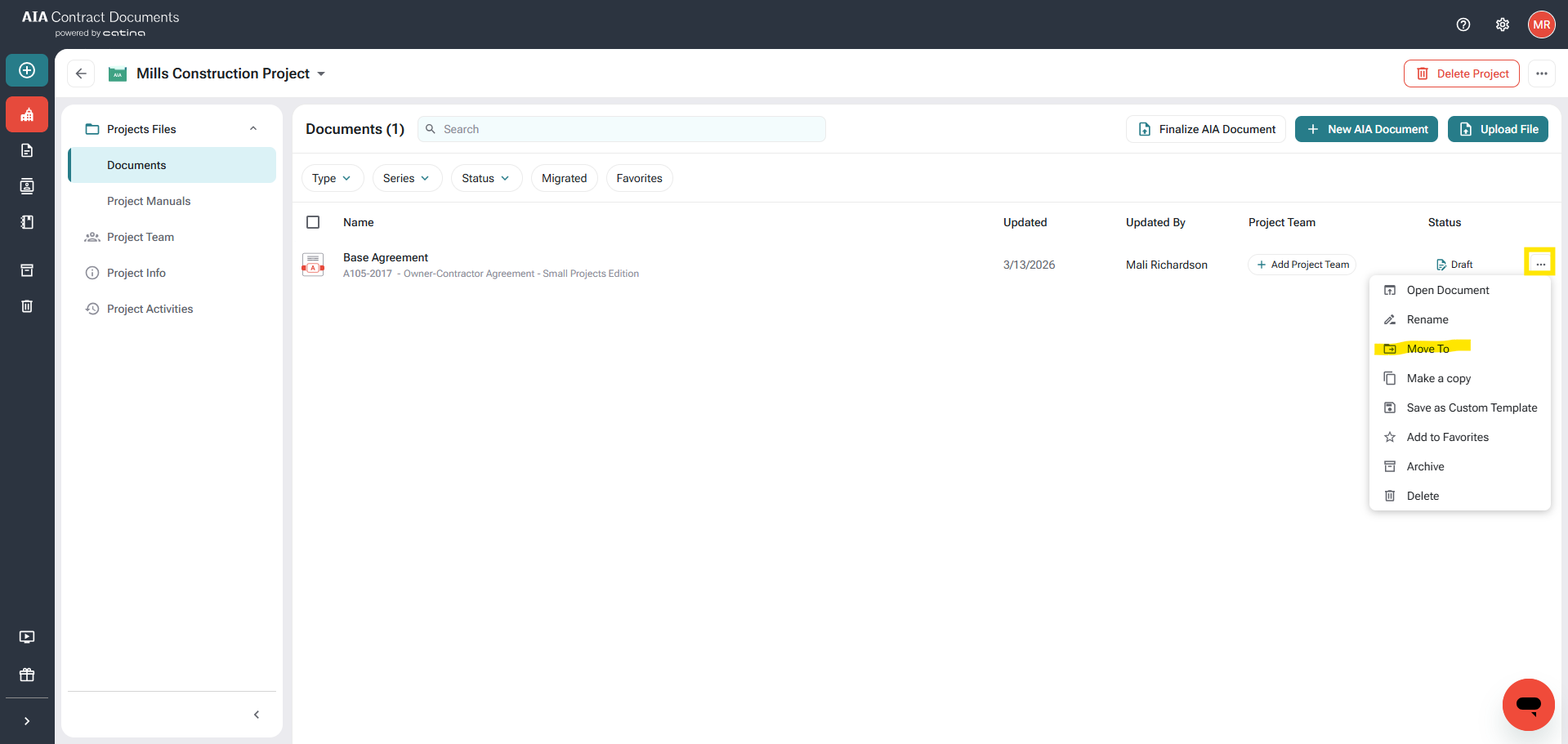
Next to your document click the three dots and select the Move To option
-
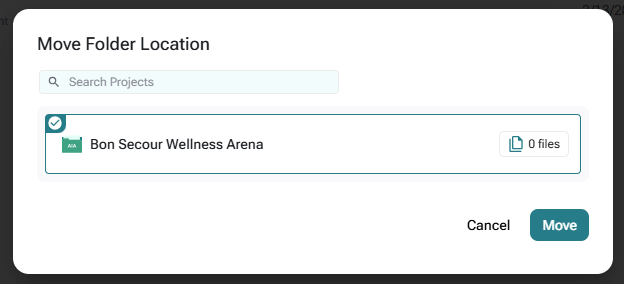
Select the project from the list and click Move.
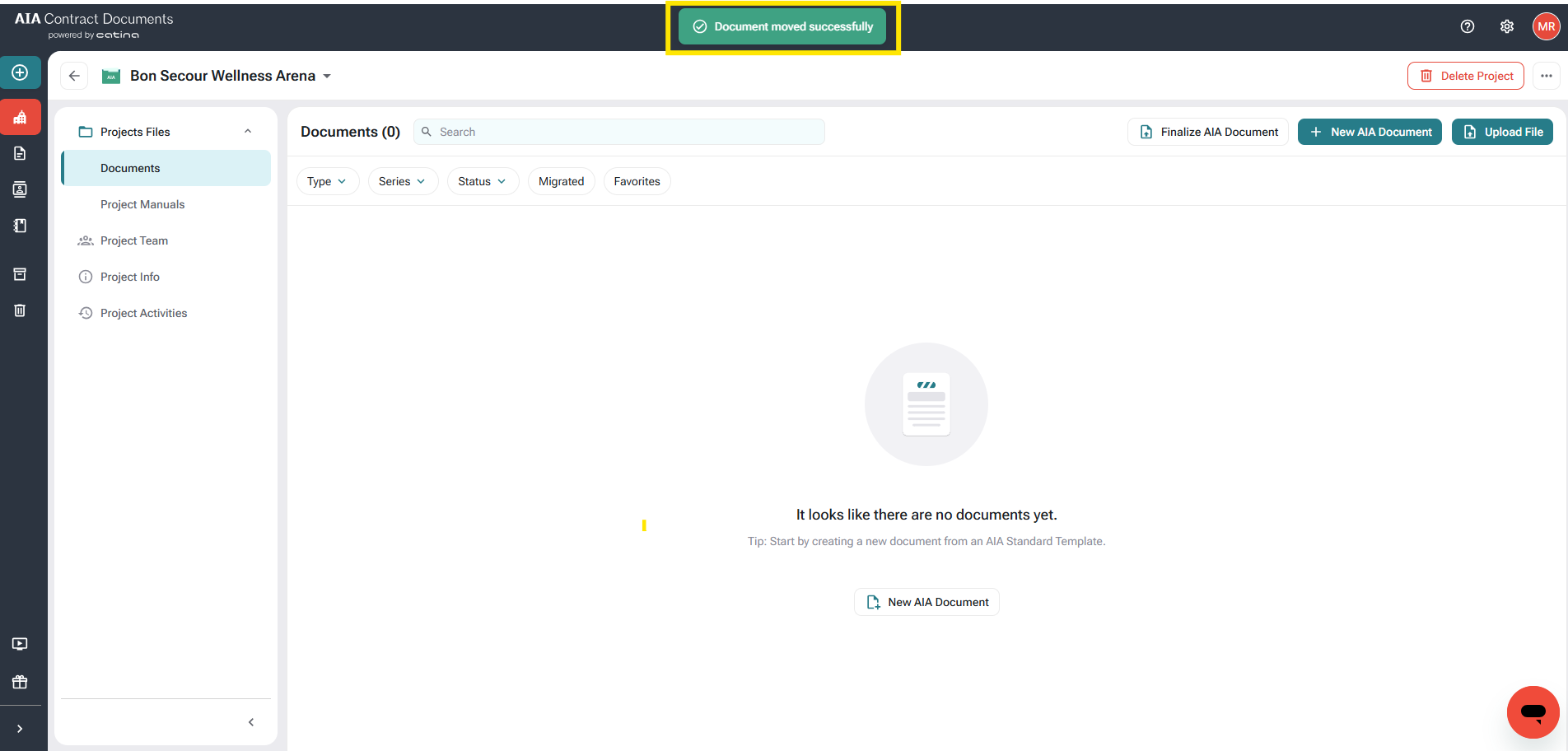
- Once complete you will see a notification at the top of the screen alerting you the move was successful.
Frequently Asked Questions
Can I move multiple documents at the same time?
Currently, documents must be moved individually using the three-dot menu next to each file.
How do I confirm the document was moved successfully?
After moving the document, a notification banner will appear at the top of the screen confirming the move was successful.
Can I move a document to any project in Catina?
You can move a document to any project that you have access to within Catina.