
If you enter an amount in the G701™–2017 Change Order and the New Contract Sum does not update, or appears locked, this is typically due to missing project-level setup information. The G701™ relies on the Contract Cost Structure / Project Value configured at the project level in Catina. If this information has not been selected, the form cannot calculate the adjusted contract sum.
How to Fix It (Step-by-Step)
Let’s walk through it together:
-
Log into Catina
-
Open the project you’re working in
-
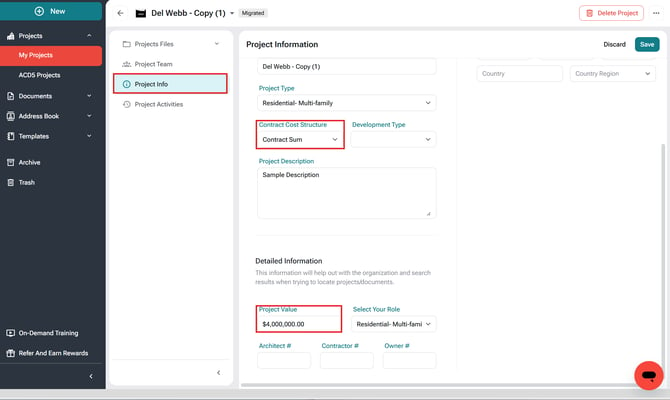
Click Edit in the upper-right corner
-
Find the Contract Cost Structure dropdown
-
Select the appropriate option
-
Enter the Project Value
-
Click Save
After You Save
Once the project is updated, you can:
-
Finalize your current Change Order or
-
(Recommended) Create a new Change Order to immediately see the updated contract sum in both the editor and preview
Either option works, choose what’s easiest for you.
Helpful Tips
-
Contract Cost Structure and Project Value are optional when creating a project
-
However, Change Orders rely on this information to calculate totals correctly
-
If you still don’t see the update, creating a new Change Order usually resolves it.
Why can’t I manually edit the New Contract Sum?
The G701™ 2017 is designed to calculate the adjusted contract amount based on project-level data. The field may appear locked if required financial setup is missing.
Do I have to create a new Change Order?
In most cases, updating the project settings will resolve the issue. However, creating a new Change Order ensures the updated configuration is fully applied.
What if I don’t see a Contract Cost Structure option?
If the dropdown is unavailable, contact your account administrator or support for assistance.