
Summary
This article explains how to organize, share, and print draft documents in Catina. You’ll learn the available options for sharing documents by using offline copies or printed versions, and when it’s necessary to add someone to a project to provide access to work directly in Catina.
Add a Comment
-
While in Edit mode, Select the text that the comment will be associated with.
-
Click on Insert.
-
Click on New Comment
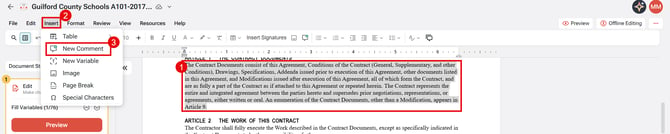
2. The Document Comments dialog is displayed.
3. Type your comment in the Comments text box, and push Enter.
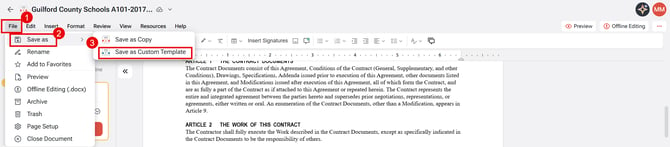
Customize As Template
You can create a custom template by changing the text in either an existing template or in a draft document and saving the edited document for reuse in your projects. Refer to Creating a Custom Template for more information.
Download a Document or Form
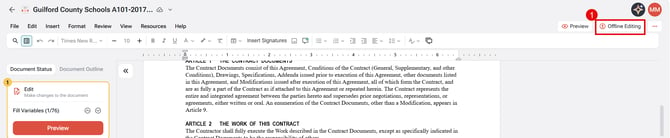
This function allows you to download a copy of the document to your computer for offline editing.
- Start by opening your project in Catina, then click into the document you need.
- Click the Offline Editing icon.
- Read and accept the disclaimer.
- Your document will download as a Microsoft Word file.
Print a Document or Form
-
Start by opening your project in Catina, then click into the document you need.
Option 1: While in edit mode. select Preview
-
Click the Print logo

- Click Print
Option 2: While in the Execute or the Awaiting Signature stage
-
Click on the Print Logo
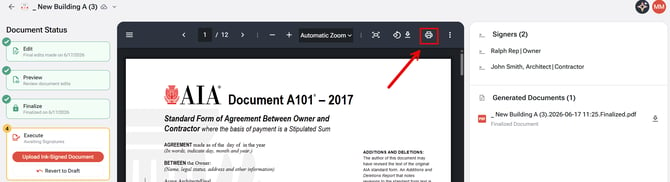
- Click Print
Option 3:
-
Open your offline word document and select File and Print
Rename a Document or Form
Option 1:
-
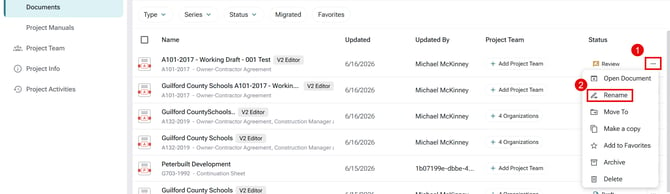
Start by opening your project in Catina, then locate the document you need.
-
Click on the 3 dots (...) and select Rename
Option 2:
-
Start by opening your project in Catina, then locate the document you need.
-
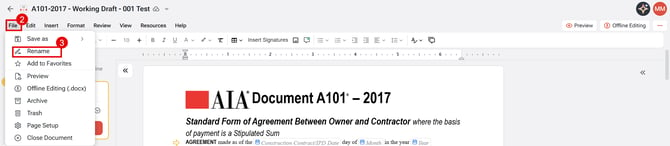
Open the document.
-
Click on the File and select Rename
Copy a Document or Form
-
Start by opening your project in Catina, then click into the document you need.
-
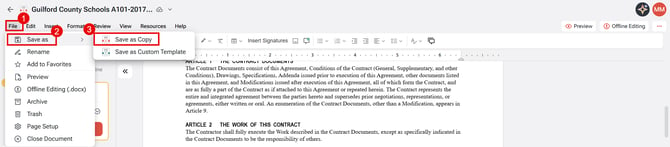
While in edit mode, Select File
-
Select Save as, then Save as Copy
3. Complete the fields in the Make a Copy dialog and select Create.
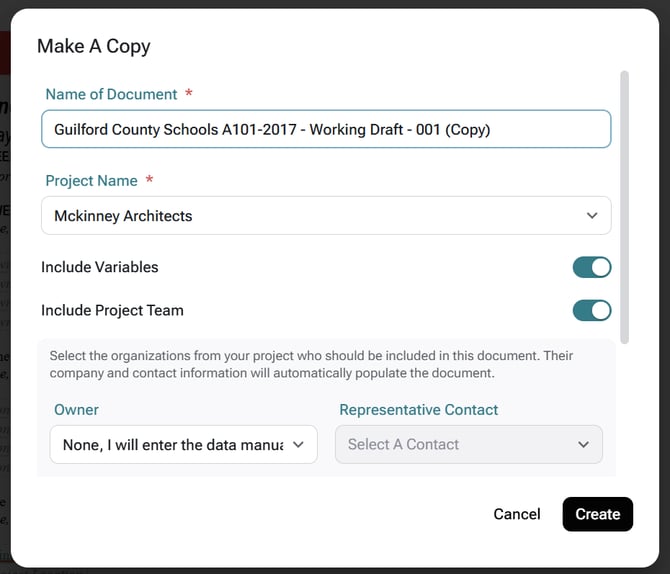
4. This will open up the new copy of the document ready for you to continue editing.
Delete a Document or Form
-
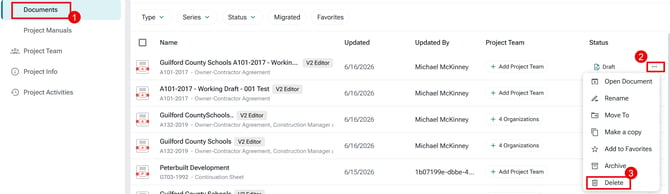
Start by opening your project in Catina, then locate the document you need.
-
-
Click on the 3 dots (...) and select Delete
- Confirm that you want to Delete (You will get a notification that the item deleted successfully).
-
You can restore the item by clicking on Trash n Selection the item and selection restore
E-mail / Share for Review
Option 1: Share an Offline Copy
You can download an offline copy of your document and attach it to an email.
-
Steps:
- Start by opening your project in Catina, then click into the document you need.
- Click the Offline Editing icon.
- Read and accept the disclaimer.
- Your document will download as a Microsoft Word file.
-
Attach the file to an email and send it to your recipient.
-
This option works well if the recipient needs a copy for review or reference.
Option 2: Print the Online Document
You can also print the online version of the document and share it as a printed copy or PDF.
-
Steps:
-
Open your project in Catina.
-
(See the print steps above)
-
-
Open the document.
- Select Preview
-
Select Print.
-
Share the printed copy or save it as a PDF and email it.
FAQ
Can I share a Catina document with someone who does not have project access?
Yes. You can download an offline copy or print the document and share it by email. If the person needs to work directly in Catina, they must be added to the project.
How do I download a document for offline editing?
Open the document in Catina, click the Offline Editing icon, read and accept the disclaimer, and the document will download as a Microsoft Word file.
Can I print a document before it is finalized?
Yes. While the document is in edit mode, select Preview, click the Print icon, and then click Print.
What happens when I copy a document or form?
Catina creates a new copy of the document. After you complete the fields in the Make a Copy dialog and select Create, the copied document opens so you can continue editing.
Can I restore a deleted document or form?
Yes. After deleting a document or form, you can go to Trash, select the item, and choose Restore.