
If a signer does not receive an email for a document signature for a form in Catina, first confirm that the signer’s email address is correct, ask them to check their spam or junk folders, and verify that their organization's email security settings are not blocking DocuSign messages.
Please note: The New Editor for agreements currently does not include a Resend Reminder option. If the signature request needs to be sent again, the current workflow is to void the existing signature request and resend it.
Confirm the Signer’s Email Address
-
Open the document in Catina.
-
Verify the signer’s email address is entered correctly and does not contain typos.
Check Spam or Junk Folders
-
Ask the signer to check their Spam, Junk, or Quarantine folders.
-
Have them search for emails sent from DocuSign NA4 System <dse_na4@docusign.net></dse_na4@docusign.net>
-
Subject lines :
-
Review & sign AIA Contract Document
-
Completed: Review & sign AIA Contract Document
-
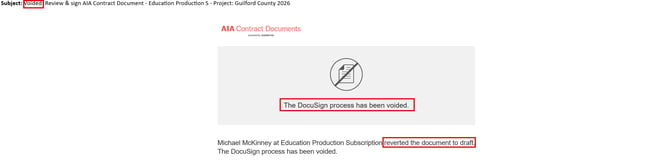
Voided: Review & sign AIA Contract Document -
-
-
Check Email Security or Firewall Settings
-
Some organizations block automated system emails.
-
The signer may need to contact their IT team to ensure Catina emails are allowed.
Resending a Signature Request for Forms
The New Editor for agreements currently does not include the Resend Reminder option. This is only available for our forms which use the original editing experience.
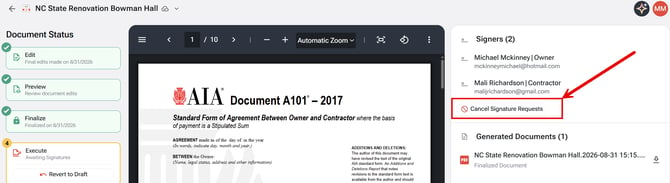
If a signature request needs to be sent again:
- Open the document in Catina.
- Locate the existing e-signature request.
- Cancel signature request (This will cancel all pending signature requests and notify all signers that the requests have been voided. The document will return to draft status so you can make edits. This action cannot be undone).
- Cancel the signature request and edit the document as needed and send a new signature request. Docusign will send a voided Notification
NOTE: Improved e-signature tracking and more targeted reminder functionality are planned for a future enhancement.
Verify the Signature Status
-
If the document has already been signed, a reminder email will not be sent.
Need Additional Help?
If the reminder email is still not received after completing the steps above, please contact Support for further assistance.
FAQs
1. Why didn’t the signer receive the reminder email?
The most common reasons include an incorrect email address, the message being filtered into spam or junk folders, or email security settings blocking automated emails from Catina.
2. Can I resend the reminder email?
Yes. Open the document in Catina, go to the Signatures or Workflow section, and select Resend Reminder.
3. Why can’t I resend a reminder for this document?
If the document has already been signed, Catina will not send reminder emails. Verify the document’s signature status before attempting to resend.