
Summary
This article explains how to identify migrated projects and what you can do with them once they appear in Catina.
Identifying Migrated Projects
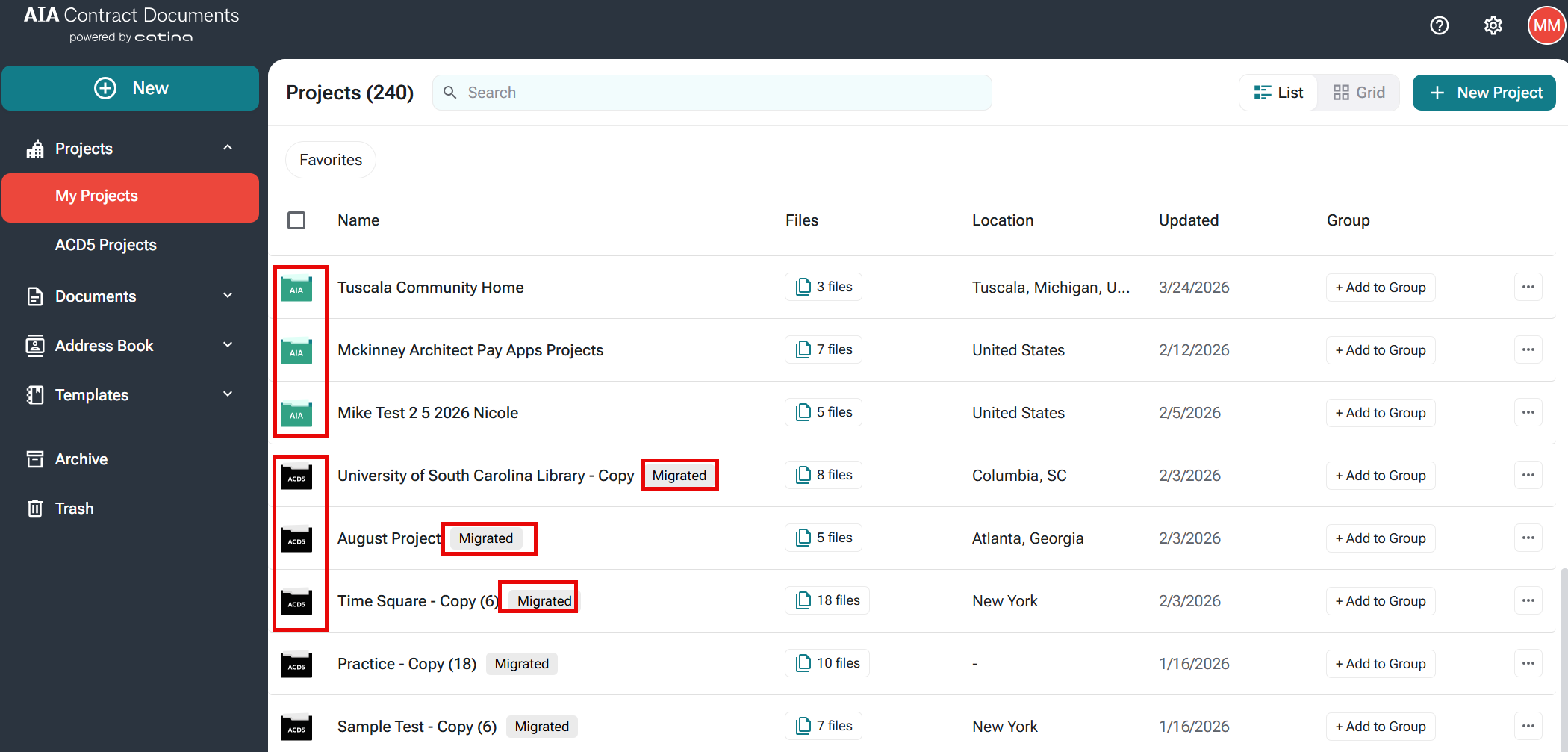
- Black folder - Migrated from ACD5
- Green folder - Created in Catina
Viewing Migrated Content
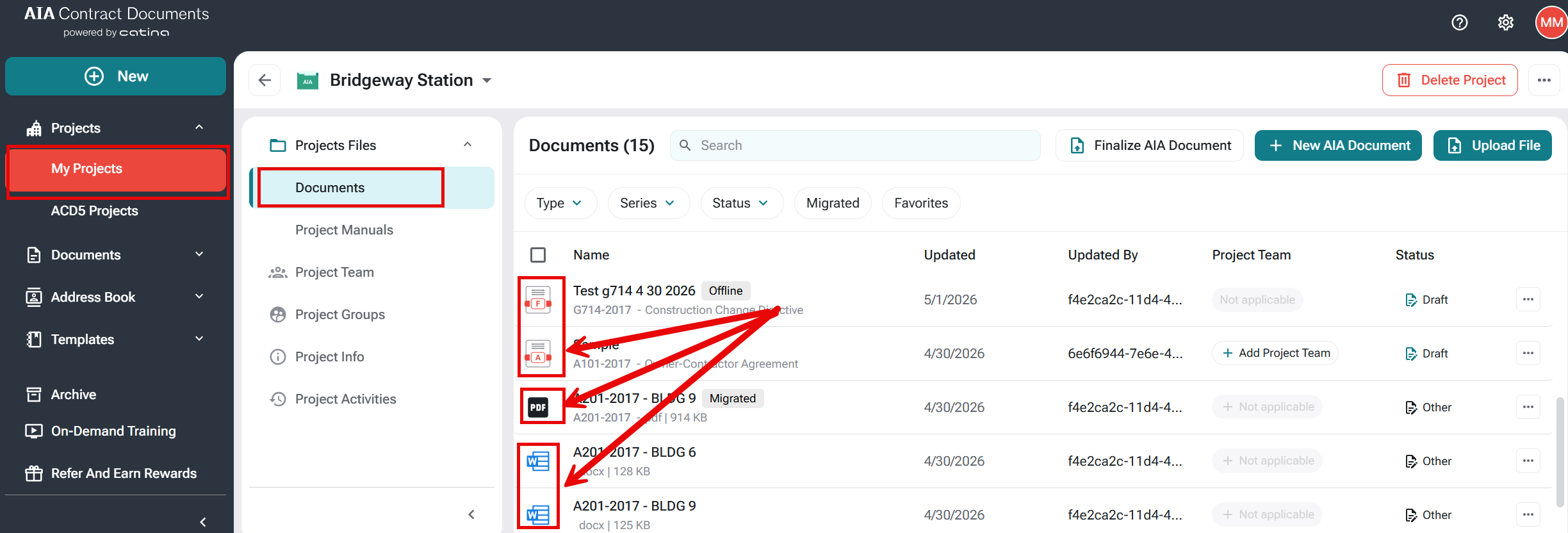
- Go to My Projects
- Click the project name
- View available items:
- Finalized documents (PDF)
- Drafts (Microsoft Word)
- Project folders
- View available details
- Document Name
- Last Updated
- Project Team
- Status
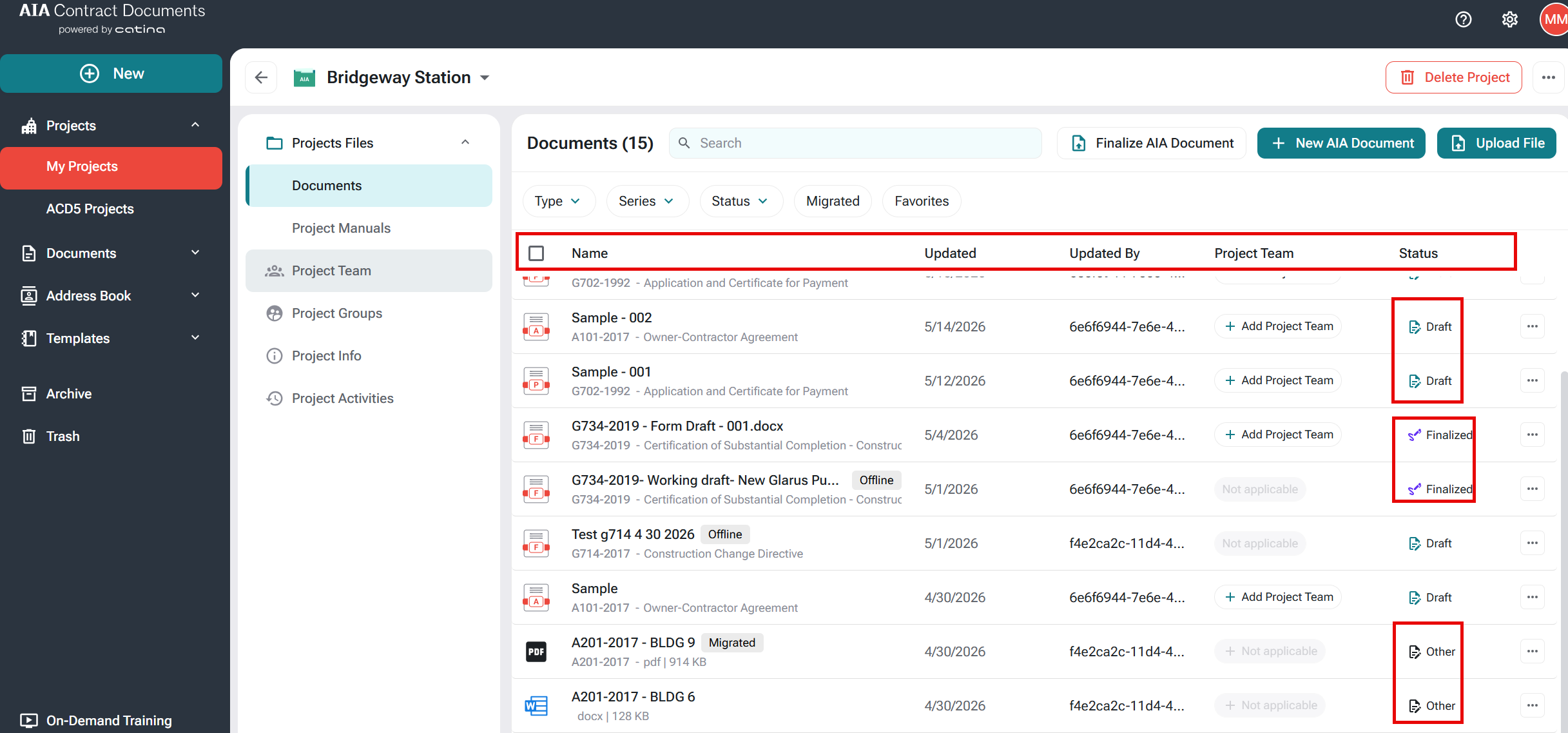
- Draft
- Finalized
- Review
- Completed
- Other
- More Options (...)
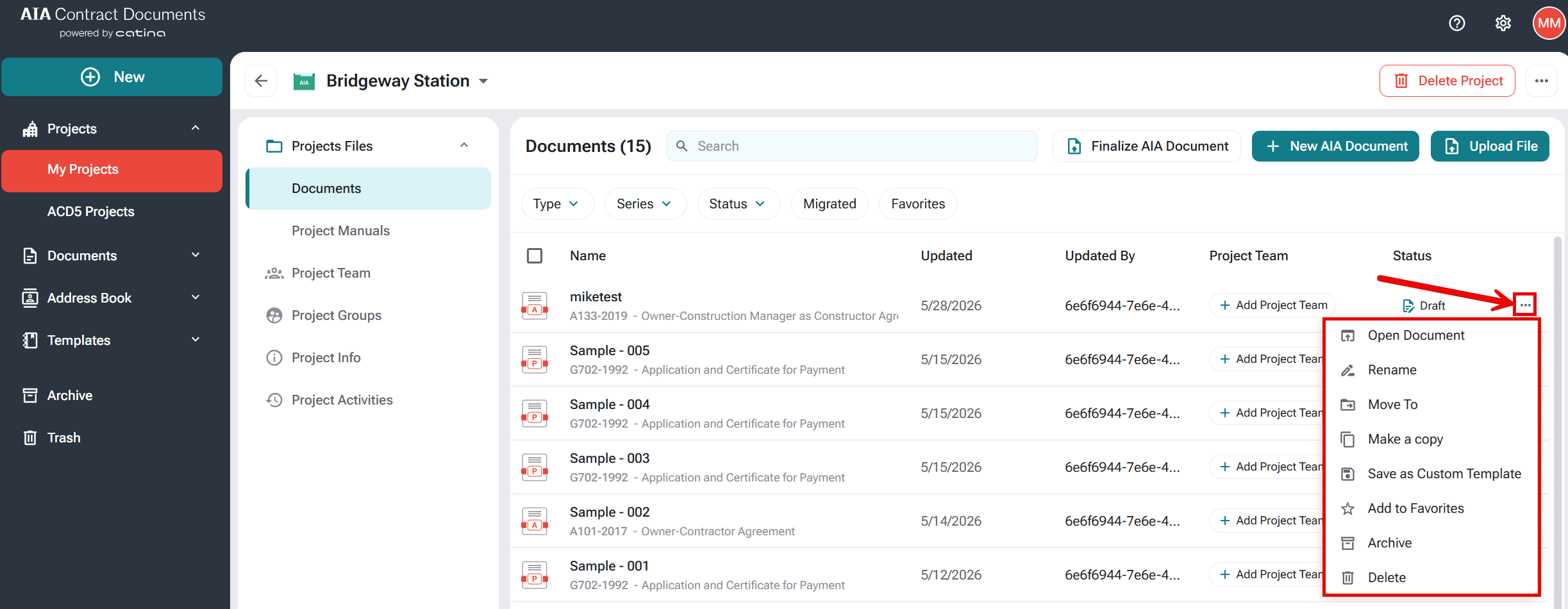
- Open Project
- Rename
- Add to Favorites
- Archive
- Delete
What You Can Do Next
From a migrated project, you can:
-
View and download finalized PDFs
-
Continue working with Catina-compatible drafts
-
Create agreements and continuation documents
-
Use migrated contacts within projects
Note: Projects with many documents may take longer to migrate.