
Summary
The article "Importing ACD5 draft documents using the Finalize AIA Document option" guides users through the process of Importing an ACD5 draft document into Catina using the Finalize AIA Document button to remove the watermark and generate a final PDF version.
1. Upload
2. Log into Catina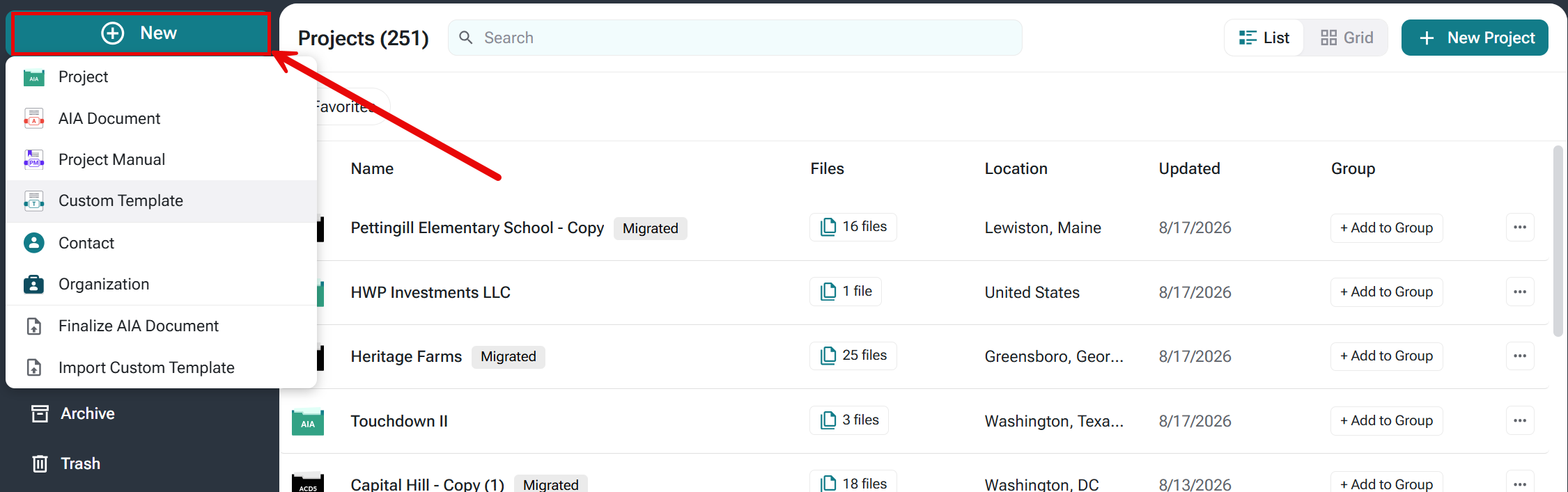
3. Click +New button in top left-hand corner.
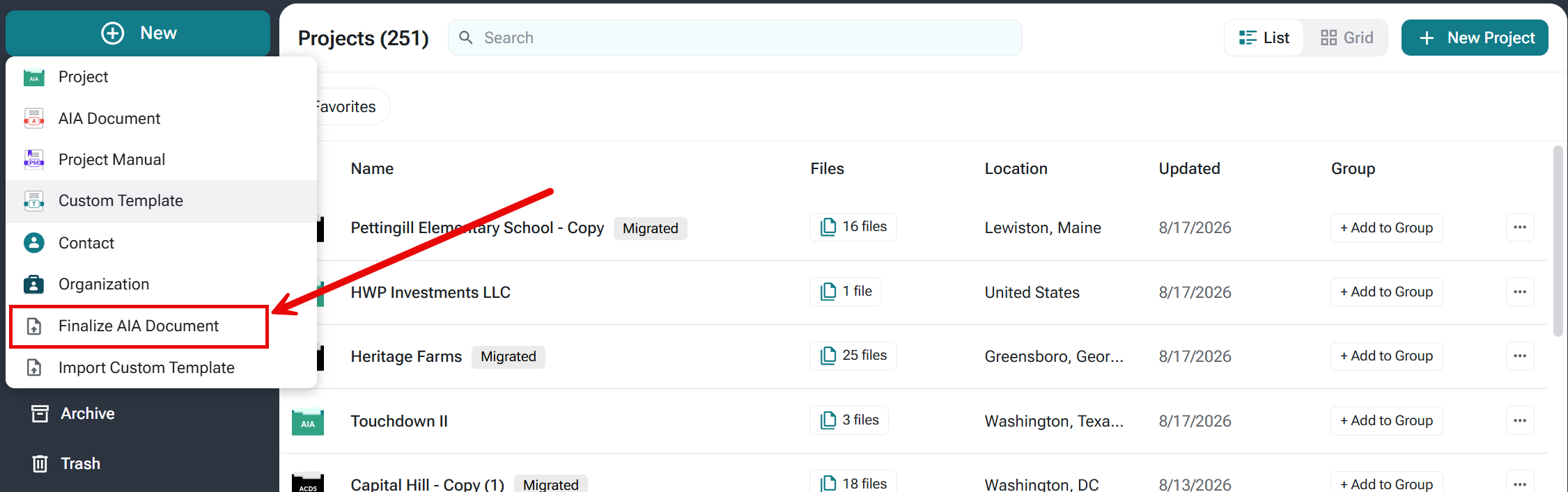
4. Select Finalize AIA Document
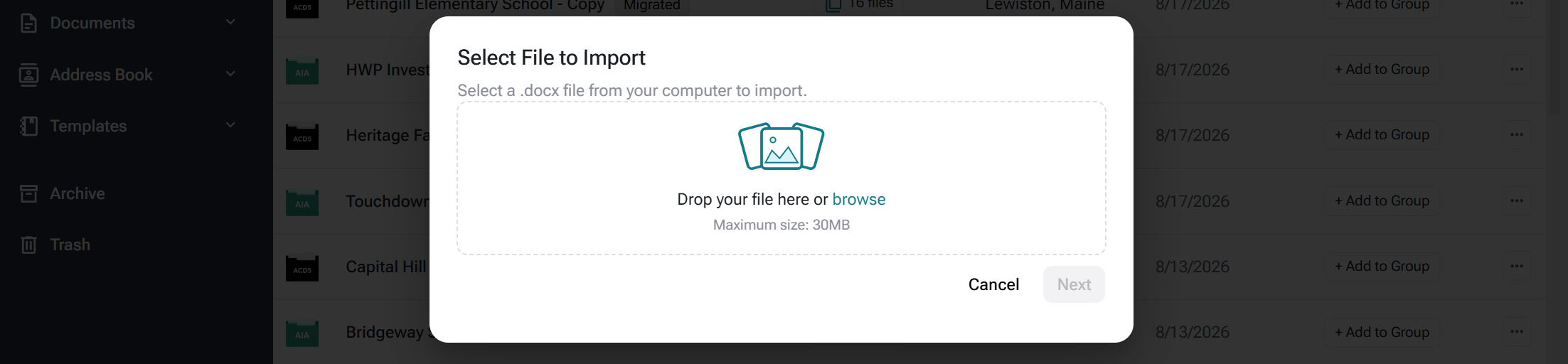
5. Here you can drop in your document or browse within your computer. Then click open.
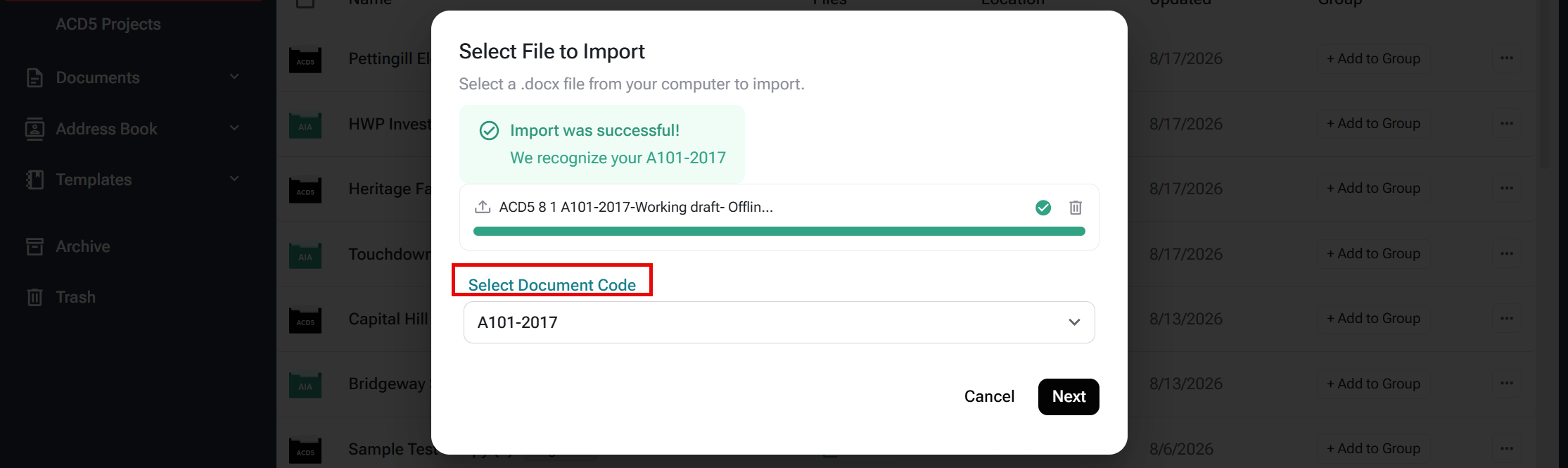
*Troubleshooting tip: You may be asked to select which document type and name for which ACD5 document you are trying to import. If asked, select from the drop-down menu and click next.
6. Select an existing project or create a new project.
7. You have the option to rename your document and add a signing authority if applicable.
8. Select finish to finalize your document.
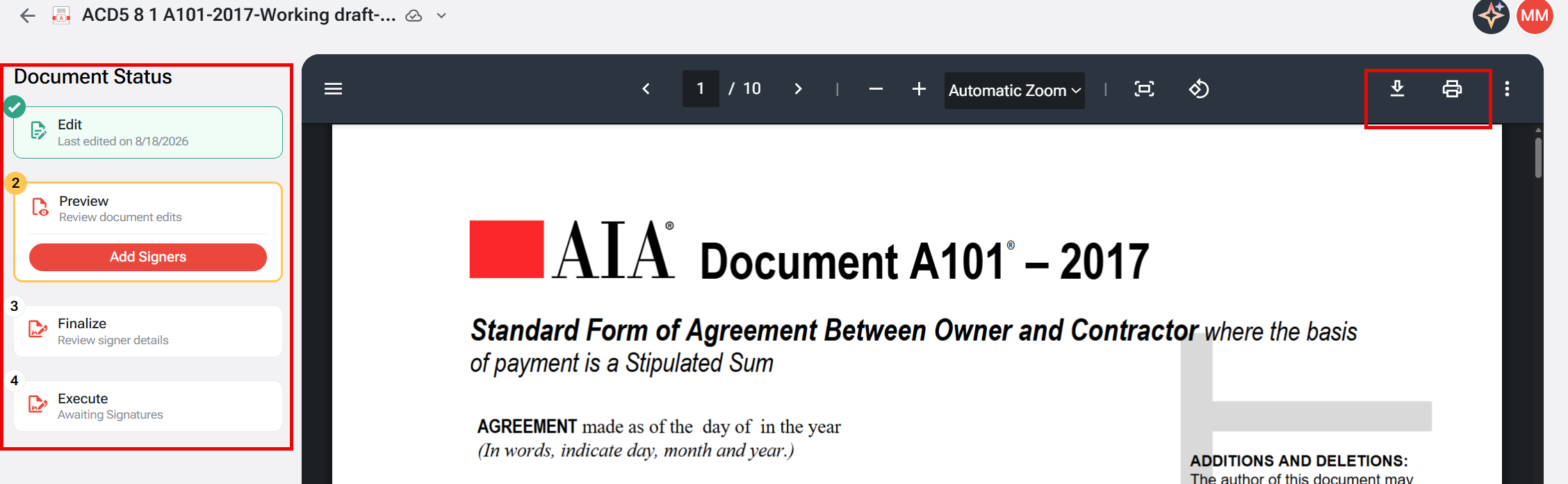
9. Here you will see your finalized document in PDF form. You can use the buttons in the right-hand corner to print or download your document for ink signature.
FAQ's
Q: Can I edit my ACD5 document after importing it using Finalize AIA Document?
A: The Finalize AIA Document option is designed to finalize an existing ACD5 draft and generate the final PDF. If changes are needed, make them to the draft before completing the finalization process.
Q: Why am I being asked to select a document type when importing my ACD5 draft?
A: Catina may ask you to identify the AIA document being imported. Select the appropriate document type and document name from the drop-down menu, then click Next to continue.
Q: Can I download my finalized ACD5 document for ink signature?
A: Yes. Once the document is finalized, you can download or print the final PDF for ink signature.