
Summary
This Catina article, "Project Manual," guides users on creating a comprehensive project manual by combining multiple project documents into a single PDF, including importing non-software-generated PDFs like cover letters or attachments. It covers the steps for importing, organizing, and finalizing documents to streamline project management.
Steps to Create a Project Manual
Import File button.
- Go to the Projects tab.
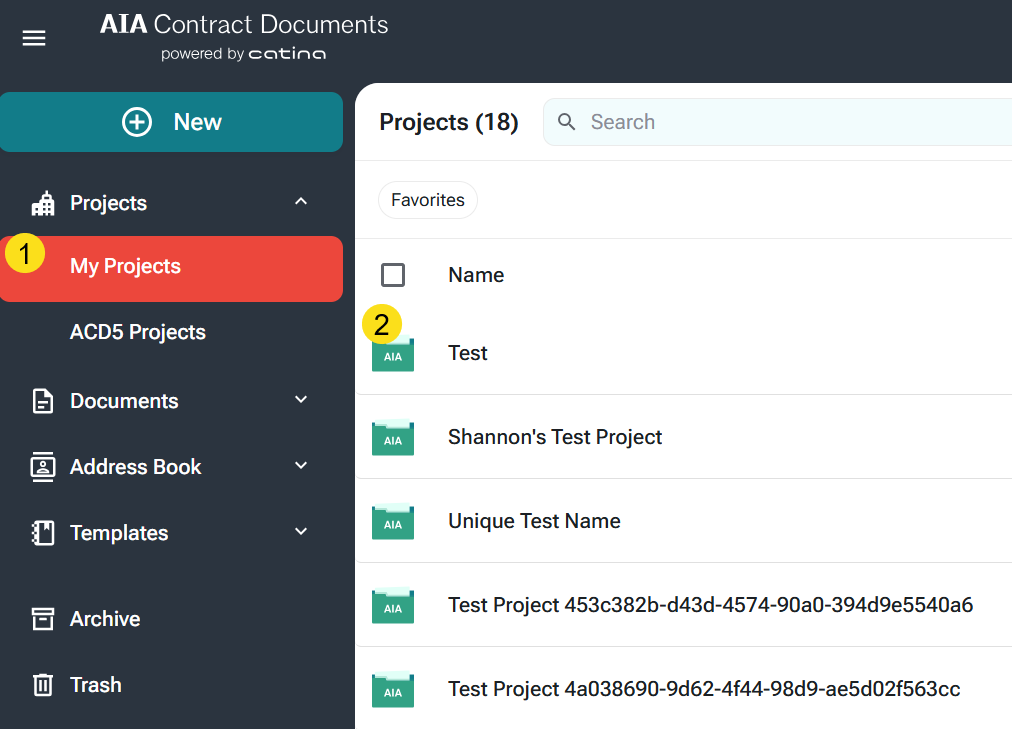
- Select a project from the projects list.
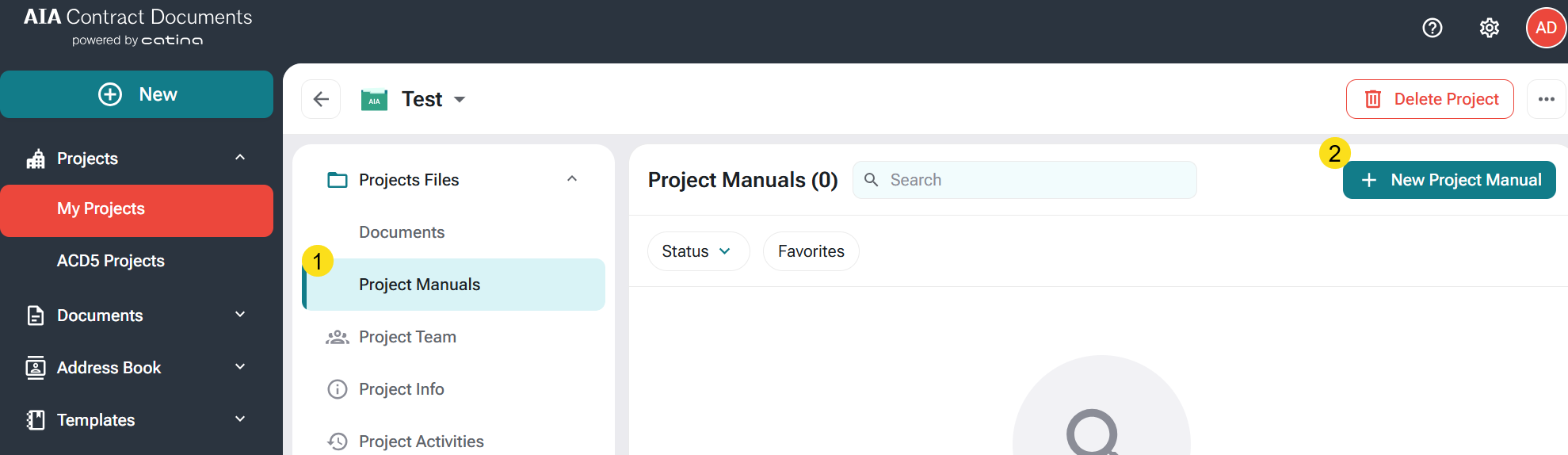
- In the Project Details area, Select Project Manuals.
- This is your project manual hub where you can see and create new projects manuals and manage existing project manuals.
- click the Project Manual button.
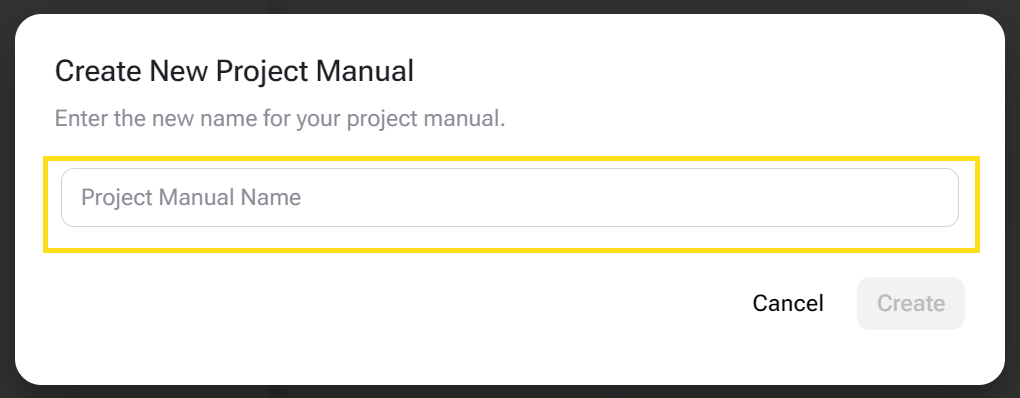
5. Enter the new name for your project manual and select Create.
- Now that the selection toolbar is open. Here you will see:
-
- All Available Documents within Catina associated to a specific project
- This will show any finalized documents, and all completed documents in that project
- The left panel has filters that will allow you to sort by Series, Document Type, Project Name and more
- All Available Documents within Catina associated to a specific project
6. Select each document to be included in the project manual
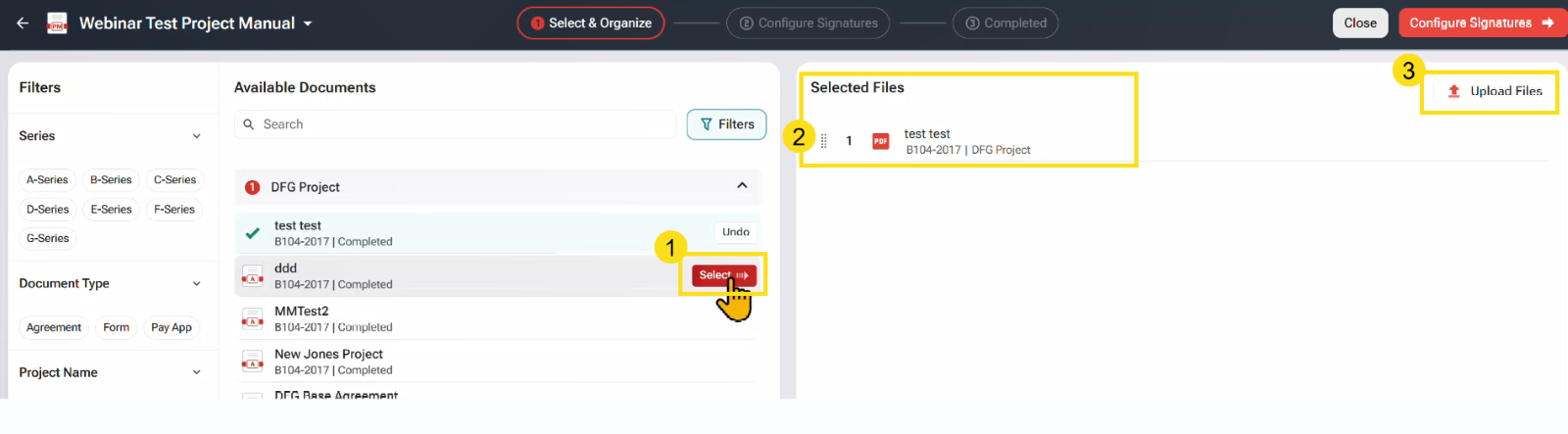
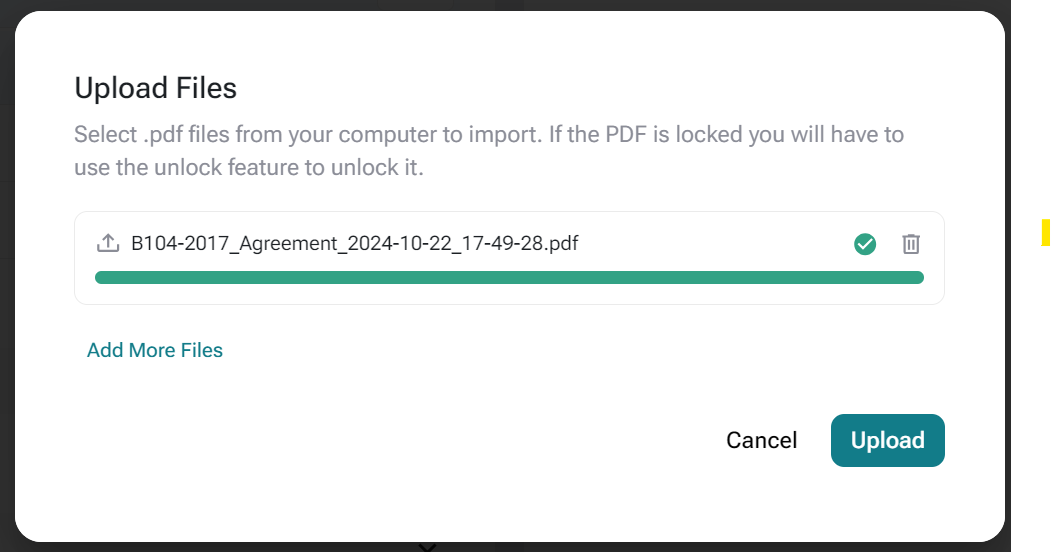
7. You also have the option to upload files directly from your computer to be included in the project manual.
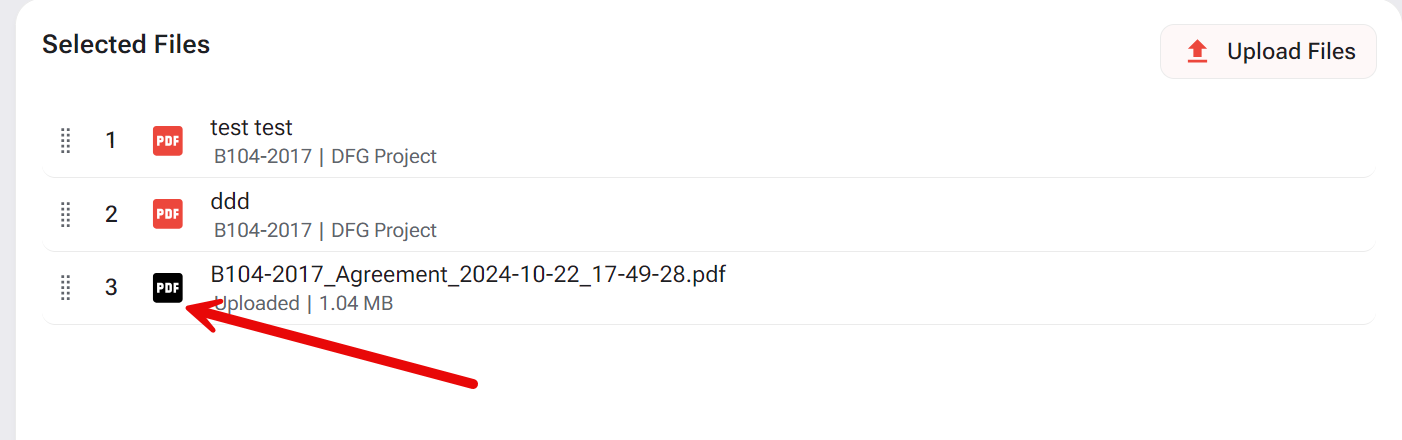
8. Files indicated with the black PDF indicate that it was uploaded from your computer. Red indicates that the fire is directly from Catina.
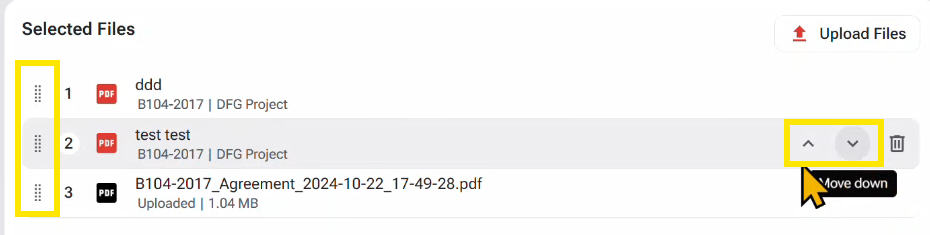
9. Use the arrow buttons to arrange documents in the order in which you want them to appear in the project manual. You can click on the dots to the left of the document to drag and drop the document for organization. You can also remove a document from the project manual by selecting the trash can.
10. Select the Configure Signatures to see what your project manual looks like.

11. After reviewing, if you decide that you need to change the order, click on Select and organize to adjust.

- At the moment there is no signature option (Our product team is working on that feature upgrade. However, this allows you to combine your documents.
- Click on Complete to complete the document. This allows you to download the project manual or you can revert it back to draft and continue working on the project manual.
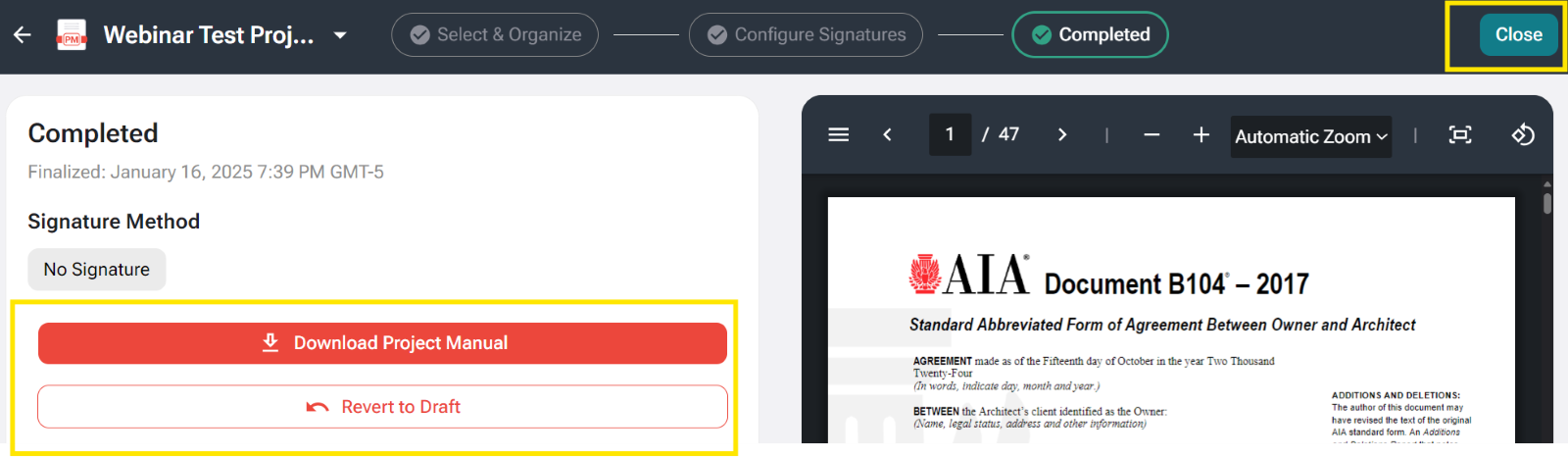
12. Select Close when you are done. You can create as many project manuals as needed under as many projects as needed.