
Summary
This article explains how to finalize both Online and Offline documents in Catina, including configuring eSignatures or ink signatures, completing required fields, adding signers, reviewing the document, and completing the finalization process. It also covers how to track DocuSign progress, upload ink-signed versions, and revert a document to draft if changes are needed.
Finalize an Offline Document
If your document is currently offline, you’ll need to bring it into Catina before finalizing.
1. Within Catina, go to the Projects tab .
2. Select Finalize AIA Document.
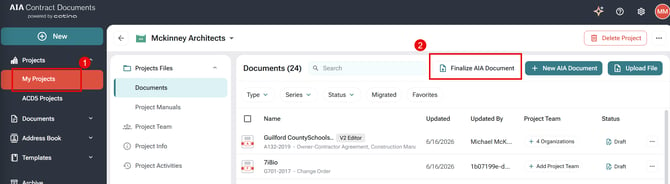
3. Locate the Offline document that you want to finalize. You can browse for the file or drag and drop your files here.
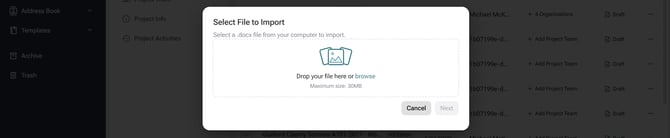
4. Select Next to import the fine into Catina (You will have the option to rename the document)
5. Select Continue to complete the import process (You can rename the document here if needed but it is optional)
6. Select the project that you want to associate the document with and select Finish.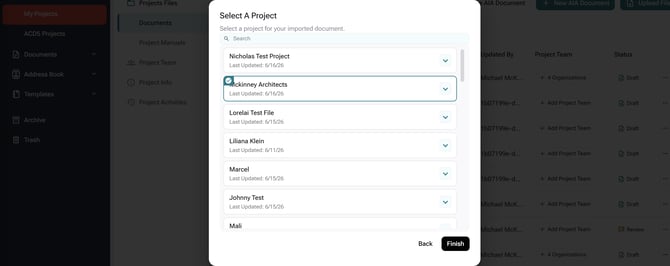
7. The document will be imported to the Preview stage of the finalization workflow.
8. Select Add Signers to verify you signing method (eSignature or Ink Signature).
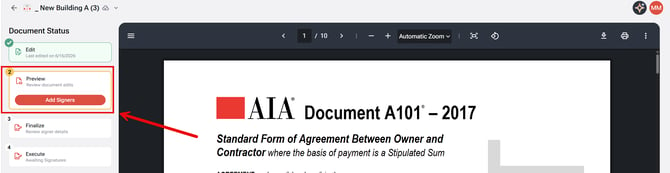
9. Configure your Signatures (Add additional Signers as needed).
-
An eSignature allows the document to be signed electronically within Catina.
-
An Ink Signature means the document is signed outside of Catina using a handwritten signature
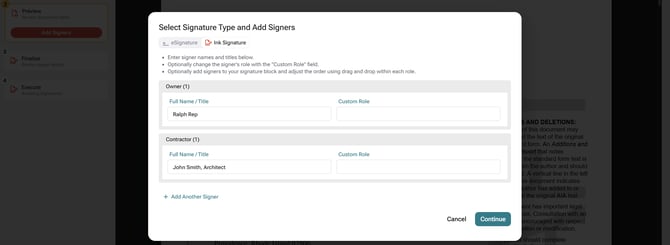
10. Select Continue
11. Your document in now at the Finalize stage of the workflow. Choose between clean and comparative markup.
- Clean markup shows accepted edits in the document and includes an Additions and Deletions report.
- Comparative markup shows additions and deletions inline throughout the document.

13. Select Finalize to move to the next step of the finalization process.
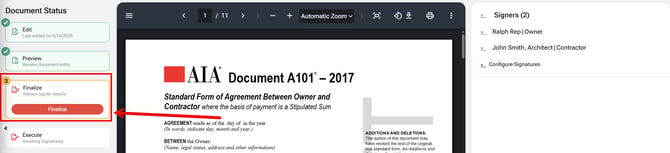
14. Enter the name of the Signing Authority (Optional) and select how you want you document to appear when it is finalized (Clean or Comparative)
15. Select Finalize Document.
Reviewing the Document
- Review your document and make any necessary changes before finalizing. If changes are needed, select Edit (variable, document, or signature) to adjust the desired section.
eSignature Process
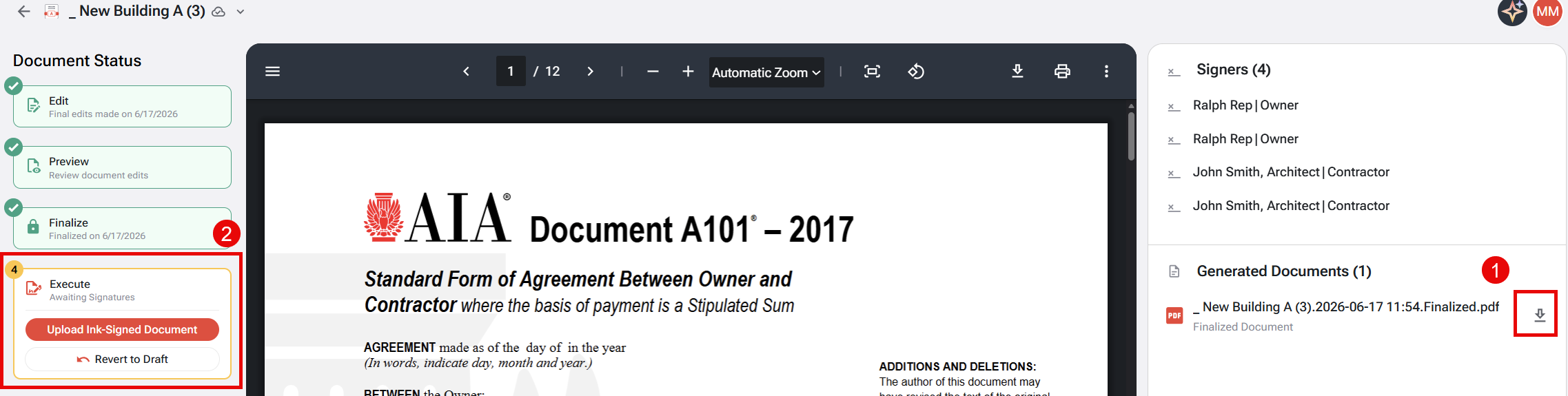
If you chose eSignature, the document will automatically be sent through DocuSign, and you will be taken to the Awaiting Signature screen. Here, you can monitor the signature progress, send reminders, or revert to draft status if needed.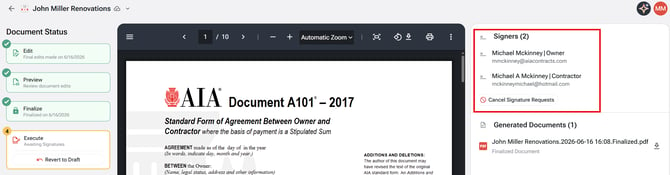
You can Revert to Draft at anytime up until the document has been signed by all parties.
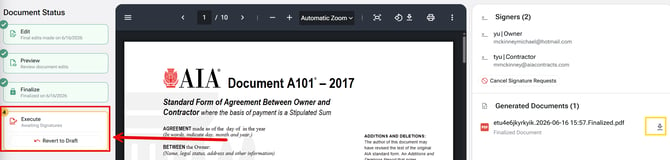
Once signed, the document lifecycle is complete, you can access and download the signed PDF.
Ink Signature Process
If you chose Ink Signature, download the PDF to print and obtain signatures. You can also revert the document to draft status to make changes.
Once signed, return to this screen and select Upload Ink Signed Version to complete the document lifecycle.
FAQ's
1. Can I switch from an eSignature to an ink signature after starting the finalization process?
Yes, you can switch from eSignature to ink signature by reverting the document to draft status. Once reverted, you can reconfigure the signature method and proceed with the new option.
2. What happens if I need to make changes after finalizing the document?
If changes are needed after finalization, you must revert the document to draft status. This allows you to edit the document, reconfigure signatures and complete the finalization process again.
3. How do I add multiple signers to a document during the finalization process?
To add additional signers, click the red + icon next to the specific role while filling in the required fields during the Configure Signature step. This ensures all required parties are included in the signing process.
4. How do I remove the Draft status off my document?
Finalizing the document will remove the draft status.
5. What email address does the DocuSign come from?
The DocuSign will com from: DocuSign NA4 System <dse_na4@docusign.net></dse_na4@docusign.net>
The DocuSign Subject line will be either of the following depending on the status of the document:
- Review & sign AIA Contract Document - -
- Completed: Review & sign AIA Contract Document - -
- Voided: Review & sign AIA Contract Document - -