
Summary:
The transition from ACD5 to Catina involves migrating your projects including all finalized documents, drafts and project details from ACD5 to Catina. These documents will be accessible directly from the project and on the Migrated Documents board, which can be sorted and filtered. Additionally, contacts and distribution lists will be imported into Catina’s Address Book. Migration runs nightly, ensuring any newly finalized documents in ACD5 are moved to Catina by the next day.
Table of Contents
- Getting Started- Introducing Catina Platform
- Organization of Catina Digital Platform
- Transitioning from ACD5 online service
- Catina How-Tos
- Administrator Role for Multi-User Accounts
- Digital Signatures
- Live Training
- Learn More
- Product Support
- Catina Transition FAQs
Getting Started – Introducing Catina Platform What is AIA Contract Documents powered by Catina?
Catina is a secure, digital platform that streamlines the process to create and manage AIA Contract Documents, the industry’s most trusted and recognized templates to protect against project disputes, misunderstandings, and delays.
Catina offers a number of benefits over using traditional methods of contract management, including:
- Accuracy and consistency: The platform ensures that all documents are created and edited using the most up-to-date templates and language. This helps to avoid errors and inconsistencies that can lead to disputes and delays.
- Access: The platform makes it easy to access documents from the web. This can save time and improve efficiency.
- Version control: The platform keeps track of all changes made to documents, so users can always revert to a previous version if needed. This is important for ensuring that the correct version of a document is always being used.
- Document management: The platform provides a central place to store and manage all project documents. This makes it easy to find the documents you need when you need them.
- Security: The platform uses industry-standard security measures to protect your data. This includes encryption at rest and in transit, as well as access control and audit logging.
System Requirements:
Basic requirements for AIA Contract Documents include:
- A high-speed internet connection. The minimum connection speed for the AIA Contract Documents online service is 512kbps; connection speeds of 1000kbps or higher are recommended.
- A current web browser (Safari, Chrome, Firefox, IE, or Edge)
- Adobe Acrobat Reader 9 or higher
- If choosing to edit offline, a current version of Microsoft® Office: 2008 (Mac), 2010, 2013 or 2016 is required
Organization of Catina Digital Platform:
- Projects tab
The Projects tab is where you manage documents within individual projects. Documents are organized by project name, making it easy to locate files, monitor project activity, and keep all project-related documents together in one place.
-
-
My Projects
-
View and manage all projects created in Catina. Open a project to access its documents, monitor activity, and collaborate with your team.
-
-
ACD5 Projects
-
The ACD5 Projects folder contains projects from ACD5 that are available to migrate into Catina. Once migrated, the projects will appear under My Projects.
- Documents tab
The Documents tab tracks documents across all projects and provides a step-by-step workflow for completing a document. Monitor recent activity and document progress at a glance. Migrated ACD5-finalized documents are also accessible here for reference.
-
-
Documents
-
View all documents across every project. Documents are organized by status, including Draft, Review, Finalized, and Completed, making it easy to track progress throughout the document lifecycle.
-
-
Project Manuals
-
Access and manage Project Manuals associated with your projects. This section keeps your project manuals organized and available alongside your other project documents.
-
-
ACD5 Stored PDFs
-
Access finalized PDF documents that were migrated from ACD5. These documents are available for reference and historical purposes.
Note: Users have access to migrated ACD5 finalized documents in Catina for reference as needed.
- Address Book tab
The Address Book is your central location for managing organizations and contacts. Information stored here can be reused across future projects, helping reduce manual data entry and maintain consistency.
-
-
Contacts
-
Create, edit, and manage individual contacts that can be used throughout your Catina projects.
-
-
Organizations
-
Manage the companies and organizations you work with. Organization information can be associated with contacts and reused across multiple projects.
- Templates tab
The Templates tab provides access to reusable document templates that help standardize document creation across your organization.
-
-
Custom Templates
-
Create, edit, and manage your organization's custom templates. These templates can include your preferred edits, standard language, and commonly used information.
-
-
AIA Templates
-
Access the complete library of standard AIA Contract Documents available within Catina.
-
-
ACD5 Custom Templates
-
Access custom templates that were migrated from ACD5. Once imported into Catina, these templates become part of your available custom template library for continued use.
Transitioning from ACD5 online service:
All finalized documents previously created in ACD5 (including associated project details) will be migrated into Catina on the day you begin using the new platform.
Note: Projects are not migrated automatically. You must select a project and click Migrate Selected for it to move to the My Projects folder.
Finalized migrated documents are available in the ACD5 Stored PDFs section of the Documents tab. The list can be sorted and filtered, and displays attributes including Document Name, AIA Code, Project Name, and more. Select any document to view its PDF, with options to download or print.
All global contacts and organizations will be imported into the Address Book. To prevent duplicate records, if multiple ACD5 contacts share the same email address, only the most recently updated record will be imported.
Migration runs overnight on the day you begin using Catina. After switching, you can continue to finalize documents in ACD5, each night, any newly finalized documents will automatically migrate and appear in the ACD5 Stored PDFs list the following day.
Catina How-Tos:
Create a Project
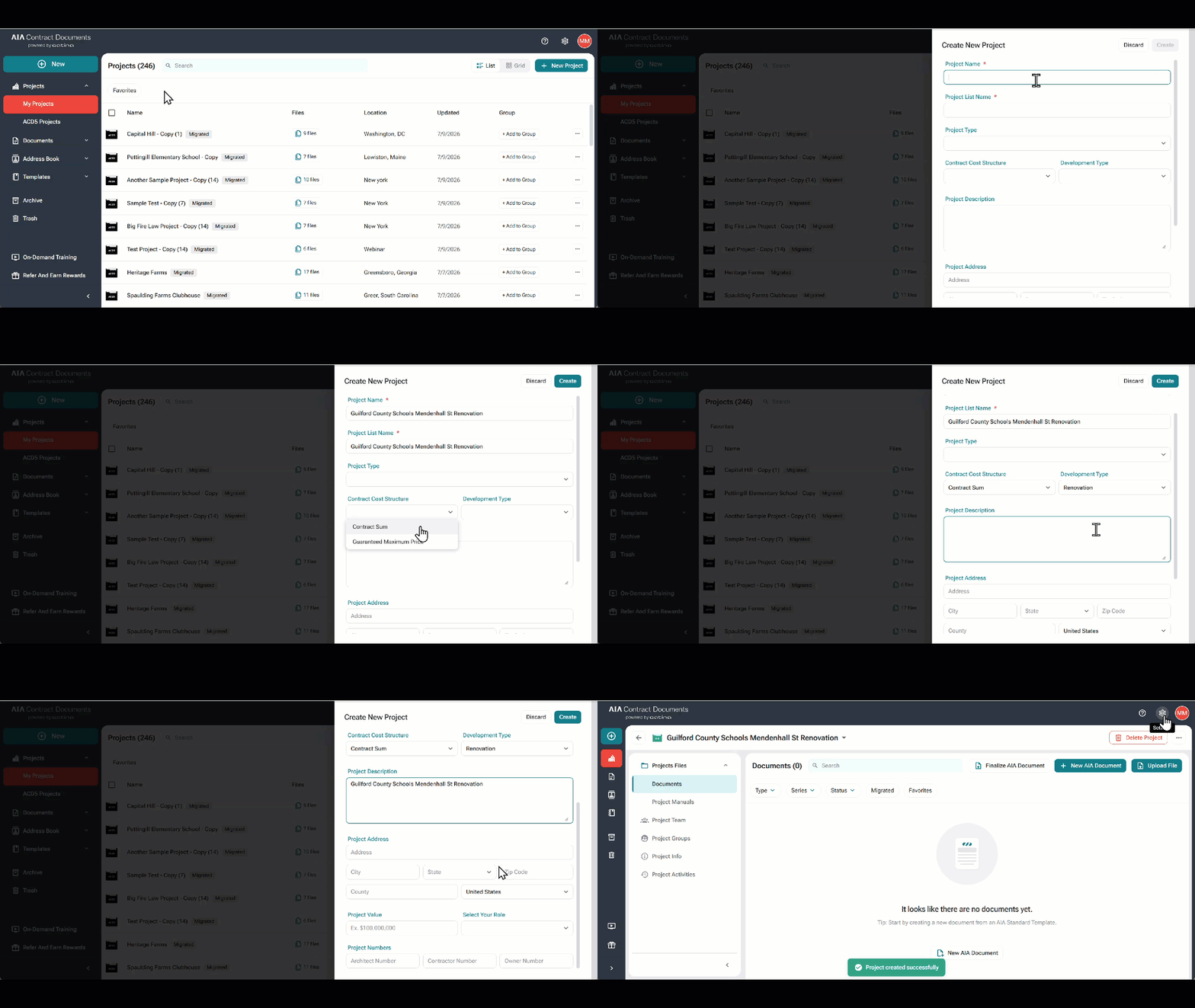
In the Catina digital platform, documents are stored by project.
To create a new project, go to the projects tab and click New Project. That will prompt you to enter basic information about your project. Fill in this information as completely as you can to save time when creating documents later on by reducing manual data entry.
When finished, click Create, and it will take you to the Documents page. From here you can add Project Files, create a Project Teams and much more.
Create an Organization or Contact
Catina allows you to add organizations and contacts to a project. This information is saved in the Address Book, making it available for use on any future projects.
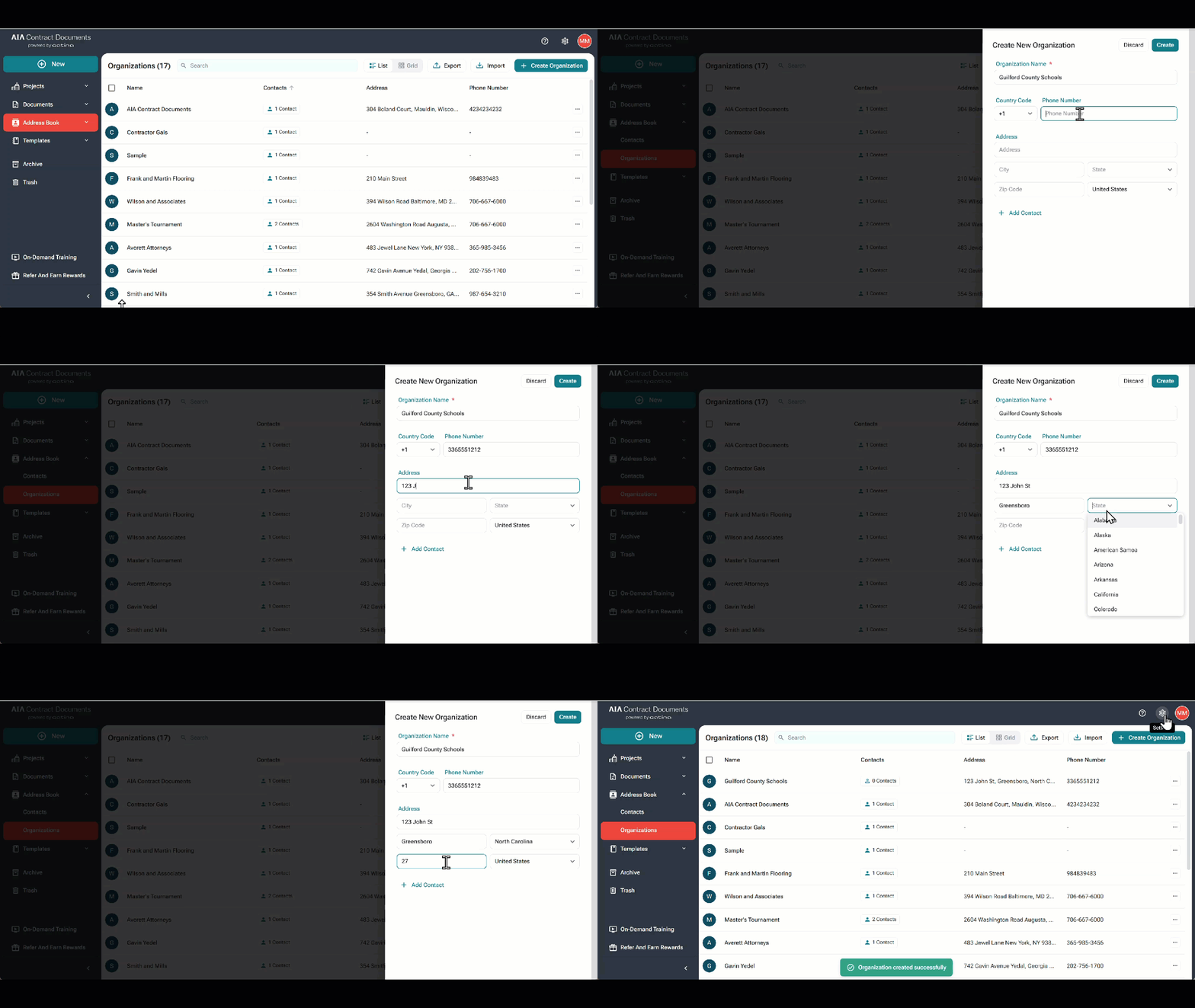
To add an Organization to the Address Book, Click on Organizations, and then Create Organization.
From here, the Create Organization screen will appear, and you can begin inputting organization details. Here, you will be prompted to enter information about the organization. At this stage, you should also enter the organization’s address and contact details. This saves you the trouble of manually entering it later in your documents. Once selected, their information will auto-populate into any documents you configure the contact to. You can also select Add Contact to add contacts at this time.
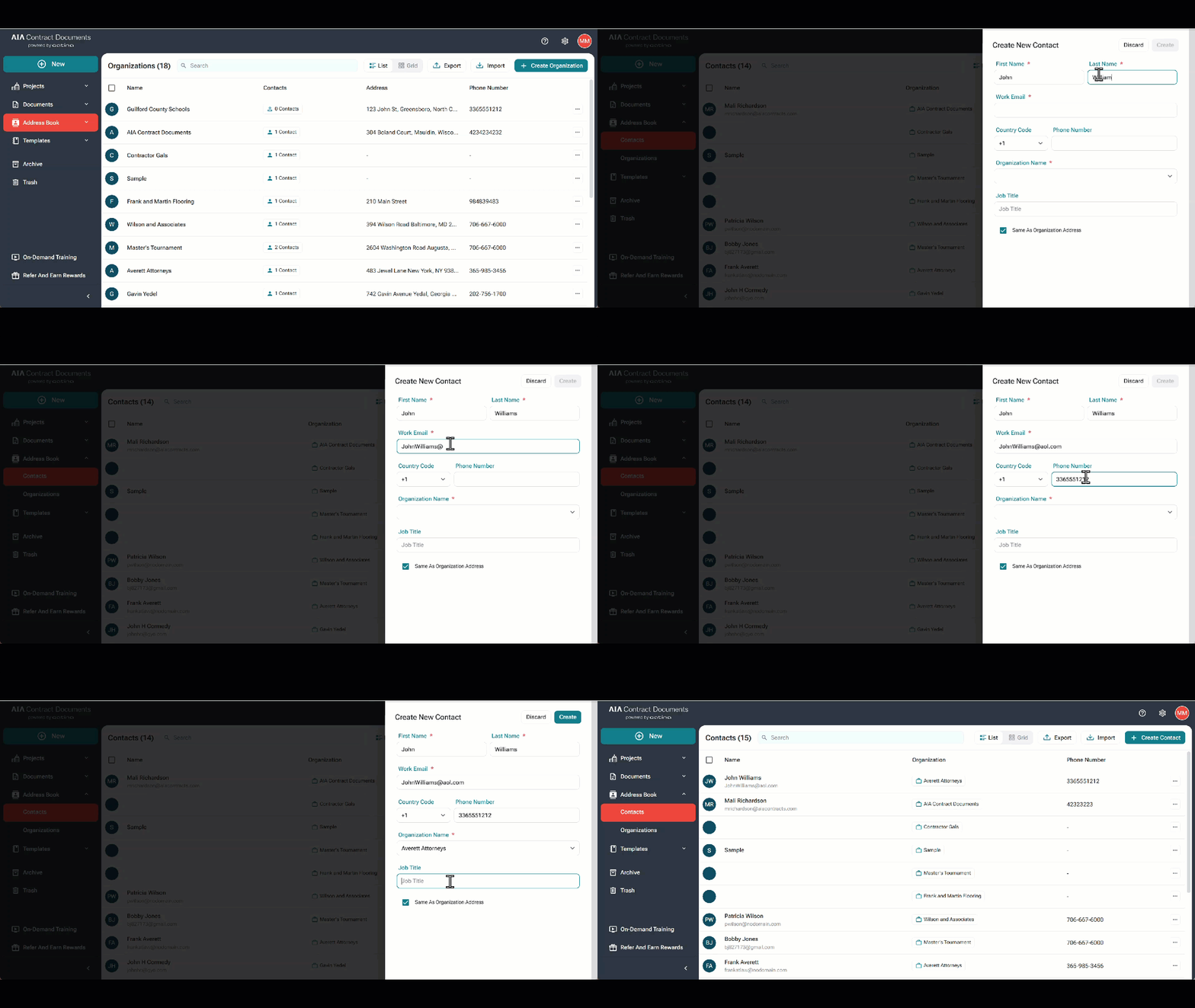
To add a contact to an existing organization, go to Contacts, select Create Contact, and enter the contact’s details. Choose an existing organization or create a new one to automatically populate the contact’s information in your documents.
Catina gives you the freedom to enter multiple organization contacts. For example, if you need to add a second contractor to a project, simply click Add Contact and the fill points will appear, prompting you to enter their information.
Once you are finished, click Create to save the contacts and add them to the project. At this point, you will see your contact listed by Name, Email Address and Organization. You can add additional contacts , and you can begin creating and editing documents within the project.
Find the Right Document:
AIA Contract Documents publishes over 270 templates of construction contracts and are organized by series or family of documents. To find the document you need, go to the Projects tab and click New Project to enter your project details. Once complete, click New AIA Document to search AIA Templates or custom templates and begin editing a draft. Additional documents can be added at any time from the New Document button on the Documents tab."
Create an Agreement:
Agreements can be edited using the online editor within the Catina platform or offline using Microsoft Word.
Working Online:
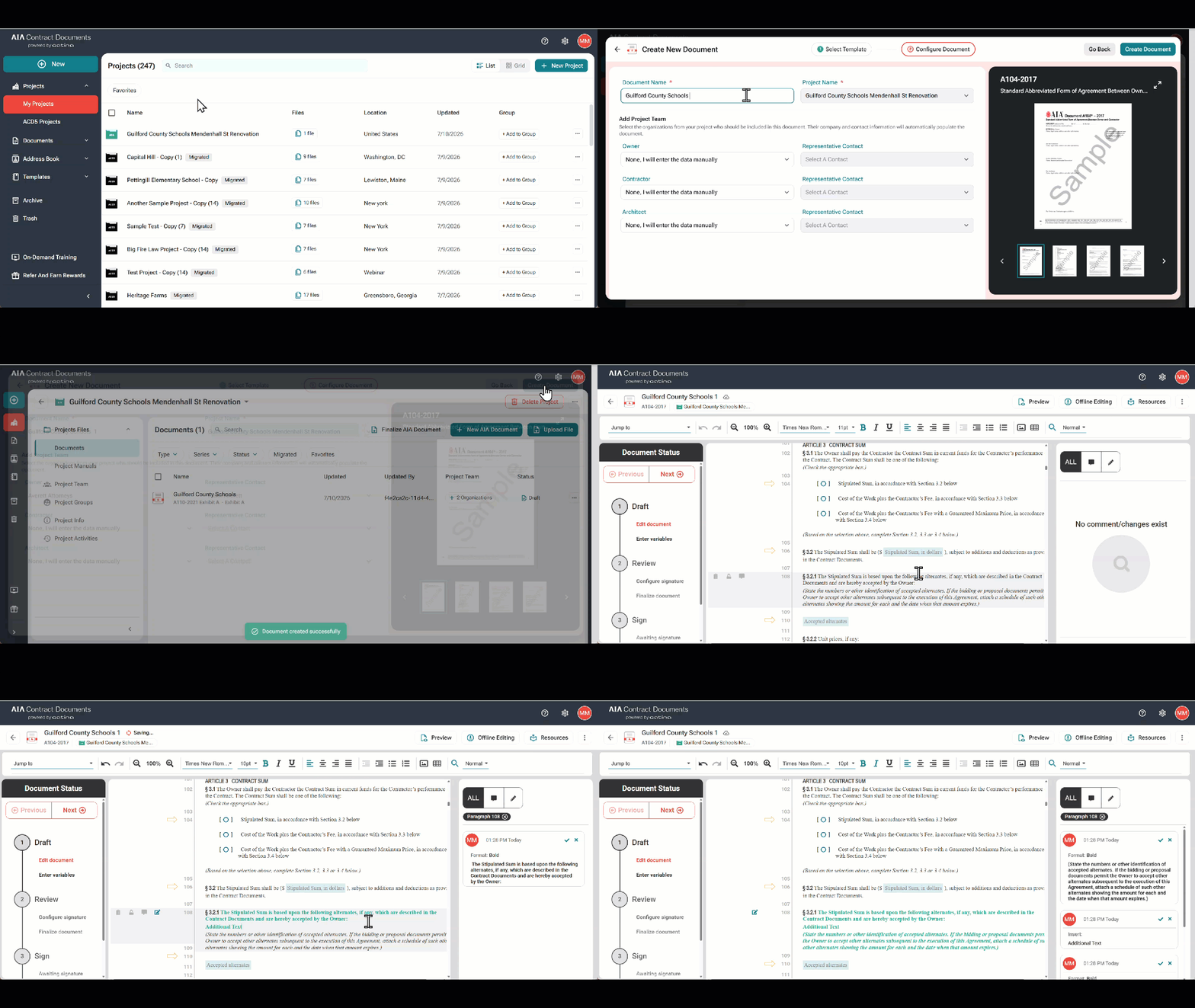
To edit an agreement using the online editor, click New AIA Document from your project. Search and select your desired agreement and click Configure. Complete the fields and click Add Document.
The agreement will then open in the online editor. The Document Status bar to the left will guide you in the appropriate workflow: Edit, Preview, Finalized or Execute.
Draft:
When editing your document in the online editor you have the ability edit all aspects of your document, including editing variables, font, sizing, insert images and text, adding or deleting the standard AIA Contract Document text, save as a custom template, make a copy and much more.
Review:
Once you are finished editing your draft, select Preview to review the document and move to Add Signers. Select how you want your document to be signed. You can select eSignature or Ink Signature.
If choosing eSignature, you will enter signer names, Enter a custom role name if applicable and email addresses in the appropriate fields. The signer will receive a DocuSign link to complete their signature and you'll be notified when the signing process is completed.
If choosing Ink Signature, you will enter the signers names and enter a custom role name if applicable
Once you’ve finished entering the signature data, click continue to Review Document. Once you’ve reviewed your document, you will click Finalize Document.
Working Offline:
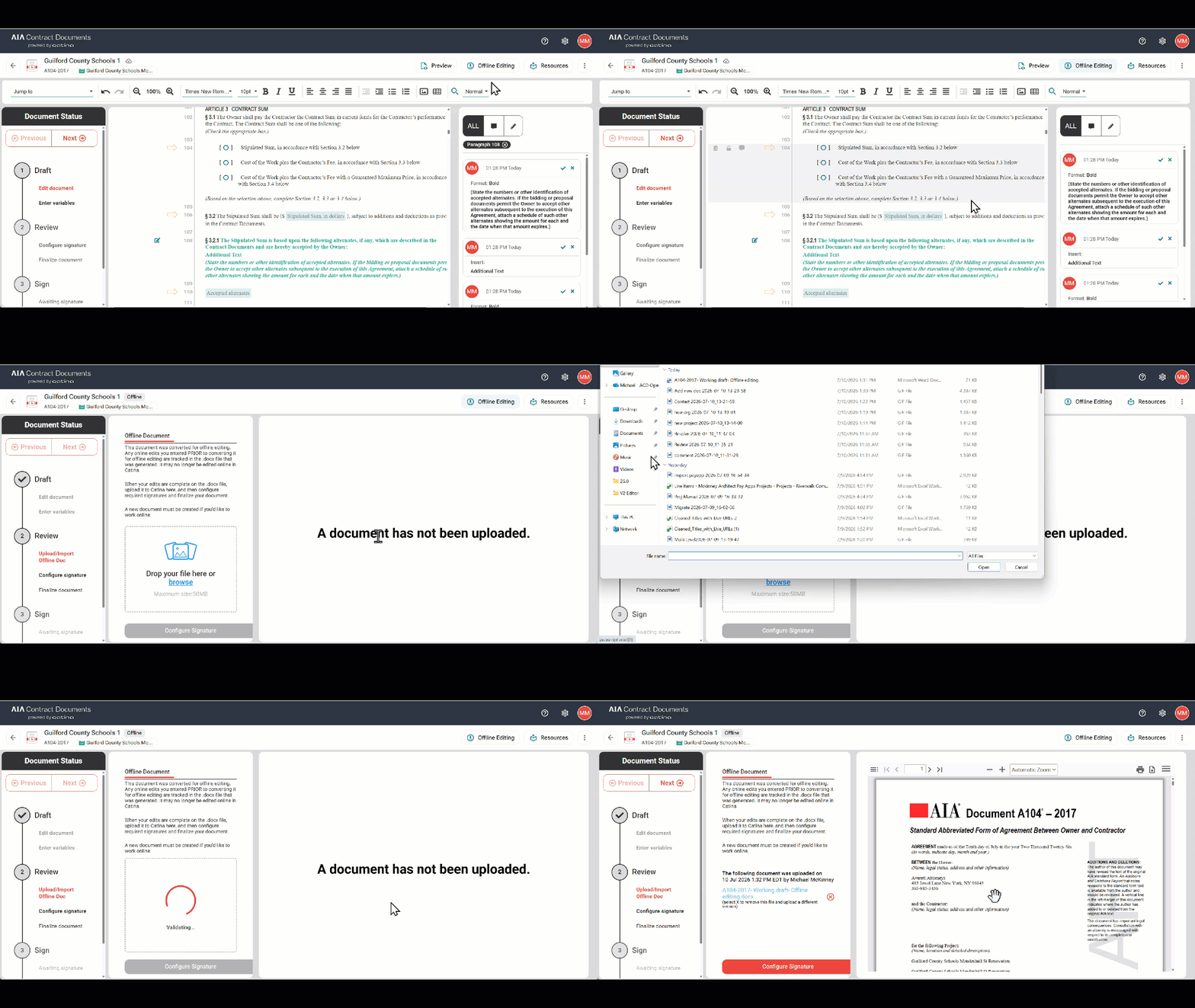
To edit an agreement offline in Microsoft Word, open the document in the online editor in Draft mode. Click the Offline Editing icon on the upper right-hand toolbar. Offline editing is supported in .docx format only. Select Yes, convert to offline.
Your draft will then open in Microsoft Word. Save the draft to your computer and make your edits. When your edits are complete, Select Import Offline Document or Select Enable Online Editing to bring the document back into Catina to finalize. Make sure your file is closed before attempting the upload.
Create a Form:
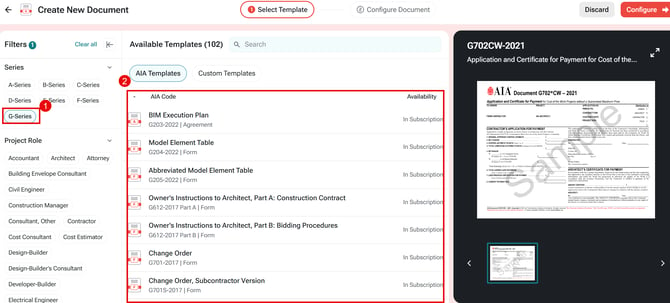
Depending on the form, it can be edited offline or online n the Catina platform. (Click here see G Series forms that can be edited offline) To create a form, click New AIA Document from your project. Search and select your desired form and click Configure. Complete the fields and click Create Document.
The form will then open in the online editor (Select Offline Editing to Edit Offline). The Document Status bar to the left will guide you in the appropriate workflow: Edit, Preview, Finalized or Execute.
Draft:
You will begin editing your draft by entering line items. Once you’ve entered your data in the appropriate fields, click Editor on Document Status bar on the left to continue editing your draft. Your work will automatically be saved.
Review:
Once you are finished editing your draft, select Preview on the toolbar to the left. You will then preview and proceed to Add Signers. First, select how you want your document to be signed. You can select eSignature or Ink Signature.
If choosing eSignature, you will enter signer names, enter a custom role name if applicable and email addresses in the appropriate fields. The signer will receive a DocuSign link to complete their signature and you'll be notified when the signing process is completed.
If choosing Ink Signature, you will enter the signers names and enter a custom role name if applicable
Once you’ve finished entering the signature data, click Review Document. Once you’ve reviewed your document, you will click Finalize Document.
Sign:
You will see your pending signatures and status at the top of the screen. You can click Revert this document to Draft status if needed at the bottom of the screen.
Once the finalized document has been signed, you can access it under Generated Documents in your Document Status bar. The finalized document can also be accessed from he Home page in the Projects Tab or the Documents Tab
Customize a Template:
AIA Contract Documents provides you with the ability to customize agreement templates with your standard edits and then use those customized templates as the basis for your draft documents. You can also create custom templates from draft agreements and share them with other users in your company. Standard and custom templates can also be added to your list of favorites for easy access when creating documents.
You have two options for creating a custom template, you can select +New Custom Template on the Custom Templates Tab or you can open an existing document and choose File, Save as Custom Template in on the upper left toolbar.
Finalize a Document:
When you are ready to finalize your document, you will click on the Add Signers button under the Preview step in your document status bar.
Here you will have the option to choose between eSignature or Ink signature based on your signing preferences. You can quickly configure your signature by filling out the signing party’s information. If you need to add additional signers, click the Red Plus Sign next to the specific role.
When complete, click Review Document to take you to the Finalize document screen.
How to Finalize a document in Catina
Administrator Role for Multi-User Accounts
When you purchase two or more unlimited annual accounts for company staff, you can designate a license administrator on behalf of the multi-user account to oversee the licenses. Administrative users have the capability to manage existing users, including modifying user settings and permissions. They are also empowered to invite new users to the system and deactivate current users as needed.
You can designate up to five administrators who are non-license holders. In this case, the Administrator(s) can monitor and manage the users on the subscription, invite users, without occupying a seat on the license.
Lastly, one user may act as the billing administrator. This person will have all of the same capabilities as a basic administrator and can upgrade the tier or number of seats on the license at any time.
Managing Users/Seats – Steps for assigning, updating, or removing user seats.
How do I add users to my subscription?
Digital Signatures:
There are two signing options within Catina, ink signature and eSignature, both fully configurable before finalizing your document.
We have streamlined the digital signature process by providing an eSignature via Docusign. You simply define your signers by providing their name and email, and we do the rest. You can track where your documents are in the signing process and easily send reminders all within Catina.
You can also use Ink Signature, which allows you to enter the signer names and download a PDF of your document to collect the signatures. Once signed, you can upload the signed PDF to complete the process and store your document within Catina.
Live Training:
Attend a free, 60-minute webinar where a training expert will guide you through all of the features and capabilities of Catina, including migrating your finalized documents from ACD5. From setting up a new project, to document editing and building customized templates, you’ll walk away equipped to begin using Catina with confidence. The training is offered twice daily for your convenience. Register Today - Introduction to Catina webinar
Learn More:
The AIA Contract Documents Learn page is a comprehensive, user-friendly website that offers design and construction professionals with high-quality contract documents and risk management related education programs and materials.
Users of the site can access free live training, webinars, on-demand courses, and an extensive library of articles, e-books and guides. Most courses are eligible for continuing education credit from the AIA, as well as other professional organizations.
Visit https://learn.aiacontracts.com/ for more information.
Product Support:
Need assistance? Whether it’s guidance selecting the right document, questions about the Catina Platform, or a sales-related inquiry, we’re here to help.
Technical/Catina Platform Support
Email: support@aiacontracts.com
Toll Free: 1-800-942-7732 (choose option 1)
Document Questions
Email: docinfo@aiacontracts.com
Toll Free: 1-800-942-7732 (choose option 2)
Sales and Subscription Questions
Email: sales@aiacontracts.com
Toll Free: 1-800-942-7732
Catina Transition FAQs:
What is Catina?
Catina is a secure, digital platform that streamlines the process to create and manage AIA Contract Documents, the industry’s most trusted and recognized templates to protect against project disputes, misunderstandings, and delays.
What are the benefits of using Catina?
Catina offers a number of benefits over using traditional methods of contract management, including:
- Accuracy and consistency: The platform ensures that all documents are created and edited using the most up-to-date templates and language. This helps to avoid errors and inconsistencies that can lead to disputes and delays.
- Access: The platform makes it easy to access documents from the web. This can save time and improve efficiency.
- Version control: The platform keeps track of all changes made to documents, so users can always revert to a previous version if needed. This is important for ensuring that the correct version of a document is always being used.
- Document management: The platform provides a central place to store and manage all project documents. This makes it easy to find the documents you need when you need them.
- Security: The platform uses industry-standard security measures to protect your data. This includes encryption at rest and in transit, as well as access control and audit logging.
How is Catina platform different from ACD5 online service?
AIA Contract Document’s next-generation construction document software has been created to provide you with enhanced capabilities and new features that will help you create, edit and finalize contract documents seamlessly. We've reimagined the user interface, making it more intuitive and user-friendly than ever.
Our new, robust, online editing capabilities eliminate the need for offline software, giving you the freedom to edit documents seamlessly within the platform but allowing offline editing if you prefer.
Through the Documents Dashboard, you are able to navigate through clearly defined document stages, providing a snapshot of your contract's status at any time. You are able to preview your document exactly as it will appear before finalization.
How do customers access Catina?
The new Catina platform will be available at catina.aiacontracts.com. Customers must have an active account in order to log in to the platform. You will use the same credentials to log-in to Catina platform that you use to log-in to ACD5 online service.
What will be migrated and when will it be migrated?
The following ACD5 data types can be migrated and available in Catina 1 day after upgrade to Catina:
- Complete and finalized documents, including the associated project details
- Contacts
- Projects
Note: the data migration process runs as a batch process overnight.