
Summary
Variables are fillable fields within Catina documents that help you complete required information before finalization. The Editor includes visual indicators and navigation tools to help you find, update, and review variables more easily.
Identifying Variables
Paragraphs that contain variables are marked with yellow arrows in the left margin. These indicators help you quickly identify where information may need to be completed or reviewed.
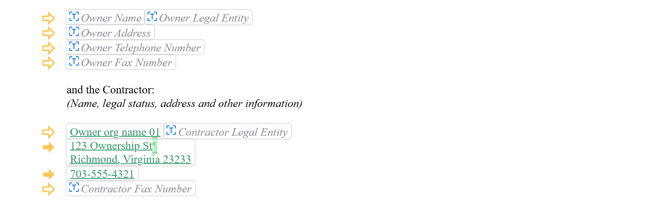
As variables are completed, the yellow indicators update to a filled arrow so you can see what still needs attention before finalization.
Updating Variables
To update variables:
- Open the document in the Edit stage.
- Locate variables using the yellow arrows or variable navigation tools.
- Enter or update the required information.
- Continue through the document until all desired variables are complete.
- Review the variable count in the left panel before moving to Preview.
Copying, Pasting, or Removing Variables
The Catina Editor allows flexibility when working with variables. You can copy, paste, or remove variables as needed while editing your agreement.
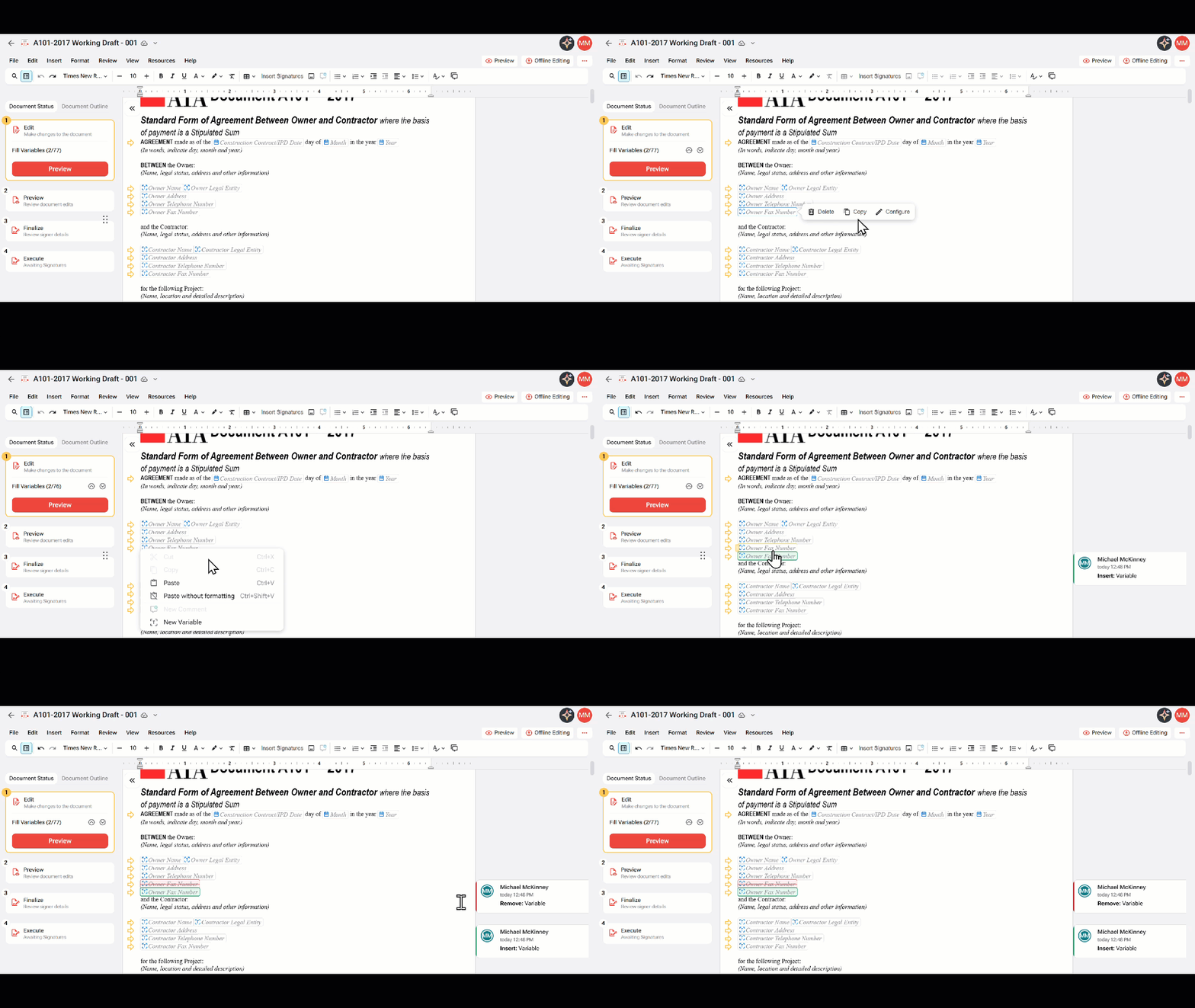
When making these updates, keep in mind:
- Variable changes may be captured in Tracked Changes.
- Updates to variables may appear in the Additions and Deletions report.
- Formatting should remain consistent when the document is finalized.
Insert a New Variable
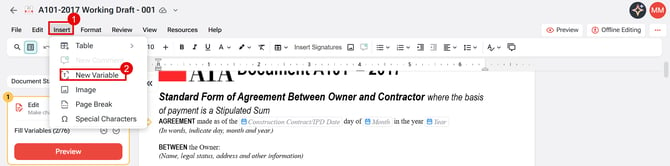
New variables can be inserted by Selecting File and then selecting New Variable
Variable Count and Navigation
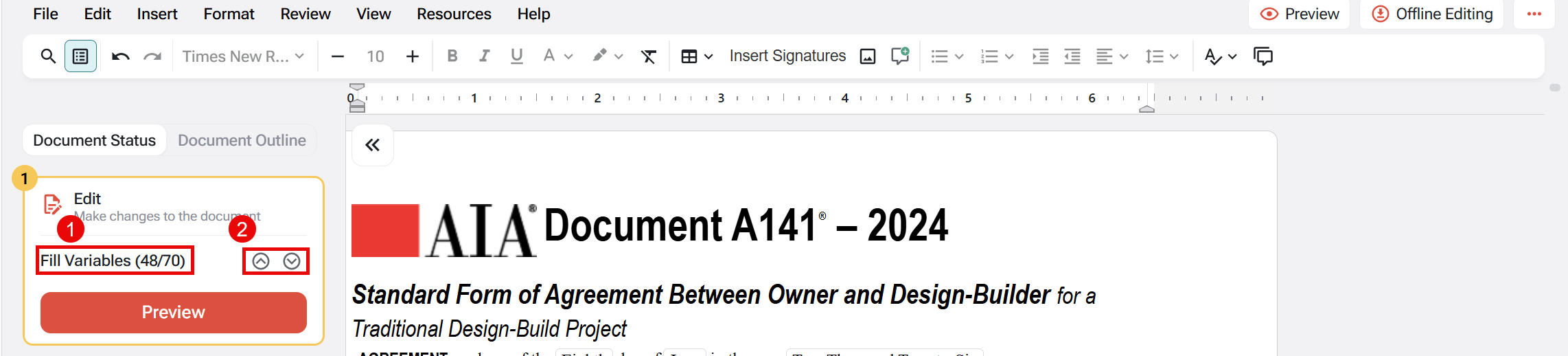
The left panel displays the number of remaining variables. You can use navigation arrows to jump directly to the next unfilled variable.
This is helpful when reviewing longer agreements or confirming that required fields are complete before finalization.
FAQ
Q: What are variables in Catina?
A: Variables are fillable fields within a document that allow you to enter information such as names, dates, project details, and other required values before finalization.
Q: How can I find incomplete variables?
A: Paragraphs containing variables are marked with yellow arrows in the left margin. You can also use the variable navigation controls and the variable count in the left panel to move directly to the next unfilled variable.
Q: Can I copy, paste, or remove variables?
A: Yes. The Catina Editor allows you to copy, paste, remove, and insert variables while editing your document. Changes to variables may be captured in Tracked Changes and may appear in the Additions and Deletions report after finalization.