
Summary
Catina allows you to work with supported forms offline in Microsoft Word when you need to complete or edit a form outside of the online experience.
This article explains two ways to begin working with a form offline:
-
Take an existing form offline from within the document.
-
Start an offline form from the template selection screen.
-
Return your completed or edited form to Catina.
Take a Form Offline from Within the Document
If you already have a form open in Catina, you can take the document offline to continue working in Microsoft Word.
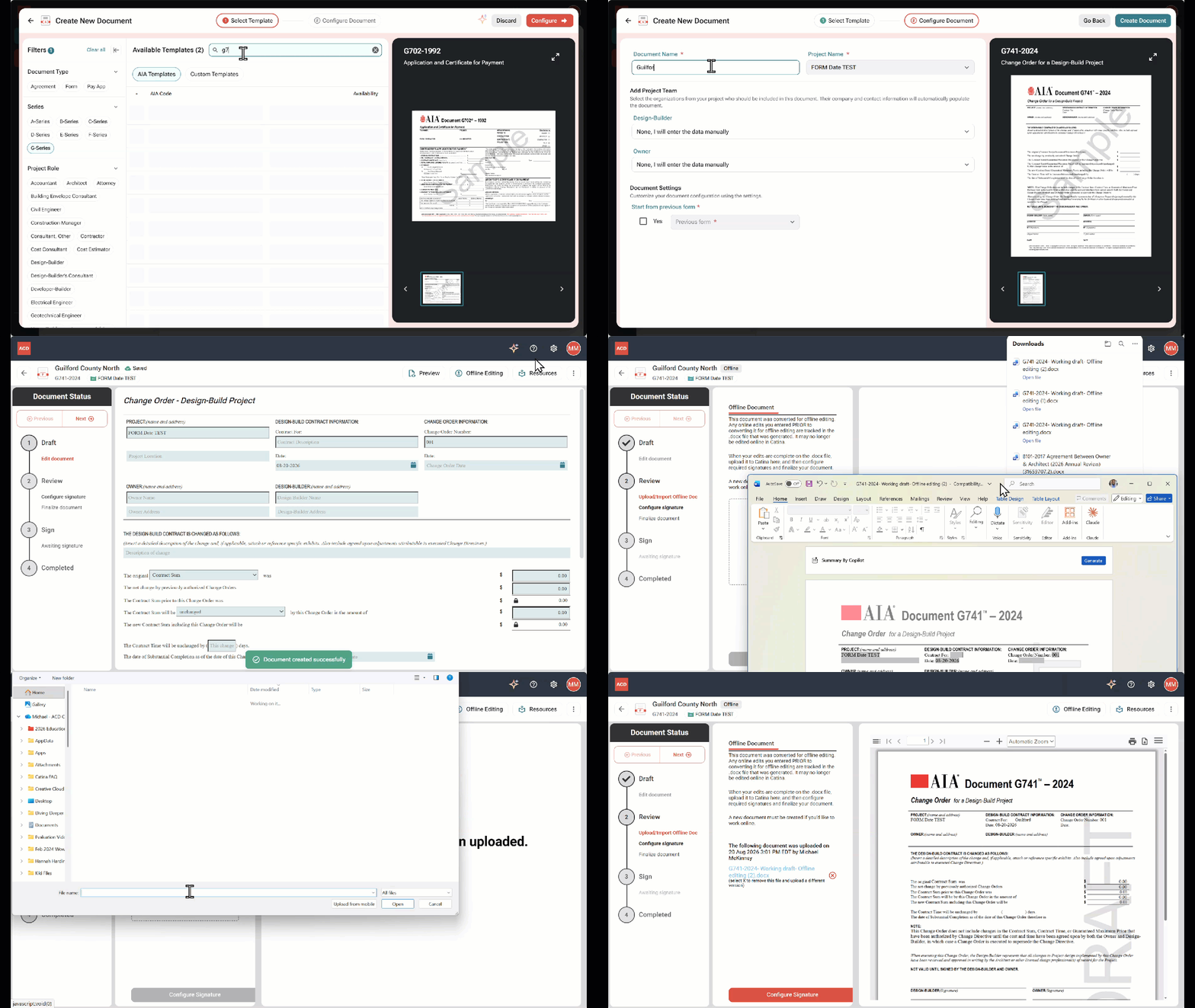
1. Open the form you want to work with in Catina.
2. From within the document, select Edit Offline.
3. Follow the prompts to download the form as a Microsoft Word .docx file.
4. Open the downloaded .docx file in Microsoft Word.
You can now complete or edit the applicable fields and content within the form.
5. When you have finished working with the form, save the document in Microsoft Word.
Keep the document in .docx format so it can be returned to Catina.
6. Return to the document in Catina and follow the prompts to upload your edited .docx file.
Once uploaded, review the document to confirm your offline changes were successfully imported.
Start an Offline Form from the Template Selection Screen
You can also begin the offline workflow when selecting the form you want to use.
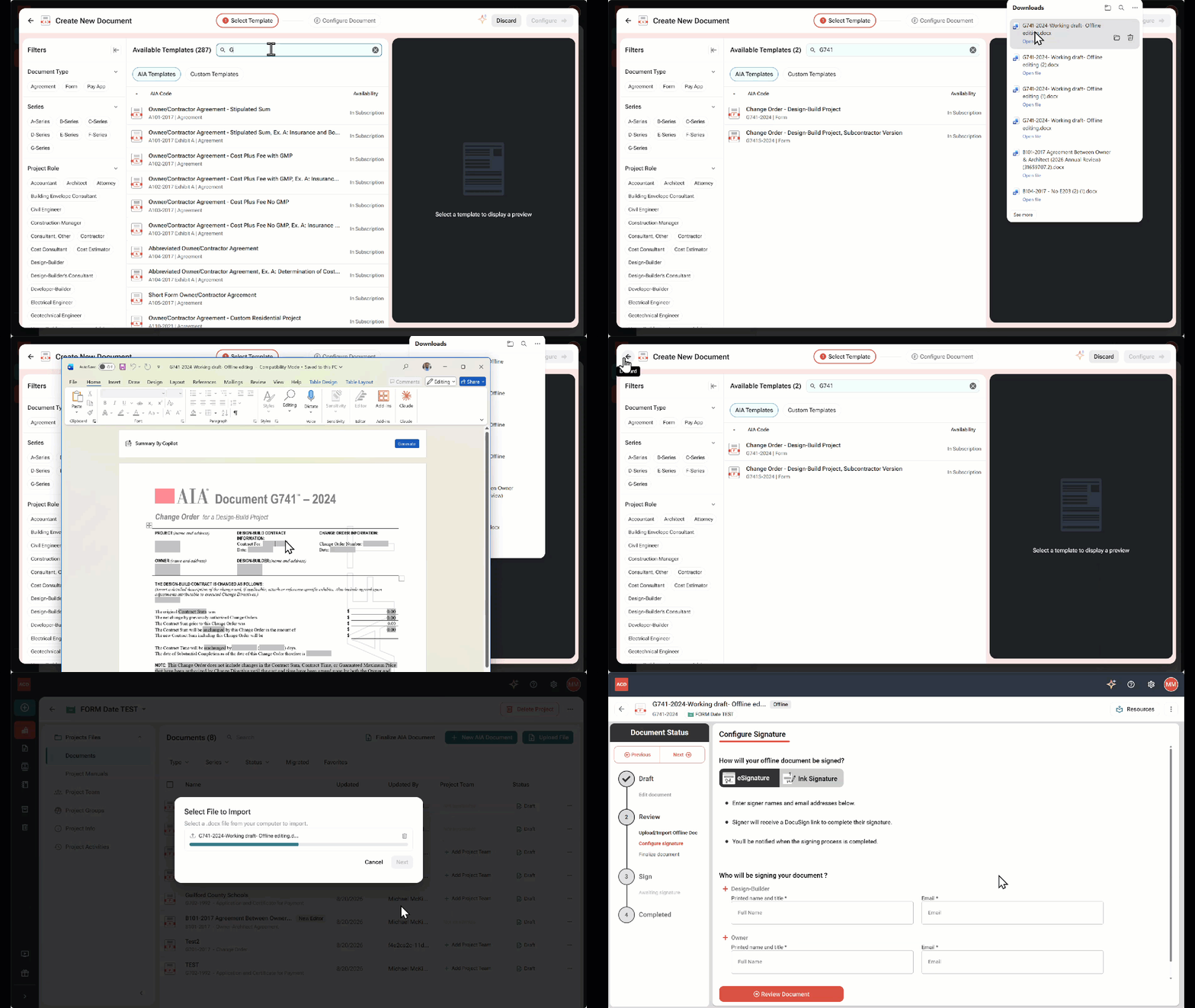
1. From Catina, select +New to begin creating a document.
2. From the template selection screen, locate the form you want to use.
You can browse the available forms or search for a specific document.
3. Choose the option to work with the selected form offline.
4. Follow the prompts to provide the required document and project information.
5. Download the form as a Microsoft Word .docx file and open it in Microsoft Word.
6. Complete or edit the applicable information in the form.
7. Save your changes while keeping the document in .docx format.
8. When you are ready to continue the Catina workflow, upload the edited document back into Catina.
Review your document before continuing to Preview or Finalization.
Working with Your Form in Microsoft Word
When working offline, keep the following best practices in mind:
-
Work from the .docx file generated by Catina.
-
Keep the document in Microsoft Word .docx format.
-
Save your changes before returning to Catina.
- Review the document after uploading it back into Catina to confirm your changes.
Returning an Offline Form to Catina
After completing your offline edits:
-
Save and close the document in Microsoft Word.
-
Return to the corresponding document in Catina.
-
Upload the edited .docx file.
-
Allow Catina to process the document.
-
Review the imported document and confirm your changes.
-
Continue through the appropriate Catina workflow.
FAQ
Can I edit G-Series forms offline?
A: You can edit all G-Series forms offline except for payment applications, which remain part of an integrated online process. You can take the payment application line-item editor offline to share or collaborate.
Q: Can I edit my Catina form in Microsoft Word?
A: Yes. Supported forms can be taken offline and edited in Microsoft Word using the Catina offline workflow.
Q: What file format should I use when working offline?
A: Keep the document in Microsoft Word .docx format so it can be returned to Catina.
Q: Should I create a new Word document for my offline edits?
A: No. Continue working with the .docx file generated by Catina. This helps ensure the document can be properly returned to Catina.
Q: What should I do after uploading my offline form?
A: Review the document in Catina to make sure your offline changes were successfully imported before continuing through the document workflow.