
Summary
Finalizing a document in Catina creates the official version of your agreement and prepares it for execution. Before finalizing, you can review the draft PDF, confirm signer information, choose a markup format, and verify that the document is ready to complete.
Before You Finalize
Before selecting Finalize, review the following:
- Variables are complete — Confirm all required variables have been filled in.
- Tracked changes are reviewed — Accept or reject any changes that should not carry forward.
- Signer information is accurate — Confirm names, roles, and email addresses if using e-signature.
- Document formatting is correct — Review the DRAFT-watermarked PDF in the Preview stage.
- Markup format is selected — Choose either Clean or Comparative before finalization.
Finalization Options
When finalizing, you may be prompted to choose a markup format:

- Clean — Displays accepted edits in the document and includes an Additions and Deletions report at the end.
- Comparative — Displays a redlined version with changes shown inline throughout the document.
Finalize the Document
 To finalize a document:
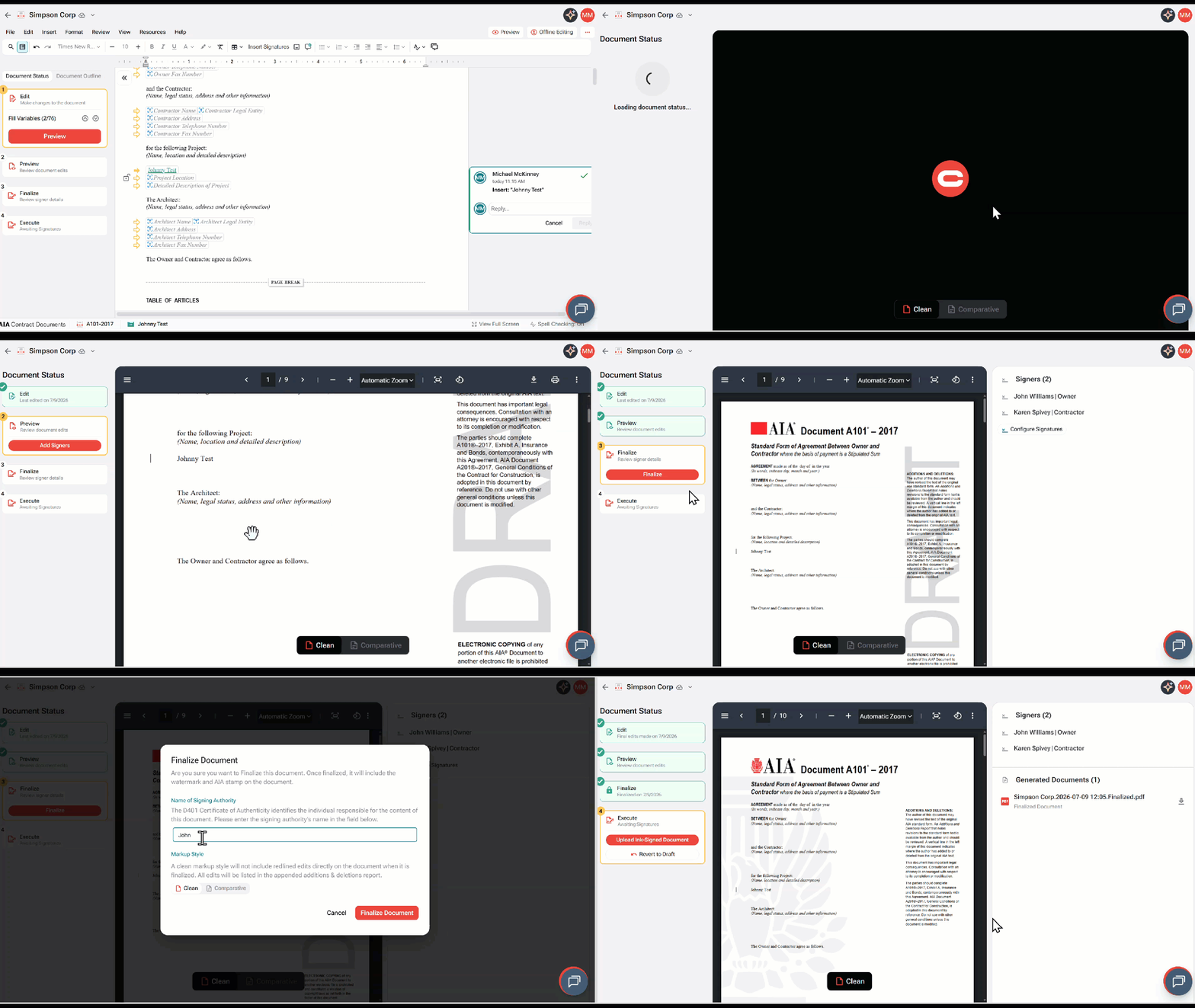
- Open your uploaded document and select preview to move to the Preview stage. (Please note, right now editing within the online editor is in read access only due to Catina being Under Construction)
- Review the DRAFT (acknowledge the pending tracked changes will be accepted)
- Select Add Signers (eSignature or Ink Signature) if signer details need to be added or updated.
- Select Continue
- Select Finalize.
- Enter the Signing Authority name if prompted (Not Required).
- Choose the finalization format: Clean or Comparative.
- Confirm the document is ready to finalize.
- Select Finalize Document.
After Finalization
After the document is finalized:
- The finalized PDF is available in the Generated Documents panel.
- You can download the final PDF.
- If using ink signatures, you can upload the signed copy back into Catina.
- If using DocuSign e-signature, signature status updates automatically after signers complete their actions.
FAQ
Q: What happens when I finalize a document?
A: Finalizing creates the official version of your document and moves it to the Execute stage. The finalized PDF is added to the Generated Documents panel and is ready for ink or electronic signatures.
Q: What is the difference between the Clean and Comparative formats?
A: Clean displays the accepted document without inline markup and includes an Additions and Deletions report at the end. Comparative displays a redlined version with changes shown inline throughout the document.
Q: Can I make changes after my document has been finalized?
A: If Revert to Draft is available for your document, you can return it to the Editor to make additional changes. Please note, right now the online editor is in read access only while Catina is under construction. All changes will need to be made in the offline word version of the document and imported back to follow the steps above. If all required electronic signatures have already been completed, the document can no longer be reverted to draft.