
Summary
After purchasing an One-Time Use Document, you can edit it using either the Catina Online Editor or Microsoft Word, then finalize the document to generate the official PDF.
Edit Your Document Online Using the Catina Online Editor
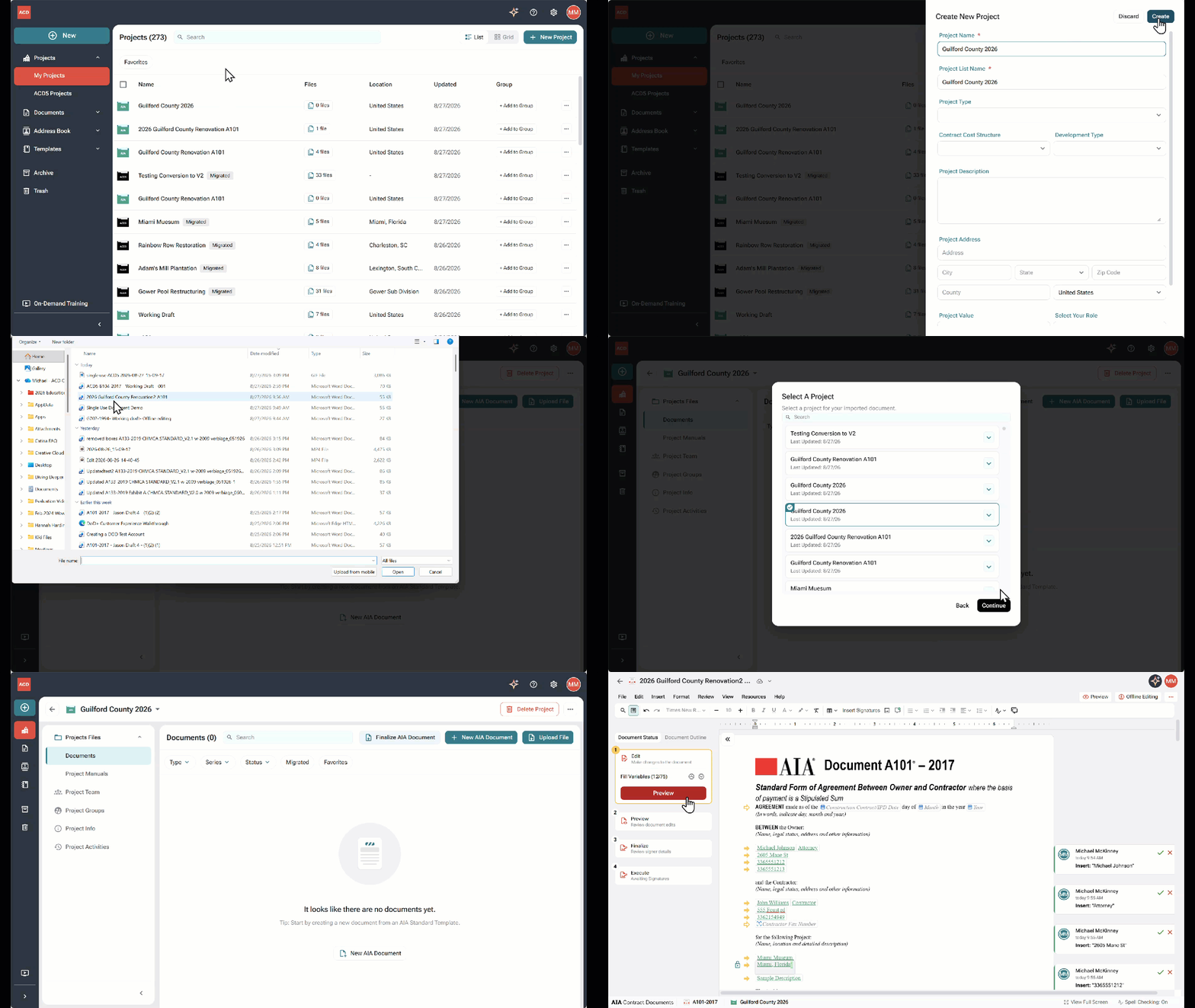
1. Sign in to Catina.
2. Open an existing project or create a new project: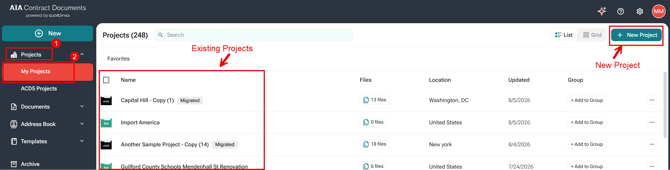
3. Select My Projects.
4. Click New Project
5. Enter the project details and select Create.
6. Select Finalize AIA Document.

7. Drag and Drop or Browse to and select the document you want to upload.
Troubleshooting tip: You may be asked to select which document type and name for which ACD5 document you are trying to import. If asked, select from the drop-down menu and click next.

8. Select a project for your imported document and click on Continue.
9. Enter a name for your document (Optional) and click Finish.
10. Wait while Catina processes the document.
11. The document will be in your project.
12. Make your changes using the online editor.
13. When your edits are complete, continue to the Review and Finalize process(Finalizing a Document in Catina Editor )
Edit Your Document Offline Using Microsoft Word
1. Open the downloaded Microsoft Word (.docx) file.
2. Make your edits and save the document.
3. Sign in to Catina.
4. Open an existing project or create a new project:
5. Select My Projects.
6. Click New Project.
7. Enter the project details and select Create.
8. Select Finalize AIA Document.

9. Browse to and select your edited Microsoft Word (.docx) file.

10. Drag and Drop or Browse to and select the document you want to upload.
11. Enter a name for your document (Optional) and click Finish
12. Configure any document variables as needed.
13. Select Finish.
14. Wait while Catina uploads and processes the document.
15. Review the document in the Catina Editor to verify your changes.
16. Continue to Review and Finalize.
Note: Each time you make additional changes in Microsoft Word, save the document and upload the updated .docx file to replace the previous version.
Finalize the Document
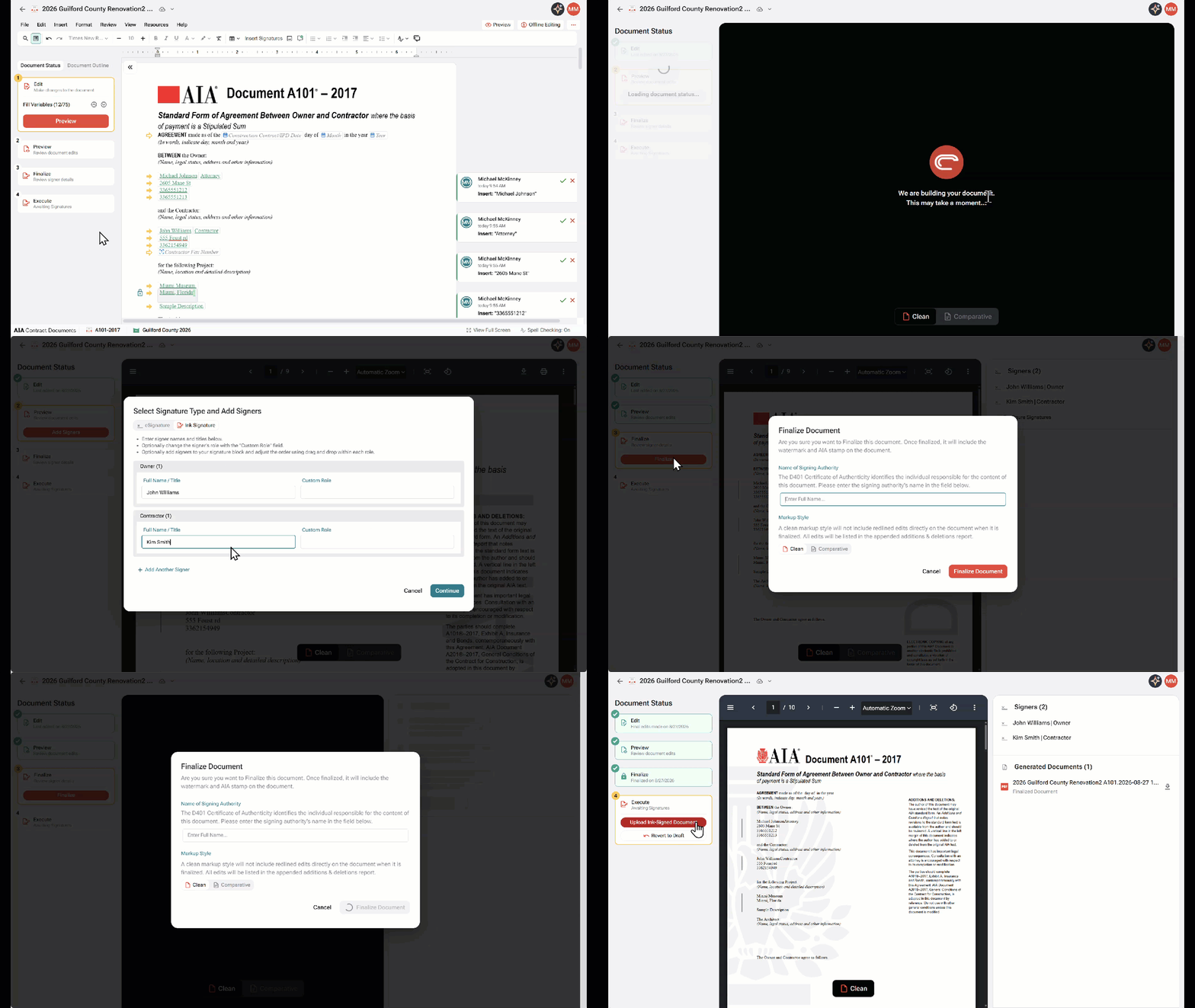
When you're ready to create the official document: ( Finalizing a Document in Catina Editor )
1. Open the document in Catina.
2. Select Preview to move to the Preview stage.
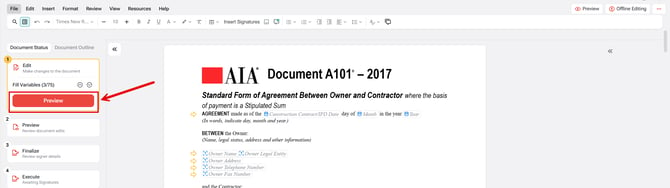
3. Review the draft document.
-
-
-
- If prompted, acknowledge that any pending tracked changes will be accepted during finalization.
-
-
4. Select Add Signers if signer information needs to be added or updated.

5. Choose Ink Signature or eSignature.
6. Select Continue.
7. Select Finalize.
8. If prompted, enter the Signing Authority name.
9. Choose the output format:
-
-
-
- Clean (no markup), or
- Comparative (shows tracked changes)
-
-
10. Confirm the document is ready.
11. Select Finalize Document.
12. After finalization:
-
-
- Ink Signature: Download the PDF, obtain signatures, and upload the signed copy back into Catina.
- Open the Generated Documents panel to download the finalized PDF.
-
What Happens During Finalization?
Finalizing the document:
- Removes the DRAFT watermark.
- Generates the official PDF version of the document.
- Stores a copy in Catina for future reference and download.
This process produces the completed, finalized version of your document.
Finalizing a Document in Catina Editor
Note: One-Time Use documents are licensed for one project only. After a document has been finalized, it cannot be legally reused for a different project.
How to finalize an ACD5 draft document
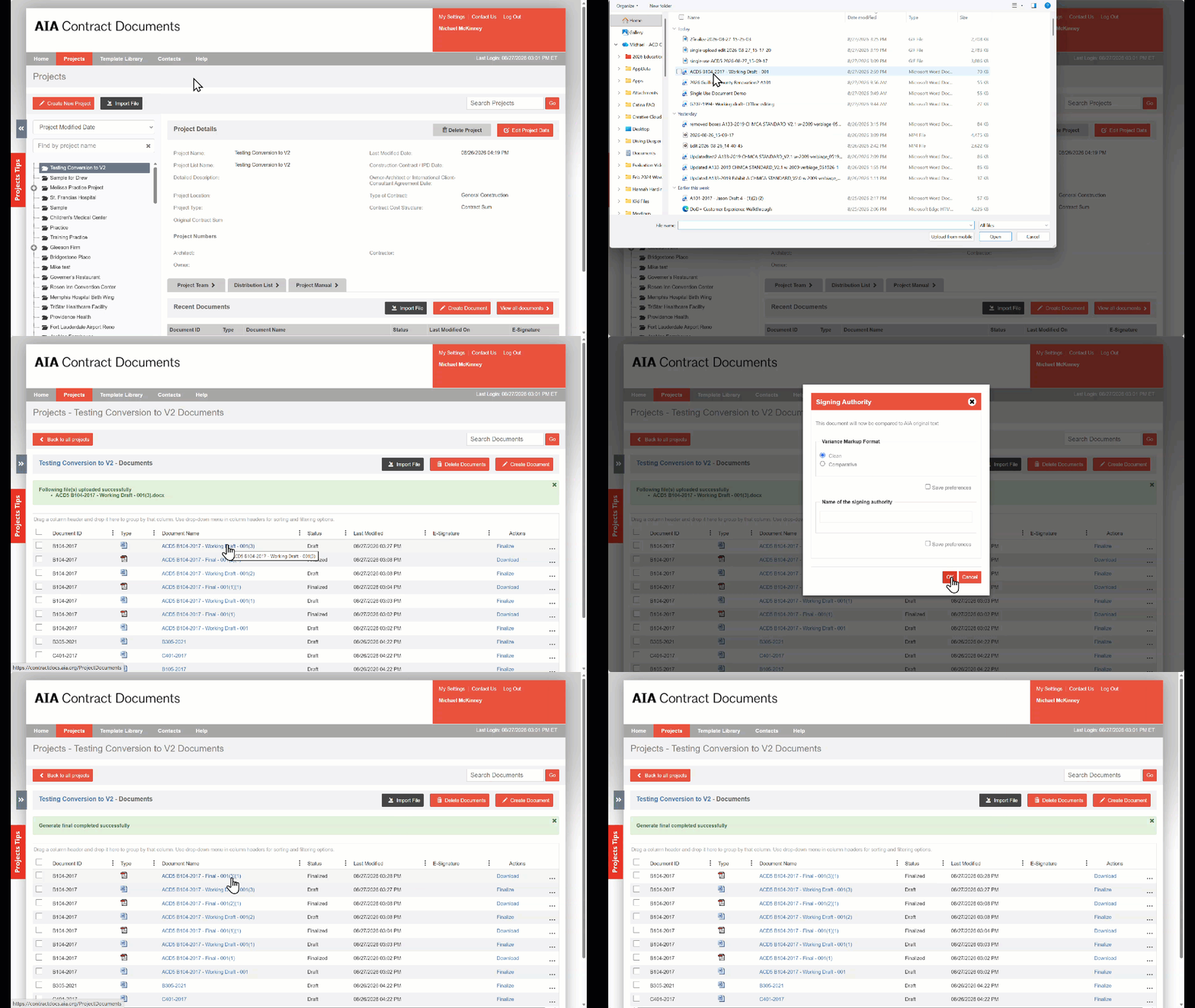
To finalize an offline draft from the Projects tab::
- Go to the Projects tab.
- Click Import File.
- Click Choose File(s).
- Select your AIA document draft(s) from your computer and click Import.
- Click Finalize to the right of the imported draft title.
- Select your preferred variance markup format and the name of the certification signatory, if applicable.
To finalize an offline draft from the Home tab:
- Go to the Home tab.
- In the Recent Activity section, click Import File.
- Select a project or click Create New Project and click Import.
- Click Choose File(s).
- Select your AIA document draft(s) from your computer and click Import.
- Click Finalize to the right of the imported draft title.
- Select your preferred variance markup format and the name of the certification signatory, if applicable.
FAQ
Q: Can I edit my One-Time Use document in Microsoft Word?
A: Yes. You can download the document as a Microsoft Word (.docx) file, make your edits in Word, and then upload the updated file back into Catina. After the upload is complete, review your changes in the Catina Editor and continue through the Review and Finalize process.
Q: What happens when I finalize my document?
A: Finalizing your document removes the DRAFT watermark, generates the official PDF, and stores a copy in Catina for future reference. After finalization:
- Ink Signature: Download the PDF, collect signatures, and upload the signed copy back into Catina.
- The finalized PDF is available for download from the Generated Documents panel.
Q: Can I reuse a One-Time Use document for another project?
A: No. One-Time Use documents are licensed for one project only. Once a document has been finalized, it cannot be legally reused for a different project. A new Single- Use license must be purchased for each new project