
Table of Contents
Using the Catina Editor Toolbar
Finalizing an Offline Document
Using the Catina Editor Toolbar
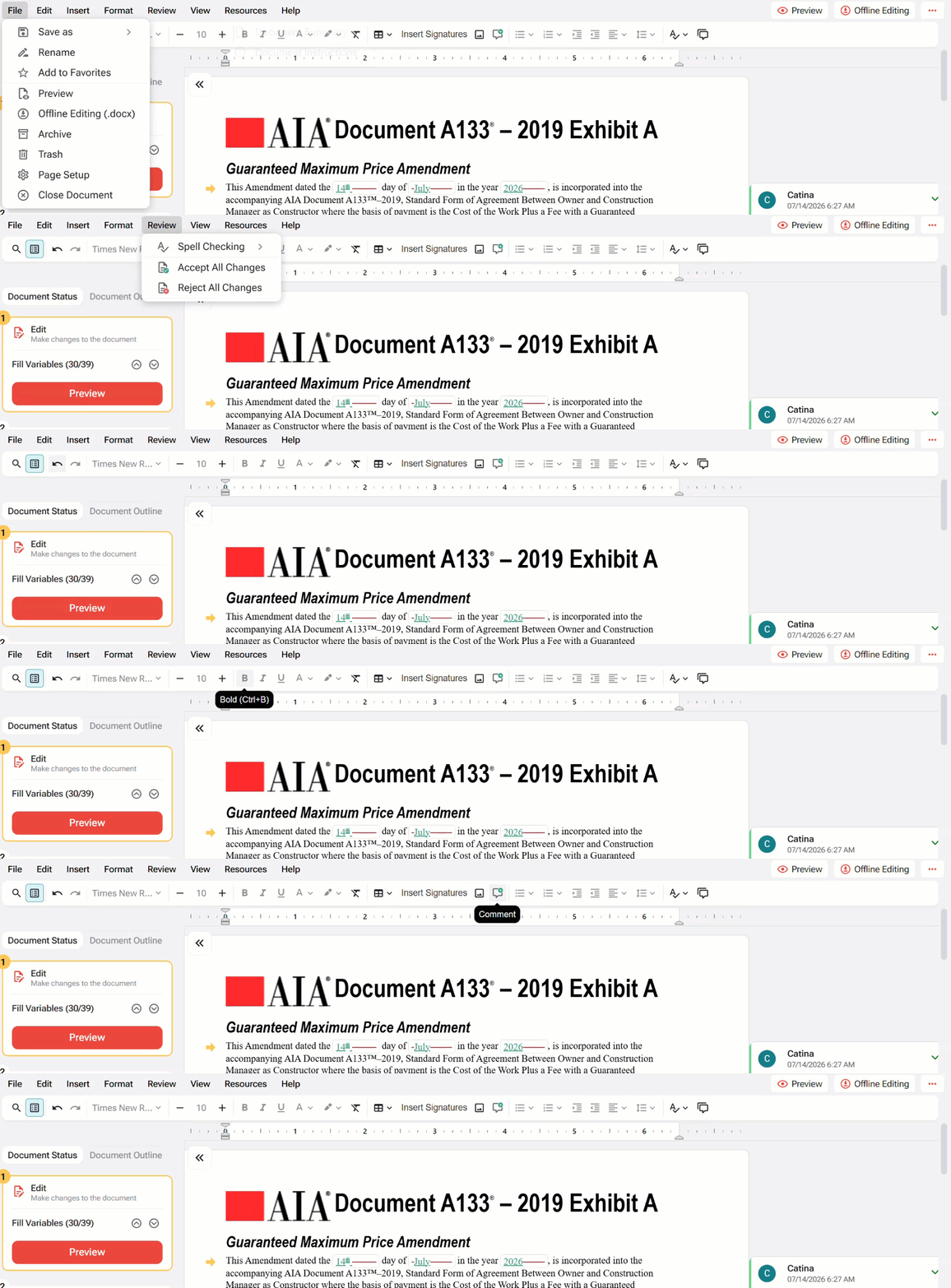
All editing tools are located in the top toolbar and are grouped by function.
- Use Text Formatting to apply bold, italic, underline, font size changes, and text color.
- Use Paragraph Formatting to create bulleted or numbered lists, adjust alignment, and control indentation or spacing.
- Use Insert Tools to add tables and images.
- Use Undo and Redo to move backward or forward through recent edits.
- Use the Document Outline in the left panel to jump to major sections or clauses.
Reviewing Tracked Changes
Tracked changes help you review edits and collaborate with others.
- Open your document in the Editor.
- Review additions, deletions, replacements, and formatting changes in the Comments and Changes panel.
- Use the color-coded underlines and strikethroughs to identify changes in the document. Additions will be represented with a green underline, deletions will be shown with a strike-through in red, any formatting changes will be with a green highlight, and yellow represents a comment.
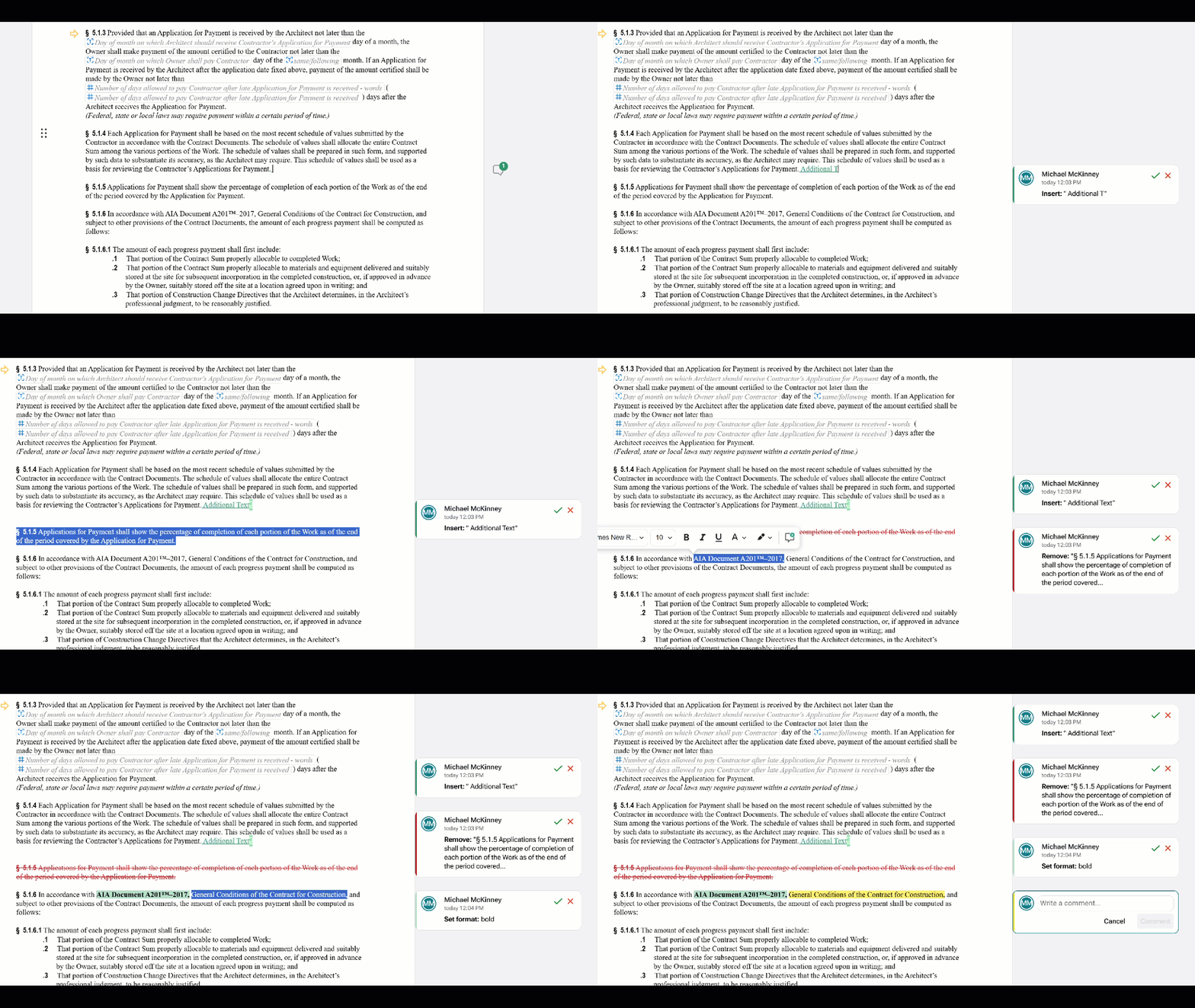
- Accept or reject changes individually, or navigate to the “review” menu to accept to reject all changes at once.
- Add, reply to, or resolve comments in the right margin.
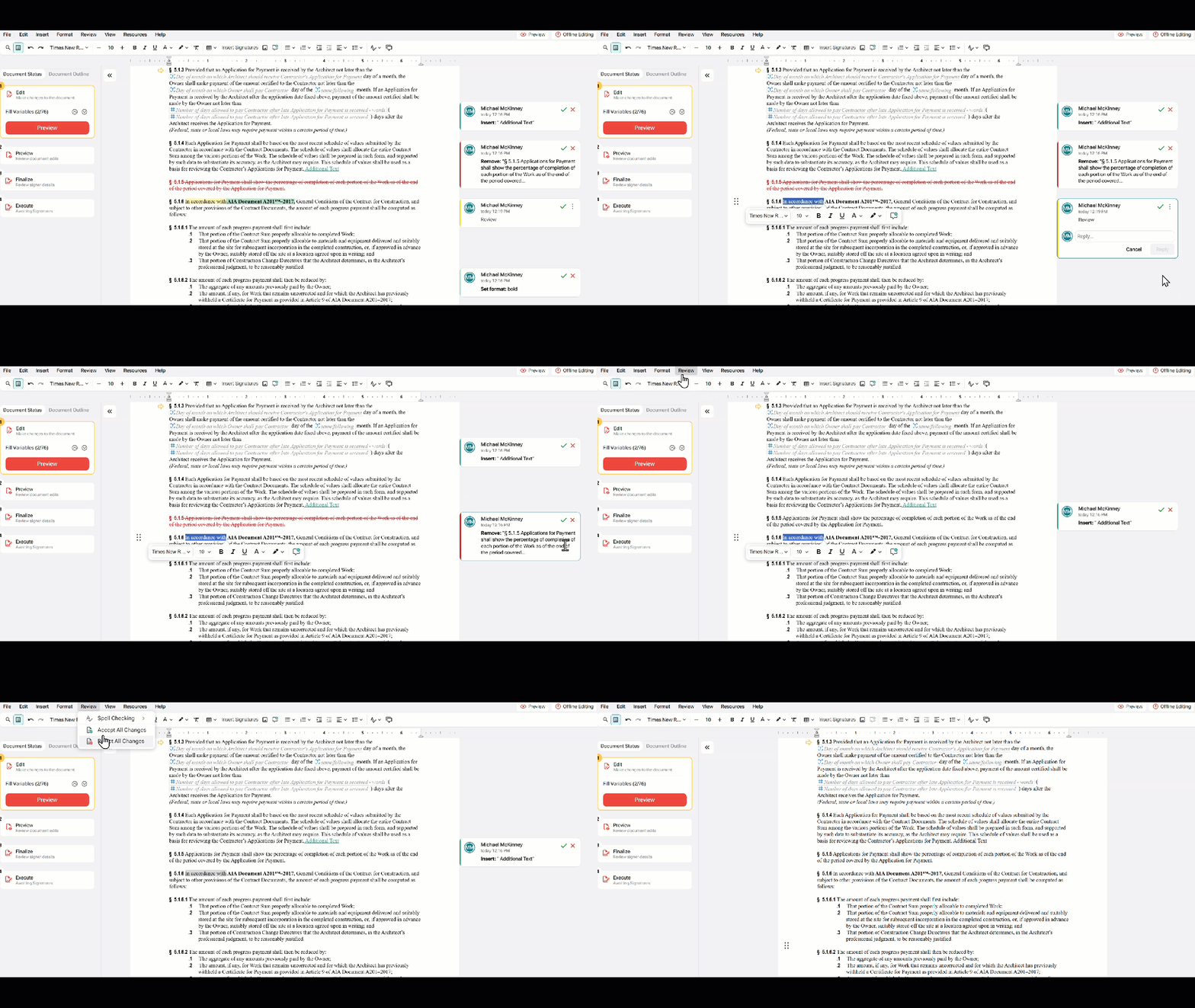
Important Note: Any tracked changes that are not rejected will be applied when you move forward in the document workflow.
Filling Variables
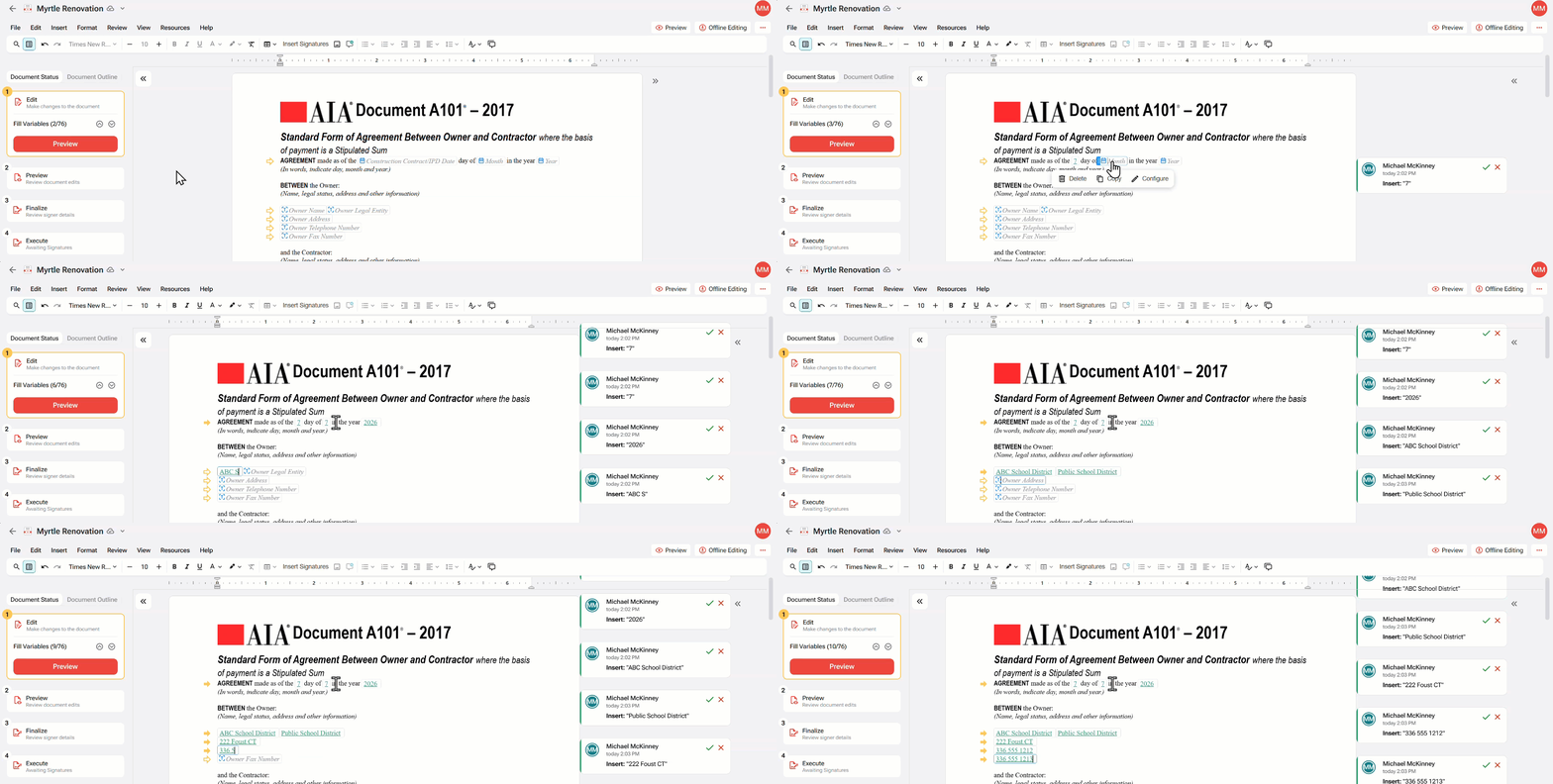
Variables help you complete required information before finalizing your agreement.
- Look for yellow arrows in the left margin to identify paragraphs with variables.
- Select a variable and enter the required information.
- Use the variable count in the left panel to see how many variables remain.
- Use the navigation arrows to move directly to the next unfilled variable or tab between variables manually in the document.
- Continue until all required variables are complete.
Configuring Signature Blocks
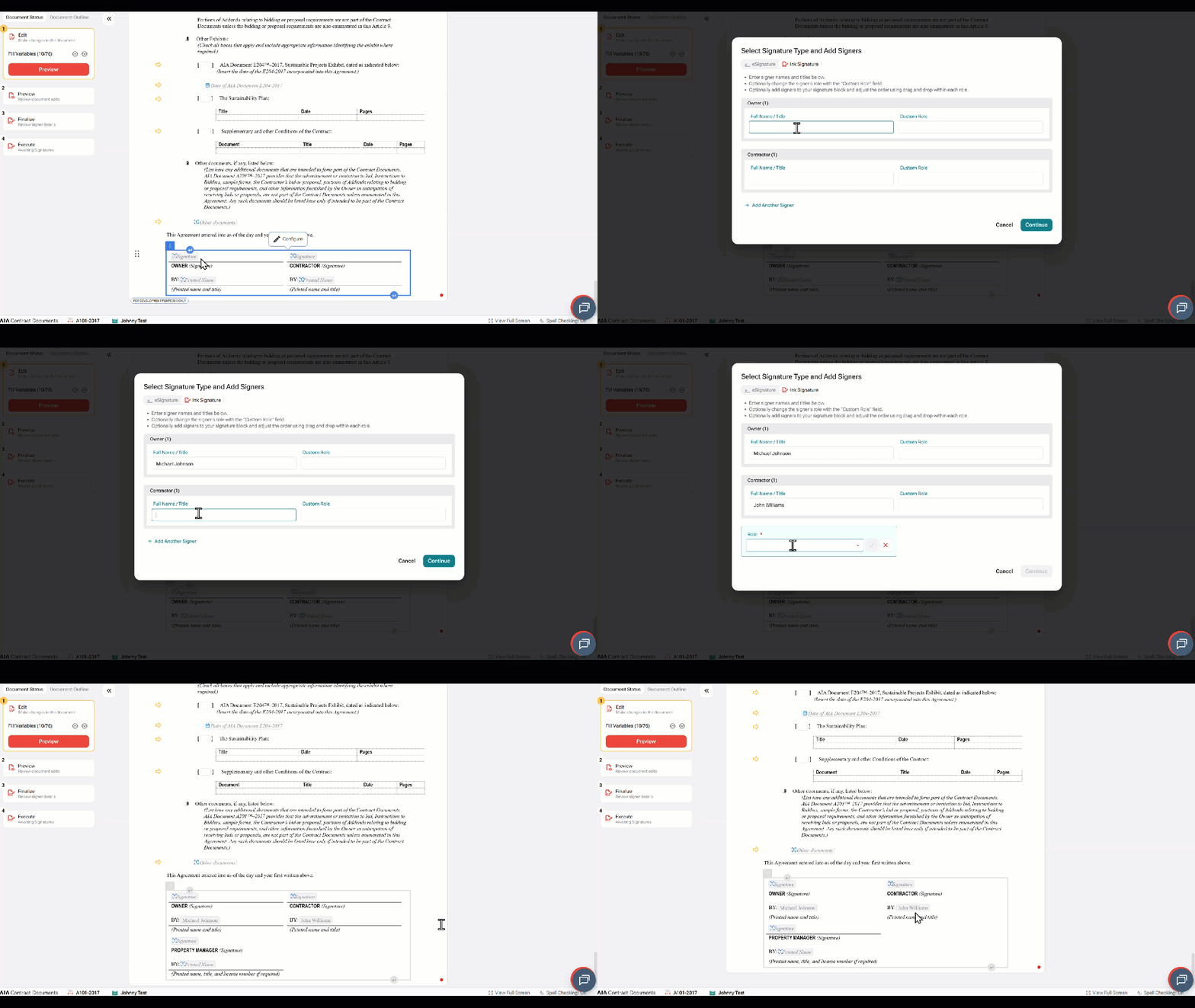
Signature blocks help prepare your document for execution.
- Click the Signature Block in the Editor.
- Select Configure.
- Enter signer details for each role.
- Add additional signers if needed.
- Apply a Custom Role if the default role name does not match the signer’s responsibility.
- You can now edit signer details directly in the draft or when previewing the PDF view of your document before finalization.
Important Note: E-signature requires an email address for each signer.
Previewing Your Document
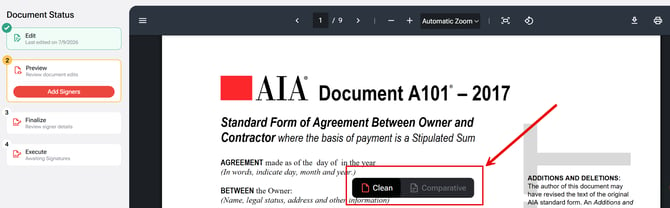
Use Preview to review a DRAFT-watermarked PDF before finalizing.
- Select Preview.
- Review the PDF to confirm edits, variables, and formatting appear correctly.
- Choose your markup view:
- Clean to show accepted edits with an Additions and Deletions report.
- Comparative to show additions and deletions inline.
- Add or confirm signer details before moving forward.
Finalizing Your Document
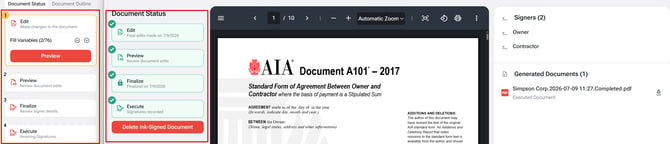
When your document is ready, finalize it to generate the official version.
- Review and edit signer information in the right panel.
- Select Finalize.
- Enter the Signing Authority name if prompted.
- Choose the final markup format:
- Clean
- Comparative
- Confirm finalization.
Executing Your Document
After finalization, your agreement moves to the Execute stage.
- Use ink signatures if you plan to manually sign and upload the completed agreement.
- Use DocuSign if you plan to complete e-signatures.
- Download the final PDF from the Generated Documents panel.
- Monitor the document’s signature status as all signers complete their actions.
Important Note: If a document was sent for e-signature, selecting Revert to Draft will void signatures that are still in progress. Once all signatures are complete, the document can no longer be reverted to draft.
Editing a Document Offline
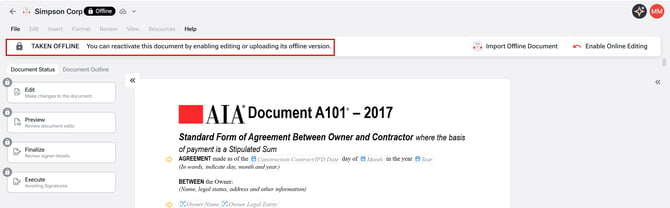
You can use Offline Editing if you need to edit your document in Microsoft Word.
- In the Editor, select Offline Editing from the top-right toolbar or File menu.
- Download the document.
- Edit the document in Microsoft Word.
- Upload the same edited .docx file back into Catina when ready. You can import the file directly into the document editor using the “Import Offline Document” button.
- Continue through Preview, Finalize, and Execute.
Pro Tip: Signature lines cannot be edited offline but are able to be fully customizable for ink or e-signature once you import back into Catina.
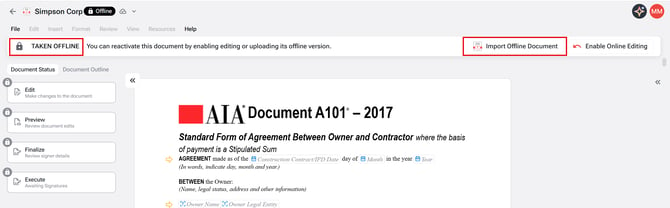
Important Note: While a document is offline, it is locked for online editing until you upload the edited file back into Catina or select Continue Edits Online.
Importing a Custom Template
You can save an offline-edited agreement as a Custom Template for reuse and online editing.
- From the main menu launch pad or Custom Templates tab, select Import Custom Template.
- Upload your .docx file.
- Select the correct AIA document type if Catina cannot identify it automatically.
- Enter a descriptive template name.
- Select Save.
- Find the template in the Custom Templates folder.
Important Note: The file must have been originally exported from Catina or ACD5.
You can also create a new custom template directly within the Catina platform. To learn more, check out our help guide Creating a Custom Template.
Finalizing an Offline Document (.DOCX)
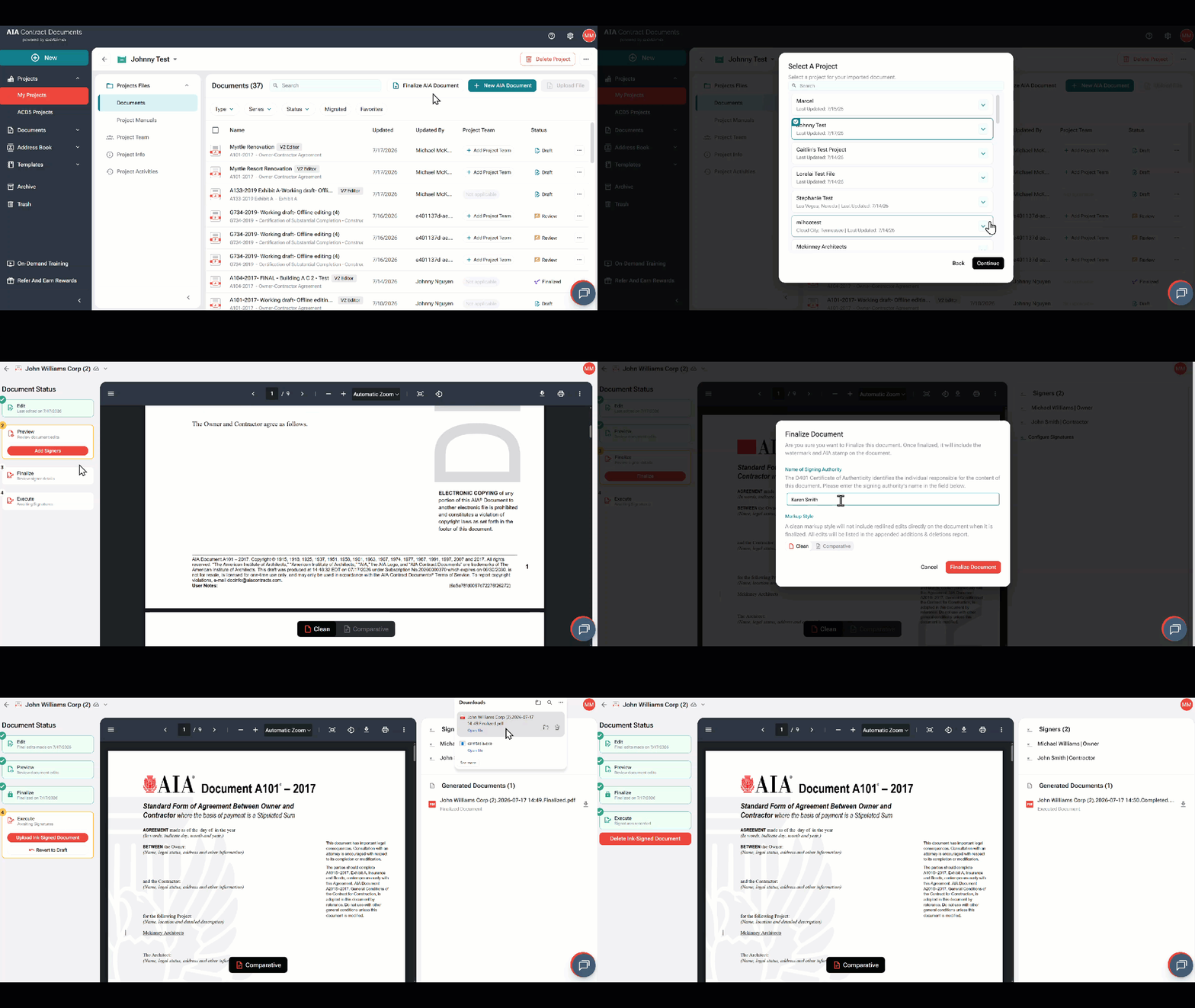
You can upload a completed offline .docx file and move directly to finalization.
- From the main menu launch pad or directly in your project, select Finalize AIA Document.
- Upload your .docx file.
- Select the correct AIA document type if prompted.
- Enter a document name and choose the Project folder.
- Review the DRAFT-watermarked PDF in Preview. If you need to make further edits, click on Edit in the status bar before moving forward with finalization.
- Select Add Signers to assign signers.
- Choose Clean or Comparative.
- Select Finalize.
- Continue to Execute.
Important Note: The .docx file must have been originally exported from Catina or ACD5.
FAQs
Q: What happens if I move to Preview with tracked changes still unresolved?
A: Catina will prompt you to confirm how the remaining tracked changes should be handled. Any changes that are not rejected will be applied.
Q: Can I return to editing after I finalize a document?
A: Yes. Select Revert to Draft to return to the Editor.
Important: Reverting to Draft cancels any e-signatures that are still in progress. Once all signatures are complete, the document can no longer be reverted.
Q: Why is my document locked after choosing Offline Editing?
A: The document is locked to prevent version conflicts. To continue working, upload the edited .docx file back into Catina or select Continue Edits Online.
Q: What is the difference between Clean and Comparative markup?
A: Clean shows accepted edits and includes an Additions and Deletions report. Comparative displays inline markup throughout the document.
Q: Why do I see yellow arrows next to some paragraphs?
A: Yellow arrows indicate paragraphs that contain variables that may need your attention.
Q: Can I configure signers before finalizing?
A: Yes. You can configure signers in the Editor by selecting the signature block or during Preview before finalization.
Q: Can I finalize a document edited outside Catina?
A: Yes, as long as the document was originally exported from Catina or ACD5.
Q: How do I remove the draft watermark from my document?
A: Finalizing the document removes the draft watermark.
If you are editing online, select Finalize from the document Editor status bar. If you are working offline, select the teal +New button, choose Import Offline AIA Document, and follow the steps to configure signatures and finalize the document.
Q: Will Catina’s New Editor features apply to G-Series forms and other form documents?
A: Currently, the New Editor is available for agreements across the A, B, C, E, and F series. The Product team is working to extend the New Editor experience to additional document types, including forms.
Q: Has the large file-size issue for finalized PDFs been addressed?
A: Yes. The file-conversion process has greatly reduced the file size of finalized PDFs downloaded from Catina, making them easier to share. A document may still be larger if it includes many images or renderings.
Q: Can I view formatting marks or hidden characters, or use a format painter in the online editor?
A: The online editor does not currently include these advanced formatting tools. You can use them when editing offline in Microsoft Word.
Q: Does the editor automatically number articles and paragraphs?
A: No. The editor does not currently support automatic numbering for articles or paragraphs. The Product and Development team is evaluating this request for a future release. Regarding when AIA clauses are added or removed, we retain the original contract numbering because these industry-standard clauses are commonly referenced by number.
Q: Can I add page breaks?
A: Yes. You can add page breaks in the online editor or apply them while editing offline. The page breaks will be reflected in both versions.
Q: Are Microsoft Word comments supported when I upload an offline document?
A: No, comments added in Microsoft Word are removed when the offline document is imported into the online service and will not appear in the finalized document.
Q: Do online comment threads appear in the offline document?
A: No. Online comment threads do not appear in the offline document. Unaccepted changes will appear offline. Please note, comments added to the offline version will not be included when you import the document back into Catina.
Q: How can I keep track changes enabled when an offline draft is shared through Microsoft OneDrive?
A: After you open a document offline in Microsoft Word, Microsoft's settings control its behavior. Use Word's sharing and review settings to place collaborators in Review mode and require tracked changes while they work offline.
Q: Have the formatting issues seen in the original editor been resolved?
A: Yes. We rebuilt the new editor’s underlying infrastructure to address formatting and spacing issues in the legacy editor. This was a top priority during the redesign. We also removed hidden spacing elements that caused inconsistencies, helping documents maintain consistent formatting.