
Welcome to Catina, our next-generation platform designed to make your work faster, easier, and more intuitive. This guide explains how to log in, what to expect, and how to move your ACD5 projects and custom templates into Catina.
We are updating the transition schedule for customers moving from ACD5 to Catina.
To ensure customers have ample time to prepare and take advantage of upcoming migration guidance, we have extended the ACD5 cutoff date. As a result, no action is required at this time, and we ask that you wait before migrating your data.
We will provide additional details, including an updated migration timeline and next steps, in an upcoming communication.
Thank you for your continued partnership as we progress toward the next phase of the Catina experience.
Summary of What This Guide Covers
How to Log in to Catina
To log in to Catina, go to catina.aiacontracts.com and use your existing username and password.
Be sure to bookmark the link for easy access later!
Actions You Need to Take
1. Migrate some or all of your ACD5 Projects
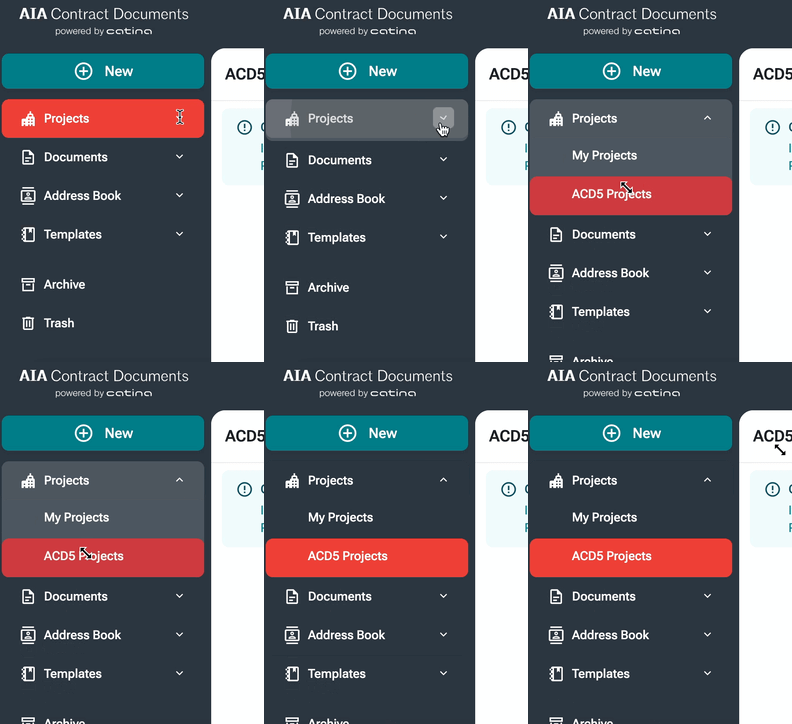
Any projects that were created in ACD5 will not be automatically migrated into your Catina ‘My Projects' folder. To migrate them, you will need to click on ‘Projects’ and then ‘ACD5 Projects’:
Once there, you can choose to migrate all of your projects at once by clicking on the ‘Migrate All’ button:
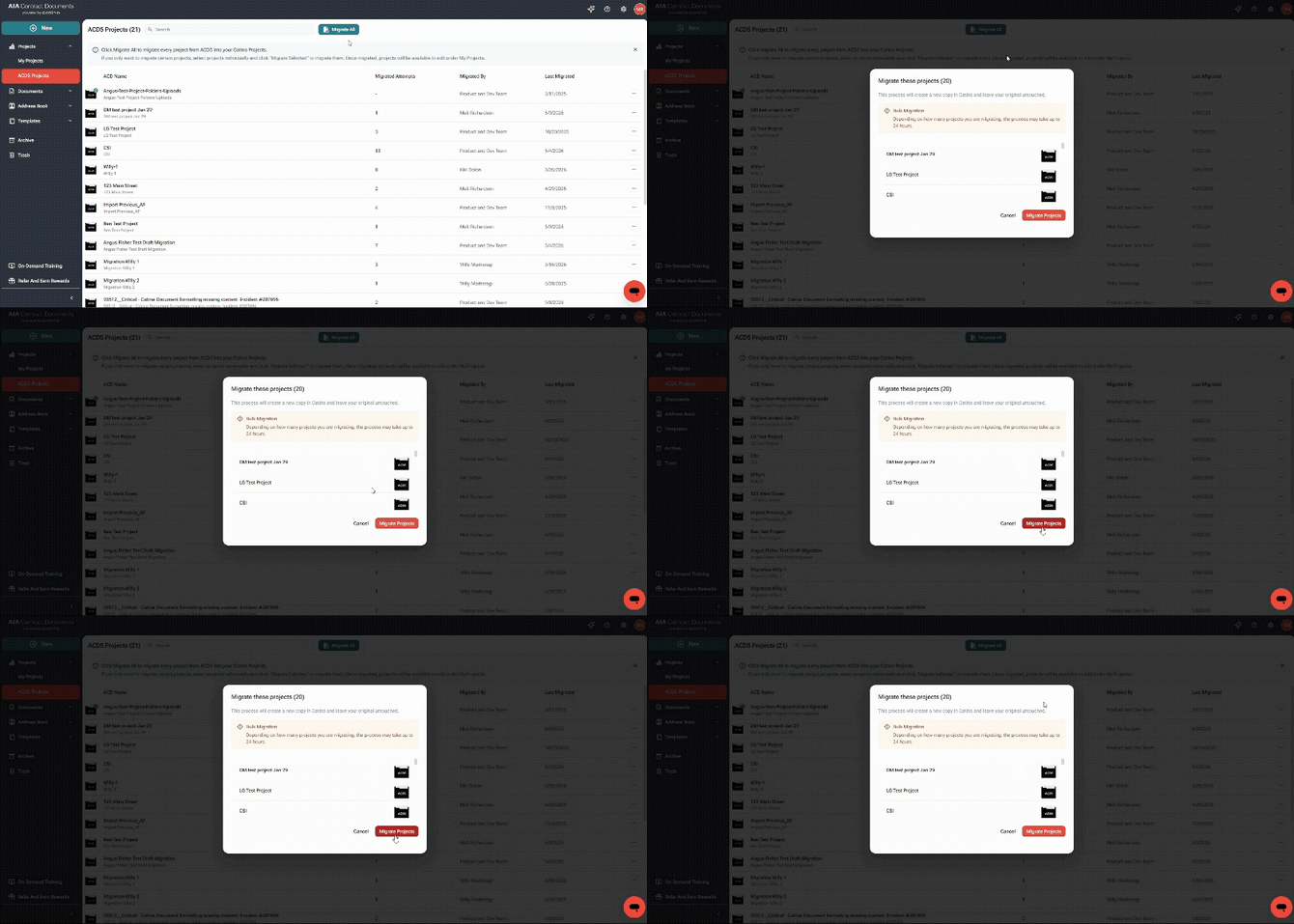
A green pop-up will confirm when the migration is complete. Note, projects may take up to 24 hours to appear under 'My Projects’. You can keep working or leave Catina while the migration runs.

If you don’t want to migrate all of your projects, you can select individual projects to migrate instead and then click ‘Migrate Selected’:
.gif?width=670&height=320&name=Convert%20to%20GIF%20project%20-%20June%2025%2c%202026%20at%2021.02.39%20(2).gif)
Pro Tip: Looking for a specific project? You can use the search bar to narrow down the list.
.gif?width=558&height=224&name=Convert%20to%20GIF%20project%20-%20June%2025%2c%202026%20at%2021.21.41%20(1).gif)
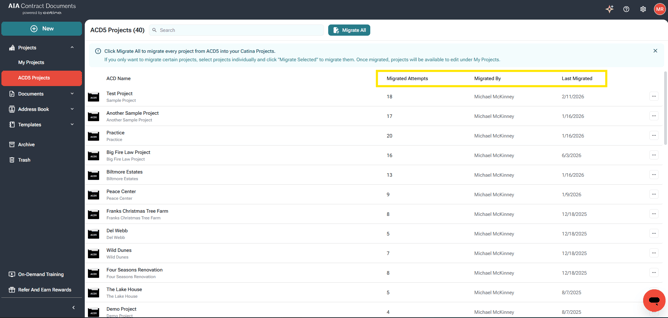
After migration, the table will show each migration attempt, who completed it, and the last migration date.
2. Migrate some or all of your ACD5 Custom Templates
Any custom templates that were created in ACD5 will not be automatically migrated into your Catina ‘Templates’ folder. To migrate them, you will need to click on ‘Templates’ and then ‘ACD5 Custom Templates’.
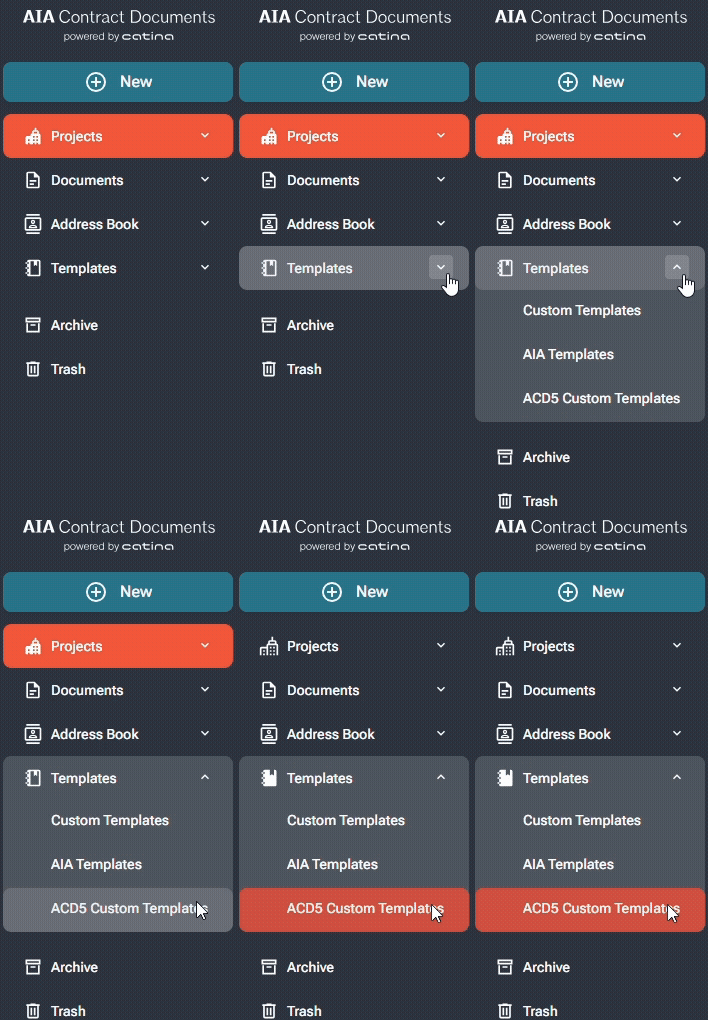
From there, you can select one or many templates to migrate. After doing so, click the ‘Migrate’ button.
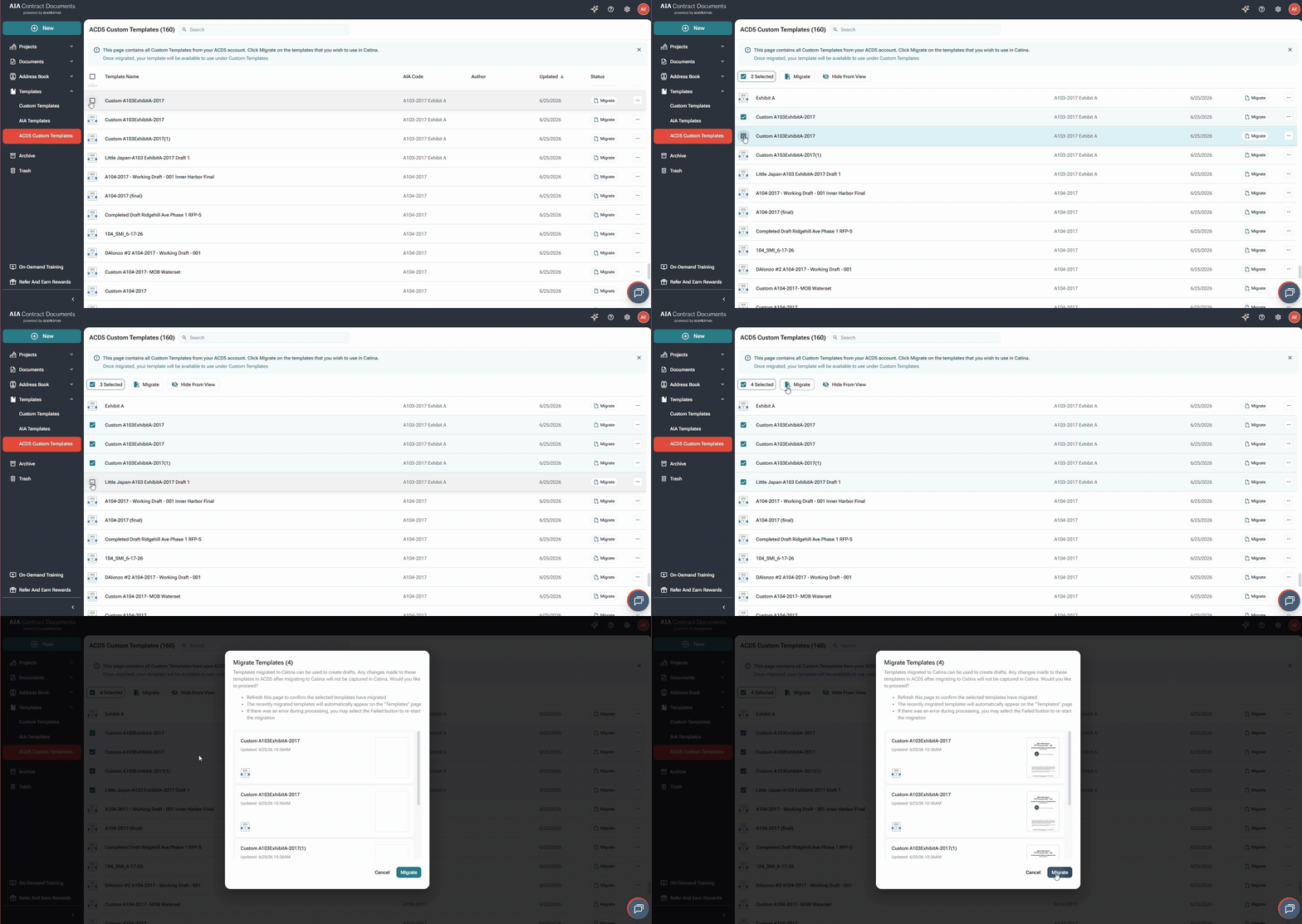
Use the status bar to monitor progress. A green pop-up will confirm when migration is complete. Note, it may take up to 24 hours for the migration to complete.
Pro Tip: You can keep working or leave Catina while migration runs.
Once complete, the template will move from ‘ACD5 Custom Templates’ to ‘Custom Templates’, ready to use or edit.
What We've Already Done For You
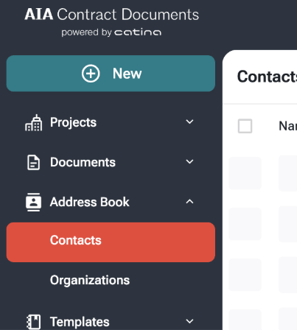
- Your ACD5 Contacts & Organizations have already been migrated for you. You can find them under ‘Address Book’ in Catina.
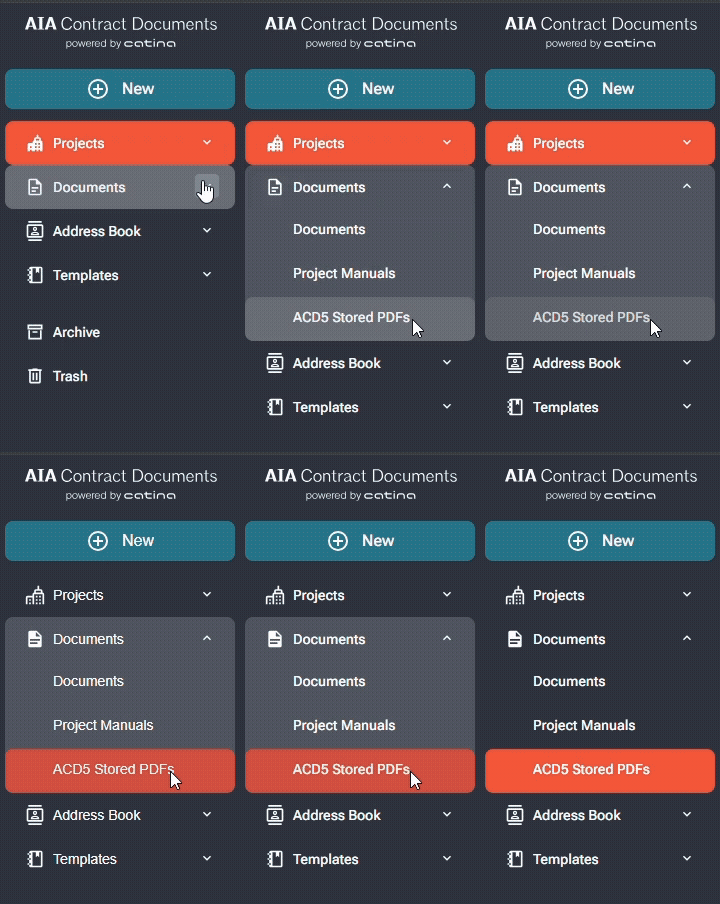
- Your finalized ACD5 documents, including project details have already
FAQ's
When should I migrate my projects?
You can begin migrating whenever you feel ready, but we highly recommend waiting until you hit a good stopping point in ACD5 to migrate that project over. This reduces the chance of missing data or having duplicate projects.
I started working in Catina but I didn’t migrate my ACD5 data. Is it too late?It is not to late to migrate! You can use the steps above to migrate any previous ACD5 projects or custom templates. Once you hit your migrate date, you will have 90 days of read access to ACD5 allowing you to finish up any migration within Catina or download any data you need.
I started the migration process but never finished. How to I start back up?We have improved the migration process by adding migration data after each attempt to easily identify what has been migrated and when. When you visit the ACD5 Projects folder under the Projects tab, you can quickly see how many times you have migrated a project, who was the last attempt by, and what date.
If you want to start back up the migration process, select each project that does not have a migration attempt or any you would like to bring over, then click Migrate Selected. You can also use the Migrate All button at the top to trigger a migration of every ACD5 project, however it is important to note this will cause duplicates of any previously migrated projects. To remove duplicates, you can navigate to the my projects tab and select any project you would like to delete or archive.
I migrated a project from ACD5, but I continued working on that project within ACD5. What do I do?If you have a project you already migrated, but continued working within ACD5, there are two options.1) you can keep the old Catina project and just migrate over a duplicated version. 2) You can delete the Catina project and migrate over the latest version from your ACD5 Projects folder.
Do I have to migrate everything at once?No. Migration is not all-or-nothing. You can choose which projects to migrate and when. Many customers migrate gradually based on workload and deadlines.
I logged into Catina, but nothing migrated. What happened?Projects do not migrate automatically. “Migrated Projects” is a list of eligible projects, not completed migrations.
To migrate:
- Go to Projects → ACD5 Projects
- Select up to five projects
- Click Migrate Selected
Nothing is lost—your access remains intact.
Do I have to migrate old or archived projects?No. Many customers choose to start fresh in Catina and leave older projects in ACD5.