
Summary
In ACD5, users had the option to generate both Clean Finals and Comparative Finals. Currently, Comparative Final is not available in Catina, so if you need to produce one, it must be done through ACD5 (if access is still available).
Comparative Final
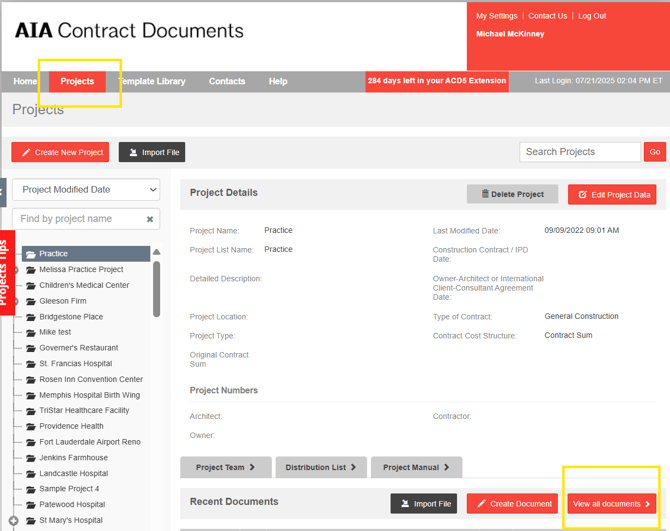
1. From ACD5 Select the Project and Select view all documents
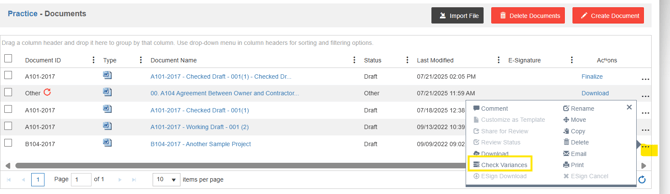
2. Click on the 3 dots and select Check Variance
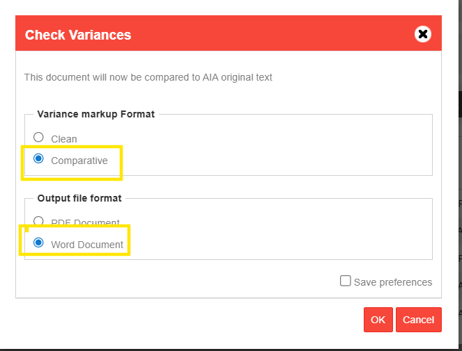
3. In the Pop Up select Comparative and Select Word Document
4. Show the Specific Changes in Word:
5. Select OK to download the file
6. Open the Comparative Final document in Microsoft Word.
7. Go to the “Review” tab in the ribbon.
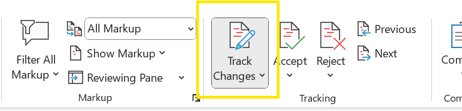
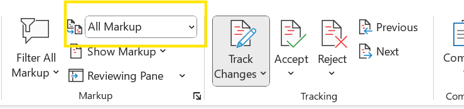
8. In the Tracking group, make sure: Track Changes is turned on.
9. Set Display for Review to “All Markup” (not “Simple Markup”).
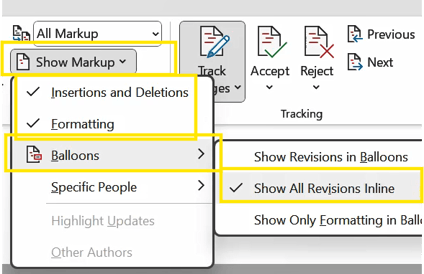
10. In the Show Markup dropdown:
Ensure Insertions and Deletions, Formatting, and Show all revisions inline are all checked.
FAQ's
Q1: What is a Comparative Final?
A Comparative Final is a finalized document that shows tracked changes (redlines) compared to a previous version. It's commonly used to highlight what has changed during a review or negotiation process.
Q2: Can I create a Comparative Final in Catina?
No. Catina currently does not support the Comparative Final feature. You will need to use ACD5 to generate one if you still have access.
Q3: Will Catina support Comparative Final in the future?
This feature is not currently available in Catina. We recommend using ACD5 for Comparative Finals while access is still available.