
Summary
Learn How to Check Variances and Between two offline Word Documents using Microsoft Word’s “Compare” feature. This allows you to view differences in content, formatting, insertions, and deletions in a side-by-side layout. Catina does not have a built-in variance check, but you can use Microsoft Word’s “Compare” feature to identify differences between a Catina draft and an offline Word document. This method displays insertions, deletions, and formatting changes in a clear, side-by-side view.
How to Check Variances Between a Catina Document and an Offline Document
- Use Microsoft Word’s “Compare” Feature If both documents are in Word (.docx) f
2. Download the Catina document (if it's in draft mode, export it as Word).
3. Open Microsoft Word.
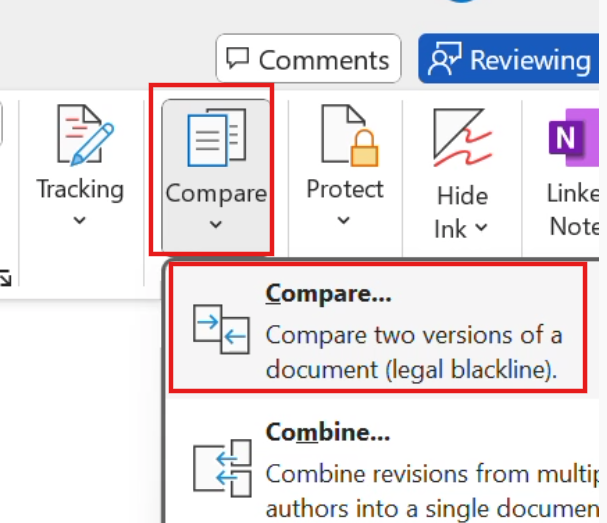
4. Go to the Review tab.
5. Click Compare > Compare…
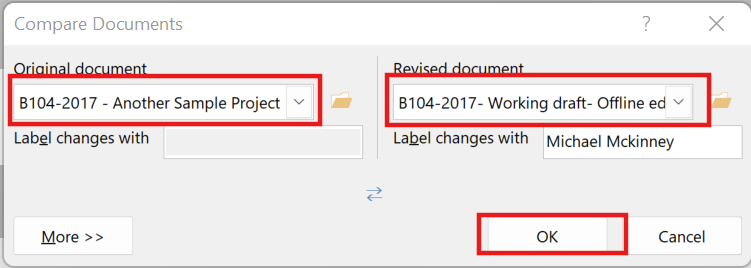
6. Upload:
- Original document = the version from Catina
- Revised document = your offline version Word will generate a side-by-side comparison showing insertions, deletions, and formatting changes.
7. Select Yes

8. Compared Results
What You Can Do with the Results
Review each change one-by-one using the Review tab > Next / Previous Change buttons.
-
Accept or Reject Changes using:
Review tab > Accept or Reject to keep or remove changes.
You can also right-click a change to accept/reject it quickly.
Save the Comparison Result as a separate document if you need to share it or keep a record.
Copy/paste individual changes into your Catina document if needed, since Catina doesn’t accept redlines directly.
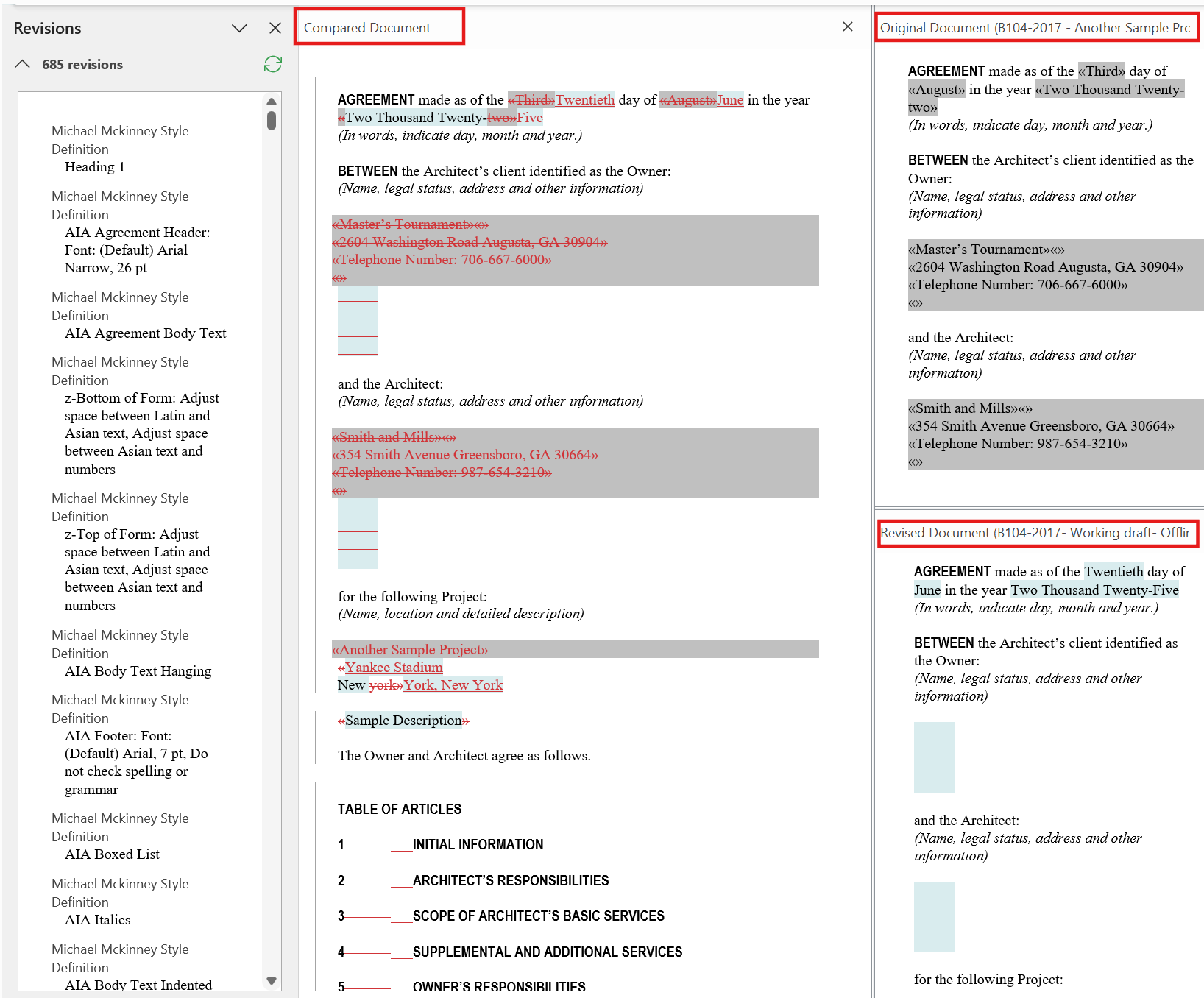
Understanding & Using the Comparison Results in Word
Left Panel – Revisions Pane (if visible):
This shows a list of all the tracked changes (insertions, deletions, formatting) in summary form. You can scroll through to quickly see what was changed.-
Center Panel – Compared Document:
This is the key working document. It shows the original with tracked changes (redlines). You’ll see:Insertions: Underlined and in a different color (usually red or blue).
Deletions: Shown with strikethrough.
Formatting Changes: Marked in the margin or in the Revisions Pane.
Right Panel – Original & Revised Docs (Optional):
These show side-by-side views of the original and revised files. Use these if you need to visually compare layout or content in full.
NOTE: With online documents, you can leverage the preview feature to generate a full markup version or use the compare feature to view different iterations
Frequently Asked Questions
Q: Can I compare a final Catina document using Word's Compare feature?
A: No, you must first revert the document to draft and export it as a Word file. Only Word documents can be used in the comparison process.
Q: Will Word show formatting differences in the comparison?
A: Yes, Word will highlight formatting changes along with insertions and deletions. You can customize which changes are shown in the comparison settings.
Q: What if my Catina document is a PDF?
A: Word’s Compare feature only works with .docx files. You’ll need to export the Catina document as a Word file first.
Q: Can I upload the comparison results back into Catina?
A: No, the comparison is for review purposes only. Any changes you'd like to include must be manually updated in Catina.
Q: Does Catina have its own comparison tool?
A: Not currently. For now, Microsoft Word's Compare feature is the recommended workaround for checking variances.